
A colleague on an iPhone needs a 900 MB video from your Android phone, your laptop is a Windows machine, and none of you are on the same Wi-Fi. A send anywhere cross platform file transfer guide exists for exactly this gap between ecosystems and networks: Send Anywhere replaces discovery and pairing with a six-digit key. The sender picks files, reads out a key, the receiver types it in — on any combination of Windows, Android, iOS, Mac, or a web browser — and the file moves. No shared network, no same-brand requirement, and no account needed for a basic transfer.
That key model is the whole product. Understanding where the file travels, how long the key lives, and when a local tool would serve you better is what separates using it well from using it hopefully. This guide covers the workflow on each platform and the direct versus relay distinction that affects speed and privacy.
How the six-digit key transfer works
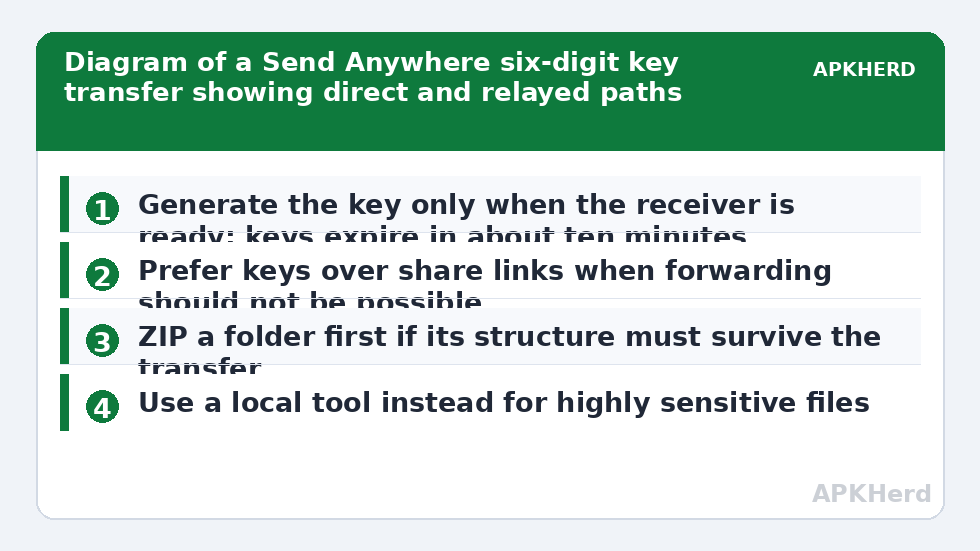
Open Send Anywhere on the sending device, choose Send, and pick your files or photos. The app shows a six-digit key and a QR code, valid for a short window — typically ten minutes for the standard key-based transfer. On the receiving device, choose Receive, enter the key (or scan the QR code, which simply carries the same key), and the download begins. Keys are single-purpose: a completed or expired key does not open a standing door to your device, and a fresh transfer generates a fresh key.
Two paths can carry the file after the key is accepted, and they are not equivalent. If both devices can reach each other directly, Send Anywhere prefers a direct connection, which is fast and keeps the traffic between the two devices. If network conditions block a direct path — different networks, restrictive firewalls, mobile connections — the transfer relays through Send Anywhere’s servers. A relayed transfer is limited by internet speeds at both ends and means your file passes through a third party’s infrastructure in encrypted transit. For an ordinary work video that is an acceptable, widely used arrangement; for highly sensitive material, prefer a local method on your own network, where no relay is involved at all.
send anywhere cross platform file transfer guide: step by step on each platform
Sending from Android or iPhone
The phone apps are the most complete. From the Send tab you can pick photos, videos, files, and even installed apps on Android, adjust whether photos go as originals, and share the resulting key however suits the moment — read it aloud, message it, or show the QR code to a phone in the same room. Watch the key’s countdown: if the receiver is slow to get ready, let it expire and generate a new one rather than rushing them through security prompts on their device.
Receiving on Windows (and sending back)
On Windows you have two choices: the desktop app, or the Send Anywhere website in a browser with nothing installed. The browser route is ideal for a machine you do not administer — open the site, enter the key, download. For regular use the desktop app is better: it holds the receive location steady, handles large files more gracefully than a browser tab, and lets the PC send with the same key flow. Either way, note the download folder before a large receive, not after, and confirm the drive holding it has room.
Links for people who are not ready now
When the receiver cannot take the file within the key’s short window, Send Anywhere offers share links that hold the file for a longer, set period. Treat links as a different privacy decision from keys: a link can be forwarded, and anyone holding it during its lifetime may be able to download the file. Use links when forwarding is the point — a document for a group — and use keys when it is not. Set the shortest expiry you can, and delete the share from your history afterwards if the app lists it as still active.
Speed, size, and cost: realistic expectations
Direct transfers between two devices on fast connections can move at local-network-like speeds, while relayed transfers inherit the slower of the two internet connections — usually the sender’s upload speed, which on home broadband and mobile data is a fraction of the advertised download speed. As a typical reported expectation, a 1 GB file on a relayed home connection commonly takes several minutes to tens of minutes, and on a congested mobile connection, longer. Anyone promising you a fixed number for an internet relay is guessing about your connection, not describing the app.
The free tier covers ordinary key-based transfers generously, with size and feature limits that change over time and are stated in the app — check them there rather than trusting any guide’s snapshot, including this one. Paid tiers historically add larger link sizes, longer link retention, and management features. For occasional cross-platform sends, most people never need them; for daily large-file work with clients, compare the subscription honestly against simply using a local tool at each end plus the cloud storage you already pay for.
Privacy and safety, without the gloss
Send Anywhere encrypts transfers in transit, and the key system means you are not leaving your device discoverable to everyone nearby — a genuine advantage over nearby-sharing modes left on Everyone. The trade-offs to state plainly are the relay and the link. A relayed file transits the provider’s servers, so you are trusting their handling during that transit; an expired link removes the file from availability, but while it lives, possession of the link is effectively permission. None of this makes the service unsafe for normal use. It makes it the wrong tool for the small set of files you would not post through any intermediary, and for those, our advice is consistent: use a local transfer on your own network, as in the LocalSend Android to PC method, or compare the built-in systems in Quick Share versus AirDrop when both devices share an ecosystem.
Two habits cover most real-world risk. First, confirm the receiver is ready and read the key back before sending anything sensitive. Second, tidy up: cancel links you no longer need, especially from a shared or work device. The rest of our file sharing guides covers the cases Send Anywhere does not — fully offline transfers, folder trees that must survive intact, and PC shared folders.
When Send Anywhere is the wrong tool
- Both devices are on your home network and the file is huge: a local tool avoids the internet entirely and will usually finish sooner.
- You need a folder tree preserved exactly: archive it as a single ZIP first, then send the archive — the method detailed in our folder guide — rather than selecting many files.
- The file must never transit a third party: choose a direct local method where no relay path exists.
- The receiver has almost no storage or data allowance: a relayed download consumes both, so agree the size before you send.
None of these are flaws; they are the edges of a tool designed for reach — any platform, any network, one short key — rather than for maximum local speed or archival structure.
Troubleshooting the failures people actually hit
An expired key is the most common failure and the least serious: generate a new one with the receiver ready. A repeatedly rejected key usually means a mistyped digit — read it fresh from the sender’s screen. A transfer that crawls is almost always the relay path meeting a slow upload connection; if both devices can join the same Wi-Fi, cancel and use a local tool instead. If a work or school network blocks the connection, move the transfer to a home network or mobile connection rather than trying to work around an employer’s controls.
Frequently Asked Questions
Does Send Anywhere need both devices on the same Wi-Fi?
No. The six-digit key works across different networks and over the internet, which is its main advantage over nearby-only tools. If a direct connection is not possible, the transfer relays through Send Anywhere’s servers.
How long does a Send Anywhere key last?
A standard key is valid for a short window, typically ten minutes, and is used for that one transfer. If it expires before the receiver is ready, generate a fresh key — there is no penalty for doing so.
Is Send Anywhere free for large files?
Basic key-based transfers are free, with size and feature limits set in the app that can change over time. Check the current limits in the app before relying on it for a very large file, and consider a local tool for multi-gigabyte sends.
Is it private to send files through Send Anywhere?
Transfers are encrypted in transit and keys are short-lived and single-purpose. A relayed transfer still passes through the provider’s servers, and share links can be forwarded, so use a local on-network method for material you would not trust to any intermediary.
Can the receiver use just a web browser?
Yes. The receiver can open the Send Anywhere website, enter the six-digit key, and download without installing anything. The desktop or phone app is more comfortable for large files and repeat use.