
Neo Backup — the actively developed fork of OAndBackupX — is what you install when you want Titanium Backup’s old superpower without the abandonware: full app-and-data archives on a rooted phone, from a project whose source code anyone can audit. This neo backup oandbackupx open source guide covers both working modes (root full-data and the limited no-root behaviour), scheduling and encryption options, and the restore discipline that separates a trustworthy archive from a folder of expensive maybes.
Neo backup OAndBackupX open source guide: what Neo Backup is, lineage included
OAndBackupX took the old oandbackup concept and rebuilt it as a modern open-source app; development continues today under the Neo Backup name with the same core design. It is distributed primarily through F-Droid and GitHub releases rather than the Play Store — a meaningful detail, since F-Droid builds are compiled from the published source by F-Droid’s own process. The app’s job is narrow and deep: archive apps (APK plus data) to a folder you choose, on a schedule you set, optionally compressed and encrypted, and restore them when asked.
The two modes, stated precisely
| Data | With root | Without root |
|---|---|---|
| APK (incl. split APKs) | Yes | Yes |
| App private data | Yes — direct copy of data directories | No — sandbox blocks it, same as every tool |
| External data (Android/data folders) | Optional per settings | Limited by scoped storage |
| Device-protected / special data | Optional toggles; read warnings in-app | No |
| SMS / call logs | Special backups section (version dependent) | Permissions-limited |
The no-root column is why we keep repeating the sandbox sermon in this category: without root, Neo Backup is an APK archiver — useful for keeping installer versions, useless for your save files. With root, it captures data the way its ancestors did, including login state for many apps. That power is also the risk: a Neo Backup folder with root-mode data archives is a concentrated pile of your sessions and tokens. Encrypt it (the app supports password-based encryption of backups — enable it), and never sync it anywhere unencrypted (see our backup encryption workflow).
Initial setup and a sane defaults profile
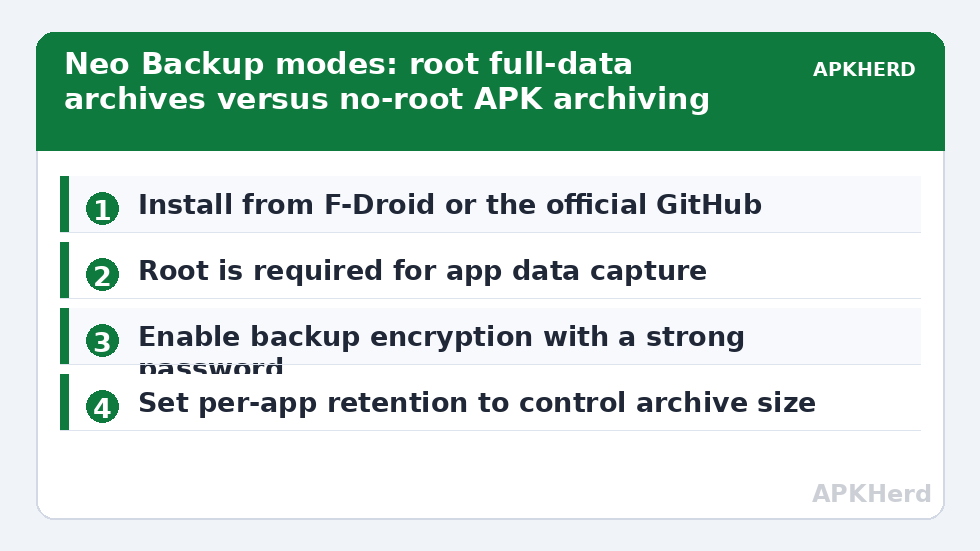
- Install from F-Droid. Grant root when prompted (Magisk users: check the Superuser tab to confirm the grant persisted).
- Choose the backup folder on real storage you control — SD card or a folder you sync to PC/NAS (pair with our automation guide). Avoid the app’s default inside internal app storage.
- Enable encryption with a strong password you store outside the phone. Understand: forget it, and the archives are gone — the same no-recovery honesty as Seedvault’s word list.
- Set compression on for large apps, and decide your policy for external and device-protected data. Defaults are conservative; change one thing at a time and note what you changed.
- Back up one expendable app, restore it immediately, and confirm it opens with its state intact. Only then run the full set.
Scheduling and retention
Neo Backup’s scheduler supports per-app and global schedules with retention counts (keep the last N backups per app). Retention is where disk disasters are born: a 2 GB game backed up daily with unlimited retention fills any card. Set retention deliberately — three copies for frequently changing apps, one or two for the static long tail — and review the folder size monthly. Schedule during charging hours; a full-device archive is heavy work and the phone will be warm and slow while it runs.
Restore discipline
Restore selectively, not wholesale, whenever possible. Cross-ROM and cross-device restores of system apps are a known source of bootloops and force-closes; user apps are the safe domain. After a ROM change, restore user apps in batches, reboot between batches, and skip any app that misbehaves for a clean Play Store install instead — its data is usually the problem, not the app. Keep expectations calibrated by the broader restore-testing routine in our verification guide, and compare philosophies with our Seedvault guide — Seedvault trades Neo’s raw capture for the system framework’s safety; many ROM users run one of each. The category hub is backup tools.
Reading a backup folder like a professional
Neo Backup stores per-app folders containing the APK components, data archives, and metadata files describing each backup. Learn the anatomy once and troubleshooting gets faster: a missing data archive beside a present APK tells you that backup captured the installer only (wrong mode or a permission failure that run), while a healthy set shows data components with sizes proportionate to the app. Sort the backup folder by date occasionally — apps whose folders stopped updating are apps the scheduler is skipping, usually because they were uninstalled, force-stopped by the system, or excluded by a filter you set and forgot. Storage arithmetic matters too: with per-app archives commonly running a few hundred megabytes and big games exceeding a gigabyte, the folder for a full device routinely lands between 15 and 60 GB. Size your SD card or synced NAS share for that reality, not for the optimistic version.
One more professional habit: keep Neo Backup’s own settings exported or screenshotted. Rebuilding your schedules, exclusions, and special-backup choices from memory after a phone loss is a miserable hour you can pre-pay in thirty seconds.
A note on updates and Android version changes
Because Neo works close to the metal of app data storage, major Android upgrades are its risk window: new storage rules or permission changes can alter what a given version can capture until the project catches up. After a big OS upgrade, treat your first backup as unproven — run it, then immediately restore-test one expendable app before the schedule lulls you. The open-source development model cuts both ways here: fixes are public and auditable, but they arrive on volunteer time. Following the project’s release notes is part of the cost of the free pricetag, and it is a fair trade for software holding this much power over your data.
Special backups: the data that lives outside apps
Beyond per-app archives, Neo Backup offers “special” backups for items that belong to the system rather than any single app — historically things like SMS, call logs, and certain system data, depending on version. Approach these with extra caution and extra testing. They touch shared databases rather than tidy app folders, so a restore writes into system-level stores; on the same device and ROM this is usually fine, across ROMs it deserves a spare-device test first. Read the in-app description of each special backup type on your installed version rather than trusting any guide (including this one) to enumerate them — the list evolves with releases, and the consequence of guessing wrong is restoring the wrong dataset over a good one. Discipline beats coverage: enable a special backup only once you have watched it restore successfully at least once.
Frequently Asked Questions
Is Neo Backup the same app as OAndBackupX?
It is the continuation of it — the project was renamed as development moved forward, with the same design goals and compatible concepts. If an older guide says OAndBackupX, its instructions largely apply to Neo Backup.
Does it work without root?
Partially: APK archiving works, app data does not, because Android’s sandbox forbids any app from reading another app’s private data. Root is required for the full-data backups the app is known for.
Can Neo Backup restore apps on a different ROM?
User apps usually restore well across ROMs of similar Android versions. System apps and their data should not be carried across ROMs — that is a classic bootloop recipe. Restore user apps in batches and reinstall problem apps cleanly.
Is the backup encryption trustworthy?
The app offers password-based encryption and is open source, so the implementation is auditable — a stronger position than closed tools’ marketing claims. Your practical security still depends on a strong password stored off the device.
Where should I get Neo Backup?
F-Droid or the project’s official GitHub releases. Avoid random APK mirrors; a backup tool with root access is the last app you should side-load from an untrusted source.