
Google Photos is rented safety. The people who go looking for a way to backup photos own server immich photoprism options are usually reacting to one of three things: a full 15 GB quota, a price rise, or the realization that a decade of family history sits behind a single account password. This guide compares the two leading self-hosted photo platforms honestly, walks the common deployment shape, and — critically — explains why the server itself still needs a backup. A photo server that is your only copy is a single point of failure with a nice web interface.
Backup photos own server Immich PhotoPrism comparison: the real differences
| Aspect | Immich | PhotoPrism |
|---|---|---|
| Experience goal | A Google Photos replacement: phone apps auto-upload, timeline, maps, face recognition, shared albums | A photo archive/library manager: excels at organizing existing folders of originals |
| Phone auto-backup | First-class; the app is the centrepiece | Possible via sync/WebDAV or third-party apps; not its core focus |
| Library model | Manages its own upload library structure (external libraries also supported) | Can index your existing folder structure in place — huge for people with decades of folders |
| Machine learning | Faces, objects, CLIP search built in | Faces and labels built in; feature set more conservative |
| Maturity posture | Fast-moving; the project itself long cautioned it is under active development (plan your backups accordingly) | Slower, steadier release philosophy |
| Some features | Free and open source | Free core; certain features sit behind membership tiers |
Rule of thumb: if your mental model is “replace Google Photos for the family,” Immich. If it is “finally organize and protect 40,000 files already sitting in folders,” PhotoPrism. Either way, both beat a single cloud account on custody, and both are worse than Google on one axis: you are now the IT department.
The deployment shape that works
Both run as Docker containers on anything from a Raspberry Pi to a mini-PC to a NAS with container support. The decisions that matter: storage on a drive arrangement that survives a disk death (a mirrored pair, or at minimum a scheduled copy to a second drive), enough RAM for the machine-learning jobs (they are the heavy part, especially face indexing on large libraries — first indexing of tens of thousands of photos can run for days on small hardware; that is normal, not broken), and thumbnails/previews storage accounted for, since generated previews commonly add 10–20 percent on top of your originals’ size. Keep originals untouched: choose settings that never modify the source files, so your archive remains a plain folder of photos any tool can read — formats outlive apps.
Exposure advice: keep the server on your home network or behind a VPN (Tailscale-style) rather than publishing it to the open internet, especially for family archives. Convenience is not worth the attack surface for most households.
Getting the phone to upload reliably
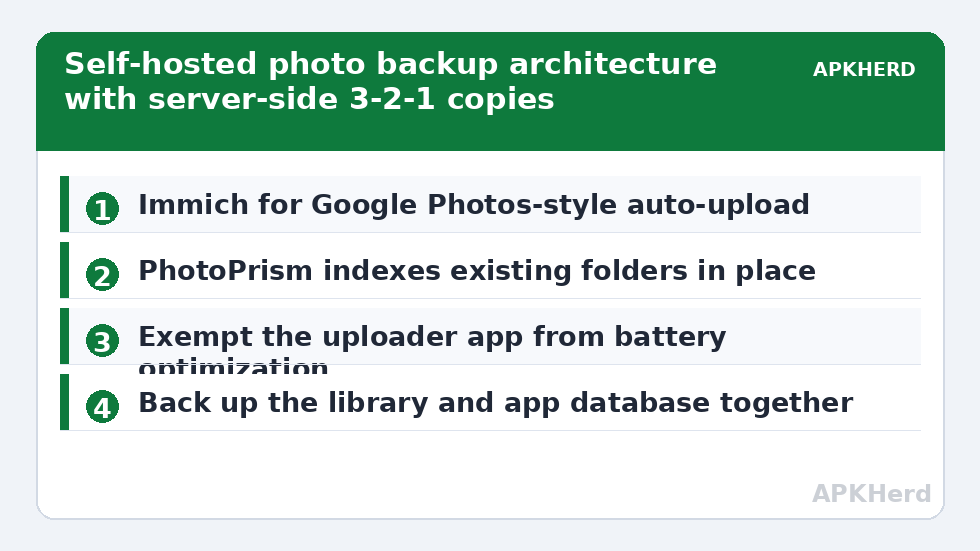
For Immich, install the mobile app, sign in to your server, select the albums (at minimum DCIM/Camera, plus Screenshots and WhatsApp Images if you want them), and enable background upload. Then handle Android’s battery optimization: exclude the app, or uploads will silently stall for days — the number one “self-hosting doesn’t work” complaint is just the OS sleeping the uploader. Verify after a week by comparing the server’s latest photo date against your phone’s gallery. That weekly glance is your monitoring system; our automation guide covers companion folder sync for the non-photo files this setup does not touch.
The backup of the backup (non-negotiable)
Now apply 3-2-1 to the server itself. Copy 1: the server’s live library. Copy 2: a scheduled backup of the library plus the application’s database to a second drive (the database matters — it holds albums, faces, and metadata; a folder of photos without it restores as an unorganized pile). Tools like restic or borg, or your NAS’s snapshot features, fit here. Copy 3: off-site — an encrypted drive stored with family, or encrypted cloud storage using the workflow in our encryption guide. Test-restore annually: point a fresh container at the backup and confirm the timeline loads. This layered approach is the same structure as our phone disaster-recovery plan, extended to the server.
And the honest comparison with just paying Google
Self-hosting costs: hardware, electricity, your time, and the discipline above. Google One costs money and custody. For many readers here, the trigger is what Google One saves and misses — read that before migrating, because Photos is only one part of that bundle. Plenty of households land on a hybrid: self-hosted primary, one encrypted cloud copy — which is, not coincidentally, exactly 3-2-1. All methods at backup tools.
Migration reality check: getting a decade out of Google first
Before the server can protect anything, your library has to leave Google intact. The official route is Google Takeout, and it has traps worth knowing: photos arrive split across dated and album folders, some images are separated from their metadata (which Takeout provides as sidecar JSON files that good tooling can re-merge), and edited versions may duplicate originals. Budget real time — large libraries export in many archive parts over days. Both Immich and PhotoPrism communities maintain import tooling that understands Takeout structure; use it rather than hand-dragging folders, and reconcile counts at the end: the number of originals in your old library should match the number indexed on the server, within a small explainable margin for duplicates.
Keep the Takeout archives themselves as a frozen cold copy until the new system has survived a few months and one restore test. Migration is not complete when the import finishes; it is complete when the new home has proven it can both hold the library and give it back.
Managing the household politics
The technical setup is half the project; the other half is that other people take photos too. Decide up front: one household server with separate accounts per person (both platforms support this) or per-person libraries. Set expectations about what the switch changes — sharing links behave differently than Google’s, and a down server at a family event is your outage to fix. Households that survive self-hosting treat the first month as a beta: both systems running, complaints logged, and the cloud cancellation only after the grumbling curve flattens. That patience is what separates a successful migration from a heroic weekend followed by quietly re-subscribing.
Costs, counted honestly over three years
Run the numbers before the hardware shopping spree. A modest setup — a used mini-PC or a Pi-class board, plus a pair of drives sized for your library — typically lands in the range of a few years of a mid-tier cloud photo subscription, before counting electricity (a small always-on box draws roughly a lamp’s worth of power) and your time for setup and the occasional weekend of maintenance. Some households save money; many break even; nearly all gain custody. Make the decision on custody and privacy grounds with the economics understood, not on a promise of effortless savings that the first dead drive will expose as fiction.
Frequently Asked Questions
Can Immich really replace Google Photos for family sharing?
For most families, yes: partner sharing, shared albums, and a familiar timeline exist. The gaps are polish and the fact that uptime is your responsibility. Non-technical family members only notice if the server is down.
What hardware do I actually need?
A Raspberry Pi 4/5, an old laptop, a mini-PC, or a NAS with Docker — plus storage sized at roughly twice your current library for growth and previews. Machine-learning features appreciate more RAM and CPU but will simply run slower on small boards.
Does PhotoPrism move or alter my existing photo folders?
It can index an existing library in place without reorganizing it, which is its signature advantage. Use the read-only/originals-preserving configuration to be certain nothing is modified.
If my photos are on my own server, am I done backing up?
No — you have moved the single point of failure from Google’s account to your hardware. The server needs its own backup copy plus an off-site copy, exactly as described above.
Can I keep Google Photos and a self-hosted server at the same time?
Yes, and during migration you should. Run both in parallel for a month, verify counts and recent uploads on the server, and only then decide whether to cancel or downgrade the Google plan.