
Switching brands is where backup promises go to be audited. A samsung to pixel backup migration guide has to be specific about the border crossing: your media, messages, and contacts will make it; your Samsung-specific settings, Secure Folder, Samsung Notes, and a slice of app data will not arrive automatically, and no single tool moves everything. This walkthrough gives the migration order that experienced switchers use, states exactly what survives and what needs a manual ferry, and covers the reverse trip (Pixel to Samsung) too.
The transfer map: what crosses, what does not
| Data | Samsung → Pixel | How / notes |
|---|---|---|
| Photos & videos | Yes | Cable transfer during Pixel setup, or Google Photos sync — verify counts afterwards |
| Contacts | Yes, if in Google account | Device/Samsung-account-only contacts are the classic loss — export to Google or .vcf first |
| SMS/MMS & call logs | Mostly | Setup-time cable copy handles SMS/call history; RCS chats may arrive as SMS-formatted history |
| Apps | Reinstalled by name from Play Store | Data only for allowBackup apps; Samsung-only apps (some Galaxy Store titles) do not exist on Pixel |
| Yes via its own transfer | Use WhatsApp’s chat transfer / Drive backup, not the phone migration — see our WhatsApp guide | |
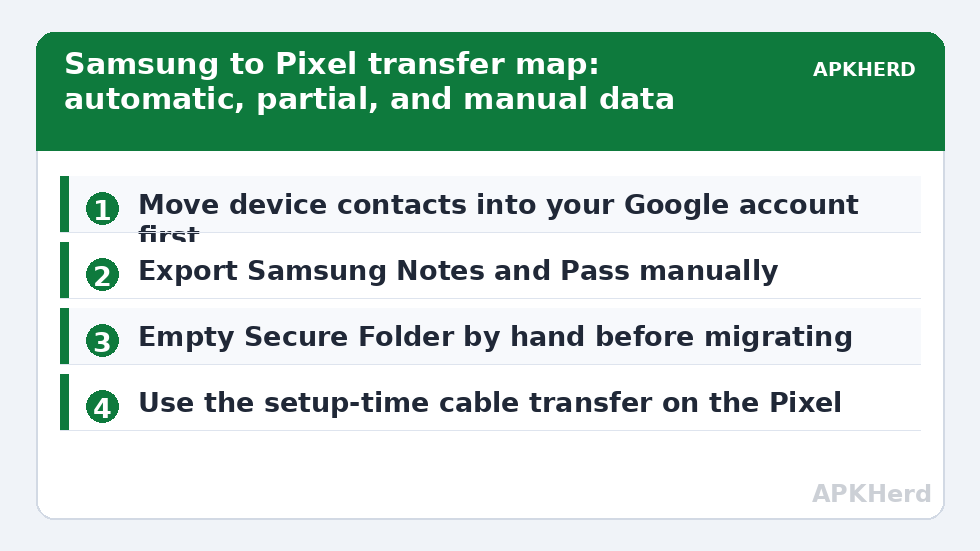
| Samsung Notes, Samsung Pass, Secure Folder | No | Export manually: Notes to PDF/text, Pass passwords into a real password manager, Secure Folder contents out by hand |
| Settings, home layout, Samsung Health data | Partial / app-dependent | Health data moves only via Health Connect sync if enabled beforehand |
The pattern is simple once seen: anything living in your Google account crosses easily, anything living in Samsung’s account or Samsung-only containers needs a manual export before you start. The migration itself is the worst time to discover which list an item was on.
Samsung to Pixel backup migration guide: pre-migration exports that save you
- Contacts audit: in Samsung Contacts, move device/SIM contacts into your Google account, then confirm at contacts.google.com from a computer. (Our contacts reliability guide explains why this step fails silently.)
- Samsung Notes: export important notes to PDF or sync them to OneNote/text while you still can.
- Samsung Pass: you cannot export it directly to a file; migrate credentials into a proper password manager manually for your top accounts, starting with email and banking.
- Secure Folder: move files out and note what was inside; it has no export path to another brand.
- Authenticator apps: run their transfer/export flows now (see our 2FA backup guide) — a wiped Samsung plus an unprepared authenticator is the worst post-migration Tuesday imaginable.
- Take a Smart Switch backup to PC anyway (per our Smart Switch PC guide): if the migration goes badly, your fallback is returning to the Samsung with everything intact.
- Google One backup on the Samsung: Settings → Google → Backup → Back up now, so the Pixel setup can offer it.
Migration day: the recommended order
Set up the Pixel with the cable copy when prompted during initial setup — connect the Samsung (unlocked) and let the Pixel pull photos, messages, call history, and app list. Skipping this moment and planning to “do it later” is the top regret, because the full copy flow is a setup-time feature, mirroring the restore-moment behaviour described in our Google One explainer. After setup: sign into WhatsApp and restore from its own backup; reinstall banking apps and re-register them deliberately (some treat the new phone as a security event — it is one); open your authenticator and confirm codes match the old phone before wiping anything; then spend a day using the Pixel while the Samsung stays in a drawer as the reference copy.
Verification week: check before you wipe or sell
Keep both phones for at least several days. Verify: photo count and a scroll through last year’s album; oldest SMS thread present; contacts spot-checks (the cousin, the plumber, the boss — the ones you’d notice); notes exported and openable; health history where you expect it. Only when the audit passes should the Samsung be reset — and before selling or trading it, run the full checklist in our pre-sale backup checklist, because a factory reset deletes the reference copy forever.
The reverse trip: Pixel to Samsung
Going the other way, Smart Switch (mobile app on the Samsung) is the main vehicle and it is good at it: cable or Wi-Fi transfer of media, messages, contacts, and apps. Google-side data (Photos, contacts, calendar) arrives via account sign-in regardless. The asymmetries flip: Pixel-only conveniences like Call Screen history do not export, and your Google One backup is not directly consumable by Samsung’s tools beyond account sync. The discipline is identical — export the brand-locked items first, migrate, verify for a week, then wipe. Method index: backup tools.
Two features with no equivalent on the other side
Budget adjustment time for platform personalities. Leaving Samsung, you lose the deep One UI conveniences people quietly depend on — Secure Folder, the edge panels, Samsung’s gallery-linked cloud conveniences, and DeX — while gaining Pixel’s call screening, cleaner update cadence, and Google’s camera processing. Coming the other way, the list inverts. Why does this belong in a backup guide? Because “settings and data that did not transfer” complaints are often really “a feature that does not exist here” discoveries, and they surface during verification week masquerading as migration failures. Separate the two questions during your audit: (1) did my data arrive? (2) does this platform even have the thing? The first is fixable with better backup; the second is a platform fact to adapt to, and confusing them wastes days of troubleshooting.
One concrete example: alarms, routines, and automation built in Samsung’s Modes and Routines have no Pixel import path at all. Before migrating, inventory your automations in writing — recreating the three you actually rely on beats mourning the fifteen you forgot you had.
SIM, eSIM, and number housekeeping on switch day
Connectivity details cause outsized migration-day stress, so handle them deliberately. If your carrier uses eSIM, confirm the transfer path before the old phone is wiped — some carriers make eSIM transfer a setup-time feature, others issue a fresh QR code through their app or support line, and a wiped source phone complicates all of it. Physical SIM movers have it easier, but should still verify mobile data and incoming calls on the new phone before the old one is reset. And if you are also porting your number to a new carrier in the same week, sequence the events: complete the number port first and let it settle, then migrate phones. Stacking two identity changes at once is how people end up unreachable and locked out simultaneously.
Frequently Asked Questions
Can I use Smart Switch to move from Samsung to Pixel?
Smart Switch’s PC backup is for safekeeping and Samsung-to-Samsung moves. For Samsung to Pixel, use the Pixel’s setup-time cable transfer (Google’s flow) plus account sync; Smart Switch PC backup remains valuable as your fallback archive.
Will my Samsung Notes transfer to the Pixel?
Not automatically — Samsung Notes does not exist on Pixel. Export notes to PDF or plain text, or sync them into a cross-platform notes app on the Samsung before migrating.
Do my text messages keep their photos (MMS)?
Setup-time cable transfer generally carries SMS and MMS content, but large or old MMS threads are the most variable element. If messages are critical, also make an independent SMS archive (see our SMS guide) before migrating.
What happens to apps I bought on the Galaxy Store?
Galaxy Store purchases do not transfer to the Play Store. If a paid app exists on both stores, expect to repurchase or contact the developer — a small but real switching cost nobody mentions beforehand.
How long should I keep the old phone before wiping it?
At minimum several days of normal use on the new phone; a week is better. The old device is your only complete reference copy, and most “I lost X” discoveries happen within the first few days.