
The core constraint is simple: every fast local transfer needs a network both devices trust, and when the room’s router is slow, locked down, or nonexistent, your phone can become that network. Learning to create hotspot file server android fast transfer setups gives you a controlled, private, high-speed link anywhere — a train, a site office, a house with the broadband down — using hardware already in your pocket.
The method has two halves that people often merge into one confused step. First, the phone’s hotspot creates the network and other devices join it like any Wi-Fi network. Second, a file server or transfer app running on the phone, or on a joined device, actually moves the files over that network. The hotspot alone shares internet in most people’s minds; here internet is irrelevant and can be switched off entirely. What matters is the local link speed and a server address the other device can reach.
Why to create hotspot file server android fast transfer links instead of using the router
A phone hotspot you control beats a random router in three specific ways. You choose the band, so you can force a clean 5 GHz network instead of accepting a congested 2.4 GHz one. You know every device on it, because you gave out the password a minute ago. And the path between devices is one hop with no other household traffic competing. Typical reported local throughput on a 5 GHz hotspot between modern devices is 25 to 60 MB/s for large files using an efficient app, with 2.4 GHz setups more often in the 6 to 15 MB/s range. Your real number depends on the phones involved, distance, and the app’s protocol overhead, which is why the server choice below matters.
Step 1: Set up the hotspot properly
- Open Settings, Network, Hotspot and tethering, and Wi-Fi hotspot. Give it a recognisable name that is not your own name, and set a strong password; this network is a door into a file server, so treat the password seriously.
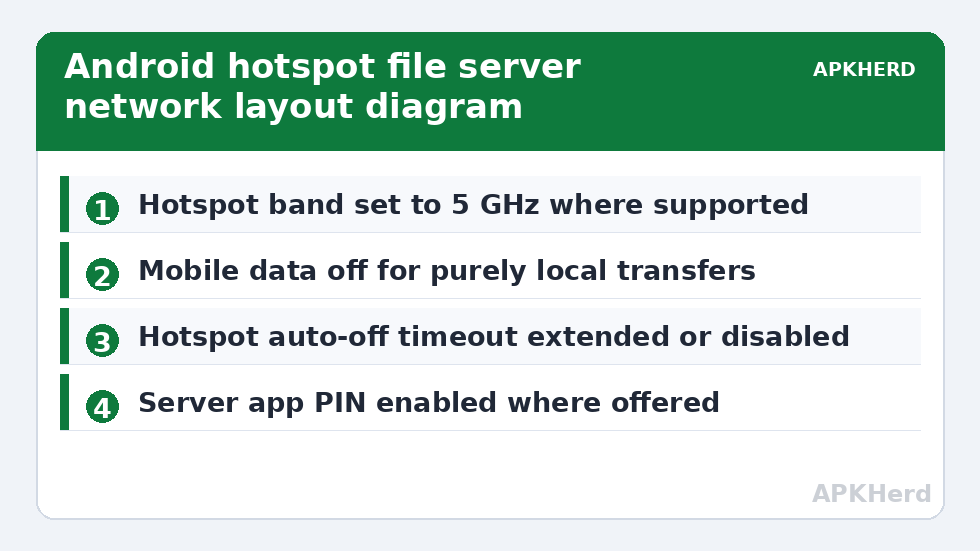
- Choose the 5 GHz band if both devices support it. If a receiving device is old and cannot see 5 GHz, drop to 2.4 GHz for that session rather than fighting invisibility.
- Turn mobile data off if you do not want joined devices using your data allowance. The local network and file transfers work without it. Note that a few carriers restrict hotspot creation on certain plans; if the toggle itself is blocked, that is a plan limit, not a fault.
- Turn the hotspot on, and join it from the PC, tablet, or second phone using the password, accepting any no-internet warning. That warning is expected and must not cause the joining device to abandon the network.
- Turn off auto-off or extend the hotspot timeout in settings if your phone offers it, so the network does not vanish during a long copy because no one touched the host phone.
On the joining device, disable features that flee a network with no internet. Windows has a habit of reconnecting to a known router, and iPhones and some Android phones have Wi-Fi assist style settings that do the same. For a big transfer, tell the joining device to stay, or make it forget the competing router temporarily. The whole File Sharing collection assumes a stable local link; most mysterious mid-transfer failures across every method trace back to one device quietly leaving the network mid-copy.
Step 2: Run the file server or transfer app
With the network up, you need the moving parts. There are three common patterns. A dedicated local transfer app running on both devices is the easiest: open it on each, and the devices usually find each other automatically on the hotspot network, because discovery traffic that a managed router might block passes freely on your own hotspot. An HTTP file server app on the phone is the most universal: it shows an address such as 192.168.43.1 with a port number, you type that into any browser on a joined device, and you browse and download or upload through the web page with nothing installed on the receiving side. An FTP or SMB server app suits repeated transfers to and from a PC, where you want the phone to appear in a file manager properly.
Choose by audience. Sending to a non-technical relative’s laptop argues for the browser pattern, since there is nothing for them to install and nothing to pair. Moving your own library between your own devices argues for the dedicated app or SMB, which handles folders, resume, and thousands of files with far less babysitting. Browser servers and their trade-offs are compared head-to-head in Sweech vs Portal vs AirDroid for browser transfer, which is worth reading before you settle on one for regular use.
Getting the fastest speed out of your own hotspot
Band choice is the biggest lever, then distance, then the app. Keep devices within a couple of metres of the host phone; its hotspot radio is not a router with large antennas. Note the trade-off: 5 GHz is faster but fades quicker through walls, so in the next room 2.4 GHz can deliver more. Zip large sets of small files before sending, because per-file negotiation dominates at small sizes. Plug the host phone into power: hotspot plus file serving is a heavy sustained load, and thermal throttling will cut speeds.
Address problems follow a pattern worth memorising. If the browser on the joined device cannot reach the server address, check in this order: the joined device is definitely on the hotspot network and not back on the router; the server app is running in the foreground or has permission to run in the background; the address and port were typed exactly as shown, including the port after the colon; and no VPN is running on either device, since a VPN will happily route that local address into its tunnel and lose it. Change one thing at a time, because the fix that works teaches you what was wrong, and changing five settings at once teaches you nothing for next time.
Security on a network you created
Your hotspot is private by password, but good habits still matter because the file server may not be. Some server apps serve anyone on the network who knows the address, with no login. On your own hotspot with devices you invited, that risk is small and time-limited, but the plain trade-off should be stated: turning the password off, or leaving the hotspot and server running in a public place, exposes those files to anyone who joins or is already on a shared network. So keep the password on, use the server app’s own PIN or login feature if it offers one, and switch both hotspot and server off when the transfer ends. Do not run this setup joined to a public or office network instead of your hotspot and assume the same privacy applies; it does not, and sending files securely on public Wi-Fi covers that different situation properly.
Finally, remember the cost: battery and heat. Purely local transfers with mobile data off generate no data usage at all. For a weekly multi-gigabyte routine at home, a router setup or cable is kinder to the phone. Everywhere else, the hotspot server works when nothing else in the room cooperates.
Frequently Asked Questions
Do I need mobile data or internet for a hotspot file server to work?
No. The hotspot creates a local network and the file server moves files across that local link. You can turn mobile data off entirely, which also stops joined devices using your data allowance. Joined devices will warn the network has no internet, which is expected.
Which is faster for a hotspot transfer, 5 GHz or 2.4 GHz?
5 GHz is faster at short range, with typical reported local speeds of 25 to 60 MB/s between modern devices. 2.4 GHz reaches further through walls but is more often in the 6 to 15 MB/s range, so at distance it can sometimes be the better real-world choice.
Why can the other device not open the server address in its browser?
Check that it is actually joined to your hotspot and has not rejoined a router, that the server app is running, that the address and port were typed exactly as shown, and that no VPN is active on either device, since a VPN can route the local address into its tunnel.
Is it safe to leave the hotspot file server running?
It is reasonably safe for a short session on your own password-protected hotspot, but some server apps have no login of their own. Keep the hotspot password on, use the app PIN if offered, and switch both the server and hotspot off as soon as the transfer finishes.
Why does my hotspot turn itself off during long transfers?
Most phones have an auto-off setting that shuts the hotspot down when it thinks nothing is connected or after a timeout, and heat or low battery can also trigger a shutdown. Extend or disable the timeout in hotspot settings and keep the host phone plugged into power for long sessions.