
Three apps promise the same seductive thing: open a browser on any computer, type an address, and your phone’s files appear. No cable, nothing installed on the PC, no account. They deliver that promise in genuinely different ways, and the differences decide which one suits you. This comparison of sweech vs portal vs airdroid browser transfer is built on documented features, connection models and stated limits, not invented benchmarks, so you can match each tool to the job instead of chasing a single winner.
| Feature | Sweech | Portal (Pushbullet) | AirDroid |
|---|---|---|---|
| Core model | Local web server on the phone, full file browsing in the browser | Browser drag-and-drop transfer to the phone over local Wi-Fi | Full device management suite with a web client, local or account-based |
| Direction | Two-way: browse, download and upload | Primarily PC to phone, deliberately simple | Two-way, plus contacts, messages and more in the suite |
| Account needed | No | No for local web use | Optional for local mode, needed for remote features |
| Best at | Browsing the whole phone from a PC browser | Fast one-way drops with zero learning curve | People who want management, not just transfer |
| Main trade-off | Smaller project, plainer interface | Narrow scope by design, parent product focus shifted | Heavier app, free tier limits on some features |
The table is the short version. The important context is that these are not three versions of one idea. Sweech is a file server wearing a web page. Portal is a chute: files go in one end, land on the phone, done. AirDroid is a remote control panel for the whole phone that also transfers files. Judging Portal harshly for lacking a file browser is like judging a kettle for lacking a toaster slot; the narrowness is the product. Judging AirDroid only on transfer speed ignores that most of its weight is features the other two never attempt.
How sweech vs portal vs airdroid browser transfer tools connect
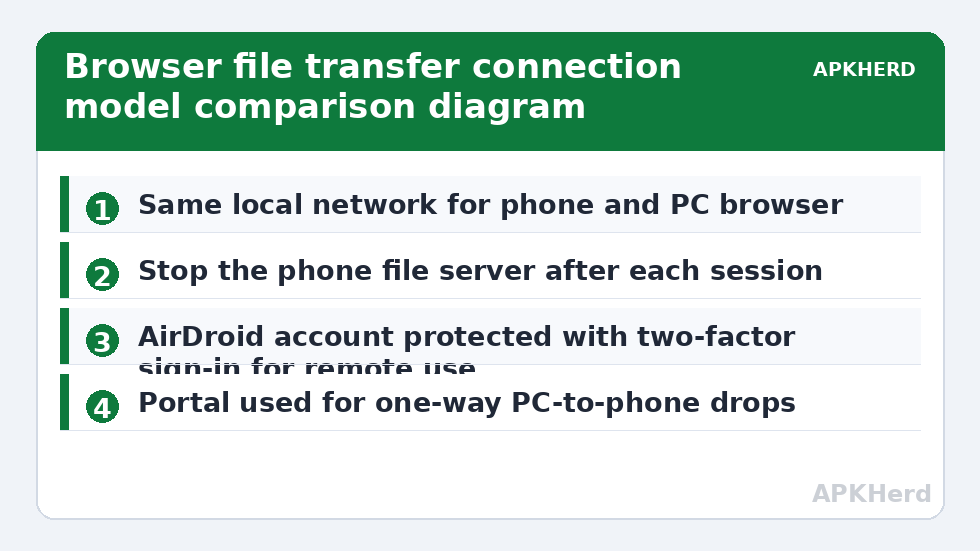
All three begin the same way: phone and computer on the same local network, app started on the phone, address or code entered in the PC browser. Sweech presents a local address with a port, and the browser session shows the phone’s storage as a browsable file manager with upload and download. Portal, from the Pushbullet team, uses its web page pairing flow and then accepts drag-and-drop files, historically handling individual files and photos elegantly and keeping phone-side storage organisation simple. AirDroid’s web client connects locally when possible, but the product is built around an account ecosystem, so it can also work remotely over the internet when signed in, which neither rival is designed to do.
That remote ability is a real advantage and a real responsibility. A local-only tool is unreachable from outside your network by design, which is a security property, not a missing feature. AirDroid signed in for remote access means your phone is reachable through an account, so that account needs a strong password and two-factor protection, and the trade-off should be a conscious choice: convenience of anywhere access against an account that becomes a key to your phone. For purely local work, using AirDroid in its local mode keeps the comparison fair and the exposure smaller.
For a wider look at browser methods in general, the File Sharing category hub places these alongside open-source and peer-to-peer browser tools, including the setup guide for PairDrop browser file sharing, which takes the no-install idea even further by needing no phone app for device-to-device sends.
Sweech: the proper file manager in a browser tab
Sweech’s strength is completeness at small scale. You see folders, you navigate them, you download what you choose and upload into the folder you are looking at. For someone organising a phone from a big screen, sorting downloads, or pulling a specific document buried three folders deep, that browsing model is exactly right and neither rival matches its straightforwardness. It asks for storage permissions to do this, which is inherent to the job; grant them knowing the plain implication, that while the server runs, anyone who can reach that address on your network and pass any access control you set can browse the same storage. Run it on networks you trust, set its security options where offered, and stop the server when you finish.
Its weaknesses are the weaknesses of a small focused project. The interface is functional rather than polished, development pace and feature breadth cannot match a large commercial suite, and it does transfer only, with no device management around it. Typical reported behaviour on a healthy home network is that large files move at speeds governed mostly by your Wi-Fi, commonly in the 10 to 35 MB/s range on 5 GHz for modern phones, a range that applies broadly to all three tools when they stay local, because the network, not the app, is usually the ceiling.
Portal: the fastest route from PC to phone, and little else
Portal optimises the first ten seconds. Get the page paired, drag files in, watch them land on the phone. For the extremely common job of throwing a PDF, an APK, or a handful of photos from a computer onto a phone, that focus is delightful and the learning curve is effectively zero, which matters when you are guiding someone else through it over the phone. Portal historically kept transferred files tidy and integrated with the phone’s gallery for images, reducing the where-did-it-go problem that plagues general file managers.
The limits are structural. It is a one-way chute by design, so pulling files off the phone is not its job. Its parent product, Pushbullet, has shifted focus over the years, so treat Portal as a handy utility rather than infrastructure to build a workflow on, and keep a second method in mind. Users who want actively maintained open-source options should read open-source Snapdrop alternatives alongside this comparison.
AirDroid: the suite that also transfers files
AirDroid is the heavyweight. File transfer sits inside a web and desktop experience that can include notifications, messages, contacts, screen features and device location depending on version and permissions. If you spend all day at a PC and want the phone managed from it, that breadth is the entire point, and comparing only its transfer button against Sweech misses why people choose it. The costs are equally real: a larger app with more permissions, more background presence, an account layer for full features, and free-tier limits that have historically applied to things such as remote data allowances and advanced features, with the details changing between versions. Check the current limits in the app rather than relying on any article’s snapshot, including this one.
Permission breadth deserves a clear statement. A suite that can read notifications and messages asks for access Sweech and Portal never request, because they do not do those jobs. That is a scope decision to make deliberately: install the suite if you will use the suite. If you only transfer files, the smaller tools expose less and ask less, and that minimalism is a legitimate security preference.
So which one should you actually install?
Choose Sweech if your typical job is browsing and organising the phone’s storage from a PC, in both directions, with no account. Choose Portal if your typical job is dropping files from a PC onto a phone quickly, especially when helping someone else, and you accept its one-way scope. Choose AirDroid if you want ongoing device management from your computer and are comfortable with its account, permissions and tier structure. Many people sensibly keep two patterns rather than one winner: a small local tool for files, and a cable for the day Wi-Fi or an app update ruins everyone’s afternoon.
Frequently Asked Questions
Do Sweech, Portal and AirDroid need the internet to transfer files?
Sweech and Portal are designed for local network transfers and work without internet once the devices share a network. AirDroid can work locally, but its remote features use the internet through your account, which is a deliberate extra capability with extra account security responsibilities.
Which of the three is best for downloading files from the phone to a PC?
Sweech suits that job best of the three because it presents the phone’s storage as a browsable file manager in the browser, in both directions. Portal is primarily a PC-to-phone chute by design, and AirDroid can do it but within a much larger suite.
Are browser transfer tools safe to use?
They are safe enough on a trusted home network when used carefully: keep the phone and PC on a network you control, use any PIN or access control the app offers, and stop the server when you finish. Avoid running a phone file server while joined to public Wi-Fi.
Why is AirDroid so much bigger than the other two apps?
Because it is a device management suite, not only a transfer tool. Features such as notifications, messages and remote access need more code, more permissions and an account system. That breadth is worth it if you use it, and unnecessary weight if you only move files.
What transfer speed should I expect from these browser tools?
On a healthy 5 GHz home network, typical reported local speeds are commonly around 10 to 35 MB/s for large files, governed mostly by your Wi-Fi and phone storage rather than which of these apps you chose. Many small files will always transfer more slowly than one large archive.