
You have a 6 GB screen recording on your phone, your cloud drive is full, and your USB cable is in another room. This is exactly where a localsend android to pc large file transfer earns its place: LocalSend moves files directly between devices on your own Wi-Fi network, with no internet connection, no account, and no upload limit imposed by a cloud service. If both devices can see each other on the local network, a multi-gigabyte video can move in minutes rather than the hour an internet upload and download cycle would take.
LocalSend is free and open source, with apps for Android, Windows, Mac, Linux, and iOS. It discovers nearby devices automatically, encrypts the transfer, and preserves your original files exactly — no recompression or resizing. This guide covers installation, the settings that matter for large files, realistic speeds, and common fixes.
Getting localsend android to pc large file transfer right first time
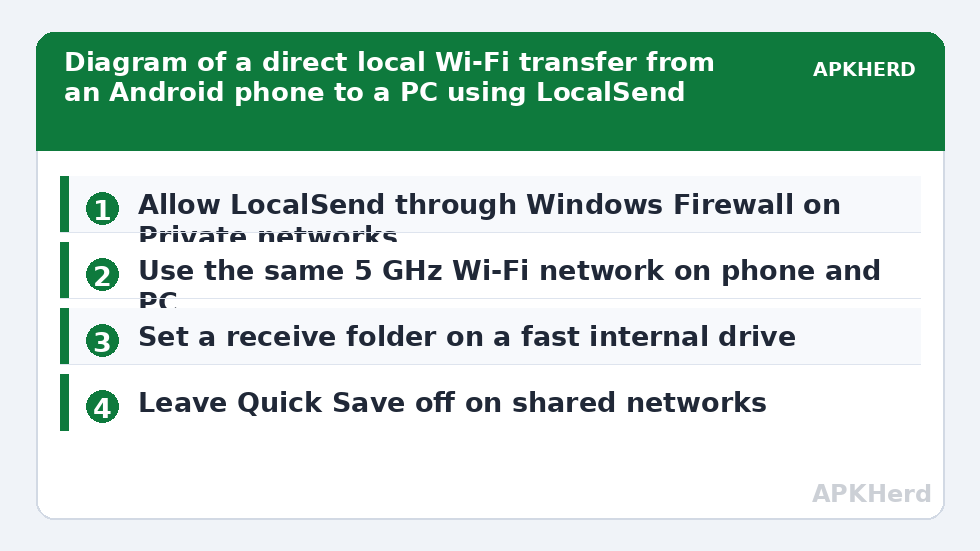
Install LocalSend on both devices before you change anything else. On Android, get it from Google Play or F-Droid. On Windows, download the installer or portable version from the official LocalSend website and run it once so Windows Firewall can prompt you. That firewall prompt matters: if you dismiss it or the network is set to Public without allowing the app, discovery will fail silently and each device will sit waiting, showing no nearby devices at all.
Connect both devices to the same Wi-Fi network — the same router and, on larger setups, the same subnet. A phone on a guest network and a PC on the main network often cannot see each other, because guest networks are deliberately isolated. A PC wired by Ethernet to the same router is fine, since wired and wireless clients on one router normally share the same local network.
Open LocalSend on both devices. Each device gets a readable alias, such as a fruit or object name, shown at the top of the app. On Android, tap Send, choose Files or Folder, pick your large video or archive, then tap the PC alias when it appears. On the PC, accept the incoming transfer. The file lands in the receive folder set in the PC app, which defaults to your Downloads folder unless you change it.
What to check before sending a very large file
- Free space on the PC: keep at least the file size plus a small margin free, because a transfer that fills the disk fails near the end and wastes the whole attempt.
- Battery and sleep: plug the phone in for transfers over a few gigabytes, and stop the PC from sleeping mid-transfer in Windows power settings.
- File system limits: a drive formatted as FAT32 cannot hold a single file over 4 GB. Save to an NTFS or exFAT drive instead.
- One transfer at a time: queue large files sequentially rather than starting three at once and splitting the same Wi-Fi bandwidth three ways.
None of these checks takes long, and together they remove the most common reasons a large transfer fails at 80 or 90 percent.
Settings that matter for speed and reliability
LocalSend works with default settings, but three changes help with large files. First, on the receiving PC, turn on Quick Save if you trust everyone on your home network. Quick Save accepts incoming files without a manual tap for each one, which is convenient when you send a folder of clips one after another. The trade-off is plain: anyone on the same network who can discover your PC could send you a file without you approving it first, so leave Quick Save off on shared, office, or public networks, and only enable it at home.
Second, set a fixed receive folder on a fast internal drive, since a slow external drive bottlenecks the transfer regardless of Wi-Fi speed. Third, if discovery is unreliable, use the manual connection option: target the receiving device’s local IP address and port directly instead of relying on automatic discovery, which depends on multicast traffic some routers filter.
Encryption is on by default and you should leave it on. The small overhead is worth it even at home.
Realistic speeds: what to expect
LocalSend itself is rarely the bottleneck — your Wi-Fi is. Speeds below are typical ranges reported across common home setups, not a promise for your router, and they assume a strong signal in the same room or the next room.
| Connection | Typical real-world throughput | Rough time for 5 GB |
|---|---|---|
| Wi-Fi 5 (5 GHz), good signal | 25–45 MB/s | About 2–3.5 minutes |
| Wi-Fi 6 (5 GHz), good signal | 40–70 MB/s | About 1.2–2 minutes |
| Wi-Fi on 2.4 GHz only | 5–12 MB/s | About 7–17 minutes |
| Phone hotspot, PC joined to it | 15–35 MB/s | About 2.5–5.5 minutes |
Two details explain most disappointments. First, if your phone is on 2.4 GHz, the transfer is limited by that slower link even if the PC is on 5 GHz, so put both on 5 GHz for large files when range allows. Second, distance and walls matter more than the number on the router box: a Wi-Fi 6 router two rooms away can be slower than a Wi-Fi 5 router on the same desk.
If there is no router at all, turn on the phone’s hotspot, join it from the PC, and run LocalSend over that local network. No mobile data is used, because the traffic never leaves the two devices.
When devices cannot see each other
Work through this order, because the first items fix most cases. Confirm both devices are on the same network and neither is on a guest SSID. Confirm LocalSend is allowed through Windows Firewall on Private networks, and temporarily check whether a third-party antivirus firewall is blocking it. Turn off any VPN on both devices: a VPN that routes all traffic, or one with a kill switch, can hide the local network entirely. Restart both apps, not just one, so discovery starts cleanly on both sides.
If discovery still fails, use the favourite or manual IP method described above. If the transfer starts but stalls, move both devices closer to the router, disconnect other heavy users of the same network for the duration, and split a very large folder into two sends. A stall at exactly the same percentage every time points to storage — a full disk, a failing external drive, or that FAT32 4 GB limit — rather than to Wi-Fi.
LocalSend compared with nearby alternatives
For Android to Windows specifically, LocalSend’s advantage is that it needs no Microsoft account, no pairing code typed from a Microsoft service, and no internet handshake before the local transfer can begin. If you mainly move photos and prefer something built into Windows, our roundup of the best apps to move Android photos to Windows 11 covers the built-in options honestly. If you need the same tool to also cover iPhone, read how Send Anywhere handles cross-platform sharing before deciding, because its six-digit key model suits one-off sends to people outside your network. Our wider file sharing guides collect the remaining methods, from hotspot servers to SMB shares, in one place.
What LocalSend does not do is worth stating. It does not sync folders continuously in the background — you send, it arrives, and that is the whole job — and it does not provide a cloud link for someone in another city. For deliberate, large, local transfers, that narrow scope is a strength.
A reliable routine for weekly large transfers
- Plug the phone in and join the 5 GHz network on both devices.
- Open LocalSend on the PC first, then on the phone, so the PC is discoverable when you pick files.
- Send, verify the file size on the PC matches the phone, and only then delete the phone copy.
That verification step — comparing file size and opening the video once on the PC — takes seconds and prevents the one painful outcome: deleting the only copy after a truncated transfer.
Frequently Asked Questions
Does LocalSend need the internet at all?
No. Once both apps are installed, transfers run entirely on your local network. You can use LocalSend with the router’s internet cable unplugged, or over a phone hotspot with mobile data switched off.
Is there a file size limit in LocalSend?
LocalSend does not impose a practical app-level size limit. The real limits are free space on the receiving device, the drive format — FAT32 stops at 4 GB per file — and keeping both devices awake for the whole transfer.
Why is my LocalSend transfer much slower than expected?
The usual causes are a 2.4 GHz connection, distance from the router, or the PC receiving to a slow or nearly full drive. Move both devices onto 5 GHz near the router and receive to a fast internal drive first.
Is LocalSend safe to use on a shared network?
Transfers are encrypted and, by default, the receiver must accept each file. Leave Quick Save off on shared networks so nothing arrives without your approval, and do not disable the firewall prompts that protect discovery.
Can LocalSend send a whole folder, not just files?
Yes. Use the Folder option when sending and LocalSend recreates the folder on the receiving device. Check that the receiving drive has room for the full folder before you start.