
Your phone holds 4,000 photos, Windows 11 is open on the desk, and there is no cable in sight. Finding the best apps transfer photos android to windows 11 setup for your house is less about crowning one winner and more about matching the tool to the job: a handful of photos tonight, a full camera roll every month, or a permanent routine that keeps the PC copy current without you thinking about it. This roundup covers the genuinely useful free options, states what each one costs you in accounts, limits, or compromises, and gives a default recommendation for the common case.
One ground rule first. Every app here moves your original files. If an app offers to save space or speed things up with an optimised or compressed copy, that is a different product — check the setting, because photo backups made of reduced copies are a disappointment discovered years too late.
The short answer for most households
If your photos just need to reach a Windows 11 PC on the same Wi-Fi, start with LocalSend. It is free, open source, needs no account, imposes no size limit of its own, and works the same way every time. If you want your photos to appear on the PC continuously without starting a transfer at all, a cloud-backed option such as Google Photos on the web or OneDrive sync earns its place despite needing an account. The rest of this guide explains when each alternative beats that default.
| App or method | Account needed | Best for | Watch out for |
|---|---|---|---|
| LocalSend | None | Manual batches, large sets, no internet | Both devices on same network; manual start |
| Quick Share for Windows | None for nearby; Google account for links | Quick sends from Samsung and Pixel phones | Needs PC Wi-Fi and Bluetooth; device support varies |
| Phone Link with Photos access | Microsoft account | Browsing recent phone photos from the PC | Strongest with Samsung; depth of access varies by phone |
| Google Photos / OneDrive sync | Google or Microsoft account | Automatic, ongoing backup | Free storage is limited; full library sync uses internet |
| Browser-based sharing (PairDrop style) | None | One-off sends with nothing to install | Same network only; slower to start |
best apps transfer photos android to windows 11, app by app
LocalSend: the no-account default
Install LocalSend on the phone and the PC, open both, select your photos or the whole DCIM folder, and send. Because you can select the camera folder itself, a monthly offload of several hundred photos is one operation, and the originals arrive untouched in a receive folder you choose. Speeds are your Wi-Fi’s speeds — typically tens of megabytes per second on a modern 5 GHz network, as a reported typical range — so a few gigabytes takes minutes. Our dedicated walkthrough of a LocalSend Android to PC transfer covers firewall prompts and the settings worth changing, and everything in it applies to photo folders exactly as written.
Quick Share for Windows: best built-in feel
Google’s Quick Share app for Windows makes a supported Android phone appear in the share sheet with the PC as a destination, which is the lowest-friction interaction of any option here once it works. The requirements are stricter: the PC needs Wi-Fi and Bluetooth, both devices should be nearby and unlocked for discovery, and performance is best with Samsung Galaxy and Pixel phones. If sends fail to discover, the checks in our Quick Share and AirDrop comparison — visibility mode, radios on, devices close — are the same ones to run here. Choose this when everyone in the house already uses Quick Share phone-to-phone and wants the PC to feel like one more phone.
Phone Link: for browsing, less for archiving
Microsoft Phone Link pairs your Android phone to Windows 11 and, depending on the phone, lets you view and copy recent photos, see messages, and more from the PC. As a photo transfer tool it is best treated as a window onto the phone rather than a backup system: copying recent shots for a document or listing is effortless, but systematically exporting a whole library through it is slower and less transparent than a folder-based send. It also requires signing in with a Microsoft account and keeping the companion app permitted on the phone, where aggressive battery saving on some Android skins can quietly break the connection until you exempt it.
Cloud sync: the automatic option, with honest limits
Google Photos and OneDrive both solve a different problem: not “move these photos now” but “never let the PC copy fall behind.” Install the phone app, enable backup or camera upload, and then view or download from the PC browser or the synced OneDrive folder. The costs are structural. Free storage tiers are small relative to a modern camera roll, original-quality backup consumes that storage fastest, and the initial upload of a large library happens at your internet upload speed, not your Wi-Fi speed. For ongoing protection of new photos, that trade is usually worth it. For tonight’s 800-photo offload, a local tool finishes before the cloud upload has cleared its first hundred.
Browser-based transfer: nothing to install
When the PC is borrowed, locked down, or simply not yours to install software on, browser sharing fills the gap: open the same local sharing page on phone and PC, pair them on the shared network, and send. You trade the polish of an installed app for zero installation and zero accounts. Keep the browser tab open and the phone awake during large batches, and expect to re-pair if the tab reloads. It is a good guest method and a poor house routine.
Keeping quality, dates, and order when you copy
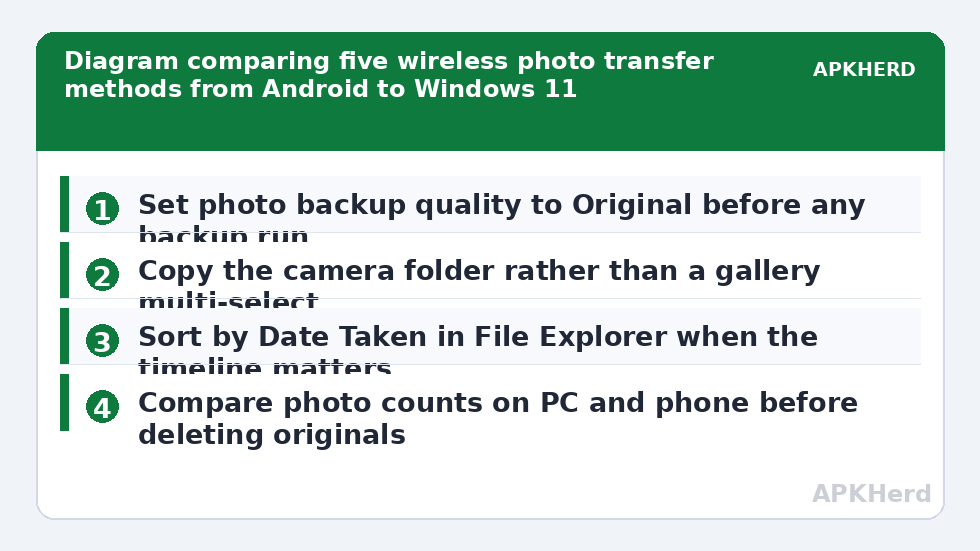
Whichever app you choose, three checks protect the copy. First, confirm the app is sending originals: look for any “optimised,” “storage saver,” or “high quality instead of original” toggle and set it to original before a backup run. Second, remember that the capture date lives inside each photo’s EXIF data and travels with the file, while Windows may display the copy’s arrival date in some views — sort by Date Taken in File Explorer when the timeline matters. Third, copy the folder, not a gallery multi-select, when the set is large: folder copies preserve filenames and avoid the sequential renaming some gallery pickers apply, which also keeps any later de-duplication honest.
Finally, verify like you mean it. Compare the photo count in the PC folder with the phone folder, open a few full-resolution images including one video, and only then consider the phone copies deletable. Every app in this roundup is capable of a clean transfer; the failures that sting are unverified ones. Browse the wider file sharing guides for the cable, hotspot, and shared-folder methods that complement these apps when Wi-Fi is unavailable.
A simple monthly routine worth adopting
- On the first weekend of the month, join phone and PC to your 5 GHz home network.
- Send the whole camera folder with LocalSend to a dated folder on the PC, such as Photos-2026-10.
- Spot-check count and a sample of images, then let your normal PC backup protect that folder.
- Keep cloud backup running only if you value the automatic copy of new photos between monthly offloads.
Two independent copies, made by two different mechanisms, is the point at which photo loss stops being a realistic fear — and every app above can play one of those two roles well.
Frequently Asked Questions
What is the fastest free way to move photos to Windows 11 without a cable?
On a modern home network, LocalSend and Quick Share are both typically fast, moving photos at your local Wi-Fi speed — usually tens of megabytes per second as a typical range. The slower device and your distance from the router matter more than the app choice.
Will these apps reduce my photo quality?
LocalSend, Quick Share, and browser sharing move the original files unchanged. Cloud services can reduce quality only if you choose a storage-saver or optimised setting, so set backup quality to Original before relying on them as your copy.
Do I need a Microsoft or Google account to transfer photos?
Not with LocalSend, Quick Share nearby transfer, or browser sharing — none requires an account for local transfers. Phone Link needs a Microsoft account, and Google Photos or OneDrive sync needs its respective account.
Why does my PC not appear as a destination?
Confirm both devices are on the same Wi-Fi network, the PC app is open, and Bluetooth is on for Quick Share discovery. On Windows, also allow the app through the firewall for Private networks, then restart the app on both devices.
Can I transfer photos with no internet connection at all?
Yes. LocalSend, Quick Share nearby transfer, and browser-based sharing all work on a local network with no internet. Cloud sync is the exception — it needs the internet by design.