
The failure is always the same: you send 200 photos and documents from Android to an iPhone, the transfer reports success, and the other end is one flat pile of files with the project folders, the subfolders for receipts, and your careful naming order all gone. The way to send folders android to iphone keep structure is not a better tap on the share sheet — it is to stop sending loose files at all. Package the folder as a single archive, or use a tool that explicitly recreates folders, and the structure survives because it travels as data rather than as a hope.
Photos suffer a second, quieter version of this problem. Sending images through a chat app or a photo picker can recompress them, strip dates, and merge a tidy album into the recipient’s camera roll in arrival order. The methods below avoid both traps, in order from most reliable to most convenient.
The archive method: the one that always works
A ZIP file does not care what phones sit at either end. Inside it, folder paths are recorded exactly, empty subfolders can be preserved, and every file arrives byte-for-byte as it left. That makes archiving the reference method whenever structure matters more than elegance.
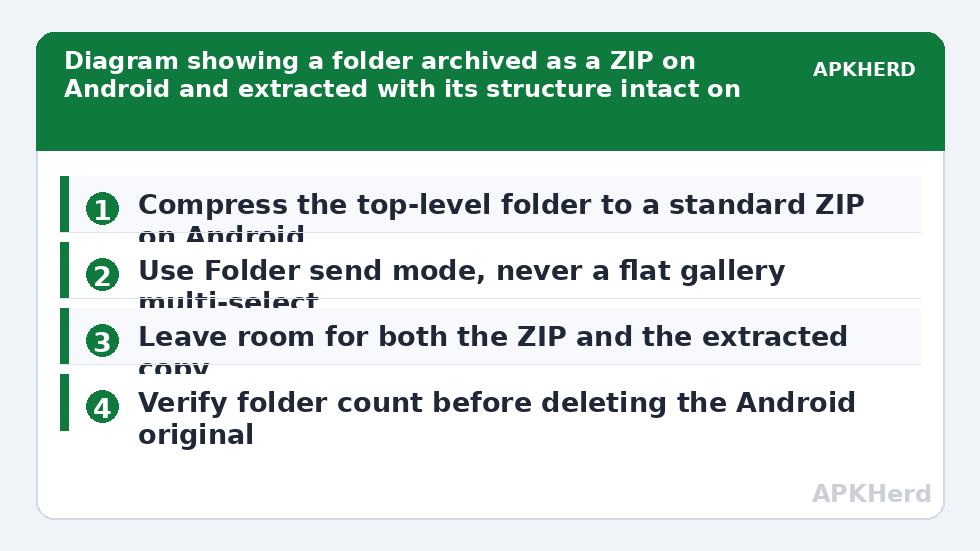
- On Android, open your file manager, long-press the top-level folder, and choose Compress or Archive to create a single ZIP. Most built-in file managers offer this; if yours does not, a reputable archiver app does.
- Check the ZIP size. A folder of documents compresses well; a folder of videos and JPEGs barely shrinks, which is fine — here the archive is packaging, not compression.
- Send the single ZIP by any reliable route: LocalSend if both phones are on the same Wi-Fi, a cross-platform sender, or a cable-and-PC hop if the archive is huge.
- On iPhone, save the ZIP into the Files app, tap it, and iOS extracts it into a folder with the same name and the same internal structure. Move that folder wherever it needs to live in Files or an app’s local storage.
Two cautions belong here. First, do not use an archive format the iPhone cannot open natively: ZIP is safe, while formats such as 7z or RAR need a third-party app at the receiving end. Second, if the folder contains an app’s private data rather than ordinary documents, media, and downloads, extracting it on iPhone gives you the files but not a working copy of the Android app’s state — structure can be preserved, platform-specific app data cannot be made to run.
send folders android to iphone keep structure with local apps
If you transfer folders often, an app that recreates the tree directly saves the archive step. LocalSend is the cleanest example: choose Folder as the send type on Android rather than picking files individually, and the receiving iOS app rebuilds the same folder hierarchy in its receive location. The discipline is in that first choice. The moment you multi-select files from a gallery or file picker instead of choosing the folder itself, you have flattened the transfer yourself before any app gets involved.
After a folder-mode transfer, the iPhone side still needs one manual step: files received by a sharing app live in that app’s storage or in Files, not automatically inside the app the recipient ultimately wants. Open Files, find the received folder, confirm the subfolders and a sample of files are present, and only then share or move it into its final home. Verifying before deleting the Android original is the same boring, essential habit as with any large transfer.
What breaks structure, even with good apps
- Gallery pickers: selecting photos from a gallery grid sends a flat selection, and some pickers rename files sequentially as they go.
- Chat apps as couriers: sending documents through a messenger can keep filenames but loses folders entirely, and sending photos as images usually recompresses them. Sending as a file or document attachment avoids recompression but still arrives flat.
- Cloud folder downloads done file-by-file: downloading a shared folder’s contents one tap at a time recreates the flat pile. Download the whole folder, or download the archive, in one operation.
- Moving through a PC carelessly: dragging files out of nested folders into one PC folder to “tidy up” mid-transfer is where many trees quietly die.
The computer bridge for very large folder trees
When the folder is tens of gigabytes — a phone backup, a semester of coursework, a full project drive — a PC or Mac in the middle is slower to set up and faster to finish. Copy the folder from Android to the computer by USB, which preserves structure perfectly and avoids Wi-Fi entirely. Then copy it from the computer to the iPhone through Finder on Mac or the Apple Devices or iTunes file-sharing route on Windows, placing it into the Files app or a specific app’s shared documents area, depending on where the recipient needs it.
Be honest about the iPhone side of this bridge: iOS does not expose a general-purpose file system the way Android does. You can preserve a folder tree faithfully inside Files, and most document, media, and productivity apps can open or import from there, but you cannot recreate an Android-style directory that every iOS app browses freely. If the recipient’s real goal is “the same organised set of files, usable on iPhone,” the Files app holding an identical tree achieves it. If the goal is a working copy of an Android app folder, no transfer method achieves it, and it is better to say so before an hour of copying.
Keeping names, dates, and order intact
Structure is more than folders. Filenames with spaces and most punctuation survive all the methods above; extremely long paths are the one recurring edge case, because a deeply nested folder with long names can hit path-length handling differences when extracted. If an extraction reports errors on a handful of files, shorten the top-level folder name and archive again rather than hunting file by file.
Dates need a decision. A file’s internal photo date — the capture time stored in its EXIF data — travels with the file in every method here. The file-system modified date may be reset to the transfer date by some apps and extraction steps. If the recipient sorts by capture date inside a photo app, they will be fine; if they sort a folder of scans by modified date, warn them before transfer, not after. And if photos must land in the iPhone Photos library rather than Files, expect Photos to organise by capture date in its own timeline regardless of your folders — albums, not folders, are the organising unit there. Recreate the important groupings as albums after import and keep the folder copy in Files as the archive of record.
For ongoing reading, our guide to a LocalSend transfer from Android to PC covers the local-network basics this method builds on, the comparison in Quick Share versus AirDrop explains why the built-in systems cannot do this job at all, and the rest of our file sharing guides cover the one-off senders for archives too large for local Wi-Fi patience.
A pre-send checklist for folder transfers
- Decide the destination honestly: Files, a specific app, or the Photos library — the right method differs for each.
- Archive to ZIP if the transfer is one-off, sensitive, or going through any intermediary service.
- Use folder mode, never a flat multi-select, if sending directly with an app.
- Confirm the recipient has free space for both the archive and the extracted copy at the same time.
- Verify folder count and a sample file at the far end before deleting the original.
That fourth point is the one people miss: extracting a 10 GB archive needs roughly another 10 GB free until the archive itself is deleted, and an iPhone that fills up mid-extraction produces a half-built tree that looks, at a glance, alarmingly like success.
Frequently Asked Questions
Why do my folders disappear when I send files to an iPhone?
Most share-sheet and gallery sends transmit a flat list of files with no folder information attached. To keep folders, either archive the folder as a single ZIP first or use an app’s explicit Folder send mode.
Can iPhone open a ZIP file without another app?
Yes. Save the ZIP in the Files app and tap it, and iOS extracts it into a folder with the same name, preserving the subfolders and files inside. No extra app is needed for standard ZIP archives.
Will my photos lose quality or dates in a folder transfer?
Not with the archive or folder-mode methods here, which move the original files unchanged, including embedded capture dates. Quality loss comes from sending photos as chat images or through pickers that recompress them.
How much free space does the iPhone need?
Plan for about twice the archive size during transfer: enough for the ZIP itself plus the fully extracted folder. You can delete the ZIP after verifying the extracted copy is complete.
Can I recreate my Android folder exactly inside every iPhone app?
No. You can preserve the complete tree inside the Files app, and apps can open or import from there, but iOS does not give every app a shared browsable file system like Android does.