
The phone can see every other device in the room except the Windows PC it actually needs. Or the PC appears, the transfer starts, and it fails at 2 percent every single time. Quick Share on Windows fails in a small number of repeatable ways, and this quick share windows not working fix is ordered the way a technician would work through them: visibility first, then the radio requirements, then the app and account layer, and only at the very end the disruptive resets.
Quick Share for Windows, the Google app formerly tied to Nearby Share branding, has strict hardware requirements that the installer does not always make obvious. The PC needs Wi-Fi and Bluetooth, both switched on, and Bluetooth must be Bluetooth Low Energy capable for discovery in many builds. The phone and PC also need to be discoverable to each other, which sounds trivial until a single visibility setting set to Contacts Only or Hidden quietly blocks every attempt while looking like a hardware fault.
Start the quick share windows not working fix with visibility
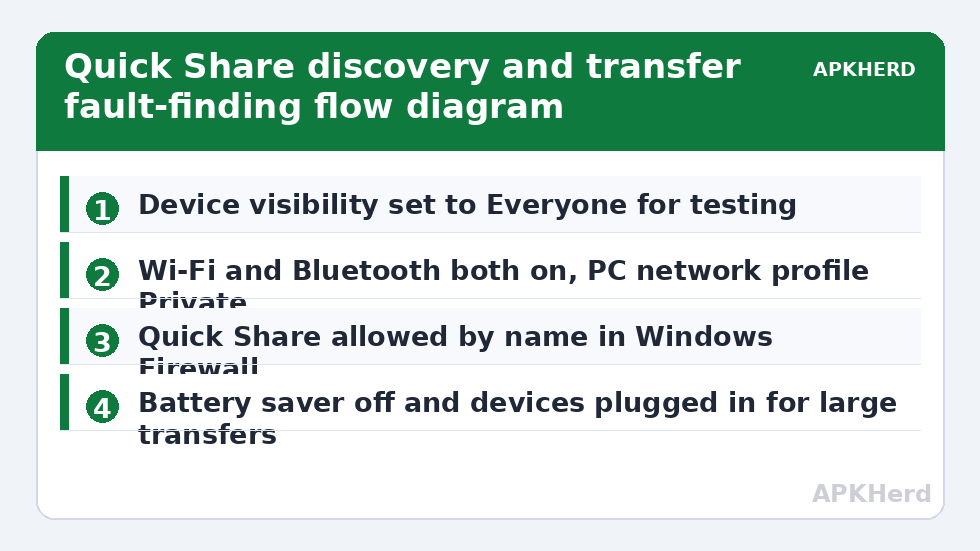
Before reinstalling anything, check the settings that gate discovery. On the PC, open Quick Share, sign in if prompted, and set device visibility to Everyone, at least temporarily for testing. On the phone, open the Quick Share settings from the quick settings tile or system settings and do the same. Contacts-only mode depends on both devices being signed into matching Google accounts with contacts synced correctly, and that chain breaks often enough that Everyone mode is the correct diagnostic step. You can tighten it back to Contacts Only once transfers work; testing in the restricted mode first proves nothing except that something, somewhere, is restricted.
Next, confirm the basics people skip because they seem too simple. Both devices awake and unlocked. Wi-Fi on, even if the PC is wired by ethernet, because Quick Share uses Wi-Fi for the transfer itself and Bluetooth mainly for discovery and negotiation. Bluetooth on for both. Airplane mode fully off on the phone, not just toggled until the icon looks right. Keep the devices within a metre or two for the diagnostic attempt. None of this is glamorous, and together these checks fix a large share of reported cases, because the system gives almost no useful error message when one of them is wrong.
Check the Windows requirements the installer glosses over
Quick Share for Windows requires a 64-bit Windows 10 or later PC, an Intel or compatible Wi-Fi adapter, and Bluetooth support. ARM-based Windows devices and some corporate builds have historically had limited support. In Device Manager, confirm the Wi-Fi and Bluetooth adapters appear without warning icons, then update both drivers from the PC or adapter manufacturer. A Bluetooth adapter that pairs headphones happily can still lack the Low Energy support or driver features Quick Share needs for discovery, which is why a PC can seem Bluetooth-healthy and still never appear on the phone.
Also check Windows is not blocking discovery. The PC network profile should be Private rather than Public at home, because Public applies stricter inbound rules. Do not respond by disabling the firewall: that exposes every listening service on the PC, not just Quick Share. Instead, allow the Quick Share app by name in Windows Security, the narrow, reversible change.
| Symptom | Likely layer | Test |
|---|---|---|
| PC never appears on phone | Visibility or Bluetooth discovery | Set both devices to Everyone, toggle Bluetooth |
| Phone never appears on PC | Phone visibility or lock state | Unlock phone, set to Everyone, keep screen on |
| Devices see each other, transfer fails instantly | Wi-Fi, firewall, or app version | Allow app in firewall, update both apps |
| Transfer starts then stalls | Power saving or network switching | Plug in, stop Wi-Fi auto-switching, retry one file |
| Works at home, fails at work | Managed network or policy | Use a cable or hotspot method instead |
If you mainly need the transfers rather than this specific app, our comparison in Quick Share versus AirDrop across Android and iPhone explains where each system’s boundaries sit, and the File Sharing hub lists fallbacks that do not share these requirements at all.
Fix the app layer: updates, cache, and account mismatch
Update Quick Share on the PC from Google’s official download, and update the phone’s system components through the Play Store, including Google Play services. Mixed old and new versions negotiate badly. On the phone, clear the cache, not the data, of the relevant system sharing service if your build exposes it, then restart both devices. A restart after driver or app updates is not ritual; the Bluetooth and Wi-Fi stacks genuinely do load that code at boot, and a stack running pre-update code will keep failing in pre-update ways.
Account mismatch is the quiet culprit in Contacts Only mode. The PC app signed into one Google account and the phone using another will never satisfy a contacts check, however healthy the radios are. Either sign both into the same account or stay on Everyone mode if your situation allows it. On a shared or work PC, think before signing a personal account into it just to make sharing work; using Everyone mode for a supervised transfer, then setting visibility back to Hidden, achieves the transfer without leaving your account on a machine you do not control.
When transfers find each other but keep failing
Move to transfer-stage faults in order. First, test with one small photo. If that passes, the discovery and negotiation path is sound and your problem is scale, power, or stability. Then test one large file while both devices are plugged in and the phone’s battery saver is off. Battery saver and some manufacturers’ aggressive sleep modes throttle background networking hard enough to kill long transfers part-way. Second, stop the phone switching networks: turn off Wi-Fi assistant features that abandon a connection judged to have no internet, because during a direct transfer that judgement misfires. Third, temporarily disconnect other Bluetooth peripherals, especially older ones, and retry; a congested Bluetooth environment degrades discovery and the handshake that starts each transfer.
Corporate and school networks deserve a separate word. Managed PCs may block the app by policy, block the ports it uses, or forbid peer-to-peer Wi-Fi entirely. If the PC is not yours to administer, do not try to circumvent its policy settings. Use a USB cable, or create your own local transfer environment with the method in creating a hotspot file server on Android, which sidesteps the managed network legitimately by not using it at all.
The last resorts, in the right order
Only now escalate. Uninstall and reinstall Quick Share on the PC, downloading the installer fresh from Google rather than reusing an old copy. Remove the PC as a paired Bluetooth device on the phone and the phone on the PC, then let Quick Share negotiate fresh rather than relying on system pairing. Reset network settings on the phone only as the final step, and understand the cost before you do it: saved Wi-Fi networks, Bluetooth pairings and some mobile settings are erased and must be rebuilt. A factory reset of either device is not a proportionate fix for a sharing app and this guide does not recommend it for this fault. If everything above fails on a PC that meets the requirements, test the same phone with a different PC. That single comparison tells you whether you are chasing a phone fault or a PC fault, and it prevents days of changing settings on the healthy device.
Frequently Asked Questions
Why does my phone not see my Windows PC in Quick Share at all?
The usual causes are visibility set to Contacts Only or Hidden on either device, Bluetooth or Wi-Fi switched off, or a PC Bluetooth adapter without the required support. Set both devices to Everyone temporarily, confirm both radios are on, and test with both devices unlocked and close together.
Does Quick Share for Windows work over an ethernet-wired PC?
The PC can be wired for its internet connection, but it still needs working Wi-Fi and Bluetooth adapters switched on, because Quick Share uses Bluetooth for discovery and Wi-Fi for the transfer itself. A desktop with no Wi-Fi adapter will not work until one is added.
Should I disable my firewall to make Quick Share work?
No. Disabling the firewall exposes every service on the PC, not just Quick Share. Instead, allow the Quick Share app by name in Windows Security or accept its firewall prompt, and use a Private network profile at home. That is the narrow fix with no wider security cost.
Why do transfers start and then fail part-way through?
Common causes are battery saver throttling the connection, the phone switching Wi-Fi networks mid-transfer, or a device sleeping. Plug both devices in, turn battery saver off for the session, disable Wi-Fi auto-switching features, and test with one large file before queueing many.
Will resetting network settings on my phone fix Quick Share?
It sometimes clears a corrupted network configuration, but it is a last resort because it erases saved Wi-Fi networks and Bluetooth pairings that you then have to rebuild. Work through visibility, drivers, app updates and a reinstall of the PC app before using it.