
Two phones, no computer, no signal, and 9 GB of wedding video to move before a flight. Cables look old-fashioned until the network disappears, and then they are the fastest tool you own. This guide covers usb otg phone to phone file transfer properly: which phone becomes the host, which cable or adapter you actually need, how to copy in the right direction, and how to avoid corrupting a card or draining the wrong battery.
USB On-The-Go, or OTG, lets a phone act as a USB host, the role normally played by a computer. A host can power and control a connected device. In a phone-to-phone link, one handset must be the host and the other behaves as storage or as an MTP device. Modern USB-C phones usually negotiate this automatically, but negotiation is not magic. Charge direction, data role and the file app you use all decide whether the copy works or the phones simply charge each other.
How usb otg phone to phone file transfer actually works
When you connect two Android phones with a USB-C to USB-C cable, they negotiate power and data roles. One becomes the power supplier and host, the other becomes the accessory. Android shows a USB notification on at least one phone, with options such as file transfer, charging only, or reverse charging. For a copy, you want file transfer or MTP on the storage phone, and a file manager on the host phone that can browse external USB storage. If both phones try to charge, or both wait to be the storage device, nothing browsable appears and users assume the cable is faulty when the roles are simply reversed.
| Setup | What you need | Typical use | Watch out for |
|---|---|---|---|
| USB-C to USB-C cable | One data-rated cable | Two modern Android phones | Charge-only cables carry no data |
| OTG adapter plus cable | OTG adapter on the host phone | Older micro-USB phone involved | Adapter must go on the host, not the target |
| Phone to flash drive, then to second phone | USB flash drive or SSD | Phones that refuse direct linking | Two copies, but the most reliable route |
The two-step flash drive method in the last row deserves respect. It is slower in wall-clock terms, but it removes all role negotiation, works between Android and iPhone far more predictably with the right drive, and gives you a backup copy on the drive at the end. For a once-only migration, reliability beats elegance. Our guide to moving data from an old Android to a new Android covers that wider migration picture, while this article stays on the cable itself.
Step-by-step: direct phone-to-phone copy
- Charge both phones above 40 percent, or connect the host phone to a charger through a hub if you have one. The host may supply power to the other phone for the whole copy.
- Connect the cable to both phones and wait ten seconds. Do not start tapping options before the USB notification settles.
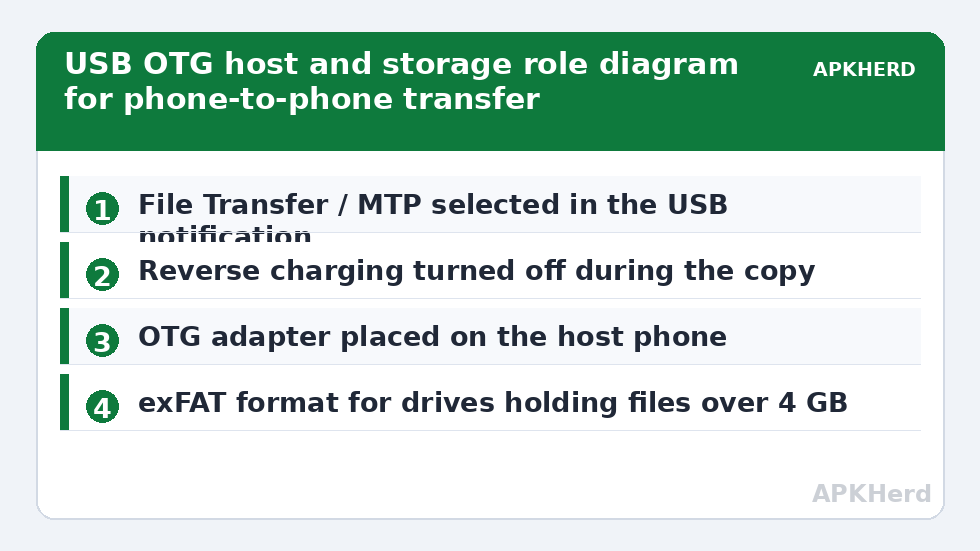
- On the phone that holds the files, open the USB notification and choose File Transfer or MTP. If it offers reverse charging, turn that off unless you intend it.
- On the other phone, open the Files app or a capable file manager and look for the connected device under USB storage or the other phone’s model name.
- Browse to the folders you need, select them, and copy them to a named folder on the receiving phone’s internal storage, not to a nearly full SD card.
- Wait for the copy progress to finish completely, then use Eject or Unmount if offered before unplugging either end.
If nothing appears, swap the cable ends, then deliberately swap roles: disconnect, reconnect, and on the receiving phone choose the option that makes it the storage device instead. On Samsung, Google and most other builds the wording differs slightly, but the underlying choice is always the same three-way split between charging, file transfer, and controlling the connected device. The File Sharing overview is useful if you want to compare this wired route against the wireless options before committing to a long copy.
Cables, adapters and the charge-only trap
The commonest failure in usb otg phone to phone file transfer is a charge-only cable. Cheap bundled and petrol-station cables often wire power pins only. They charge both phones happily and transfer nothing, with no error message anywhere. Test any unknown cable once against a computer: if it cannot move a file there, it will not work here. Prefer a short, data-rated USB-C cable. Very long cables and worn connectors cause the link to drop mid-copy, which is merely annoying for photos and genuinely risky for a single large database or video file.
Adapters follow one rule: the OTG adapter belongs on the host phone, the one that will browse and control. With micro-USB phones this is strict, because the adapter’s ID pin is what switches the phone into host mode. With USB-C the negotiation is electronic and more forgiving, but a directional adapter in the wrong phone still produces the classic symptom of two phones charging and neither browsing. If you use a USB-C hub with power delivery, the host can charge while copying, which solves the battery problem for multi-gigabyte transfers.
Speed, battery and filesystem limits to plan around
Typical real-world copy speeds over a good USB-C cable are commonly reported between 25 and 60 MB/s for large files between modern phones, limited by the slower phone’s storage as often as by the USB link itself. Older phones with USB 2.0 controllers sit nearer 15 to 30 MB/s. That still beats most wireless methods for bulk data, and it does not degrade when everyone around you is using the same airwaves. Copy in a few large batches rather than one enormous selection, so an interruption loses one batch instead of forcing a complete restart.
Filesystem limits bite in predictable places. A flash drive formatted as FAT32 cannot hold a single file larger than 4 GB, so format transfer drives as exFAT for video work. Never reformat a drive with data on it without copying that data elsewhere first; formatting erases it entirely. Battery is the second limit: the host phone may be powering the link and the other device, so a 15 GB copy on a phone at 15 percent battery is a gamble. Plug in, or swap which phone hosts halfway through only if the copy is split into separate batches.
Copying to an iPhone, and when to stop trying direct
Android to iPhone over a direct cable is the least predictable combination. Recent iPhones with USB-C can appear as storage or expose their files app in limited ways, but app sandboxing means you generally copy into the Files app or a specific app’s folder, not freely across the device. If a direct link refuses to present browsable storage after two honest attempts with a known data cable, stop. Use the flash drive two-step, or a local wireless method such as those in sending folders from Android to iPhone while keeping the structure. Persistence with a method the platforms do not support wastes more time than the slower reliable route ever will.
Safely finishing and verifying the copy
Do not judge success by file count alone. Open three or four copied files on the receiving phone, including the largest video, and play or view them. Check the destination folder size against the source, and only then delete anything from the source. Unplug only after the copy indicator has gone and you have used eject where offered; pulling a cable during a write is how people corrupt an SD card. If a card is corrupted, stop writing to it immediately, because further writes overwrite recoverable data.
Frequently Asked Questions
Why do my phones only charge each other instead of transferring files?
The USB role is set to charging on one or both phones. Open the USB notification on the phone holding the files and choose File Transfer or MTP, turn off reverse charging unless you want it, and browse from a file manager on the other phone.
Can I do a phone-to-phone transfer with a normal charging cable?
Only if that cable is data-rated. Many cheap charging cables have no data wires at all and will never transfer files, with no error shown. Test the cable with a computer first, or use a short cable you know has moved data before.
Which phone should have the OTG adapter attached?
The host phone, the one that will browse and control the copy, should carry the OTG adapter. This matters most with micro-USB and older devices, where the adapter is what switches the phone into host mode in the first place.
Is USB OTG faster than wireless transfer between two phones?
Usually yes for bulk data. Typical reported speeds are 25 to 60 MB/s between modern phones over a good cable, and the rate stays steady regardless of Wi-Fi congestion, though the slower phone’s storage often sets the real limit.
Can I transfer a file larger than 4 GB using a flash drive as a go-between?
Yes, provided the drive is formatted as exFAT or another format that supports large files. A FAT32 drive cannot store a single file over 4 GB. Remember that reformatting a drive erases everything on it, so copy its contents elsewhere first.