
Switching phones is exciting until you open WhatsApp on the new iPhone and see an empty chat list. If you need to transfer whatsapp android to iphone 2026 style — meaning with the current apps, current iOS setup screens, and no risky workarounds — the good news is that the official path now works reliably for most people. It is built into WhatsApp and Apple’s Move to iOS app, it is free, and it moves chats, media, profile information, and most settings without sending your history through an unknown server.
The catch is timing. This transfer only works when the iPhone is in its initial setup state. If you have already finished setting up the iPhone and installed other apps, you will need to erase it and start setup again before the option appears. That single constraint explains most failed attempts, so it is worth understanding before you touch anything.
Transfer WhatsApp Android to iPhone 2026: What Actually Moves
Not everything crosses over, and knowing the limits in advance prevents disappointment later. With the official Move to iOS flow, your account information, profile photo, individual chats, group chats, chat history, media files such as photos, videos, voice messages and documents, and most WhatsApp settings do transfer. Your display name and about information also come across in most cases.
Some items do not transfer. Payment information and peer-to-peer payment history do not move between platforms. Call history from WhatsApp does not transfer either, even though the chats themselves do. Messages protected or stored only in a Google Drive backup cannot be restored directly on iPhone, because iPhone WhatsApp uses iCloud, not Google Drive, for backups. There is no supported way to merge a Google Drive backup into iCloud.
Status updates, channels you follow, and some sticker packs may reappear differently or need to be downloaded again. Large media files also take time: a library with several gigabytes of video will dominate the transfer duration, so plan for that rather than assuming the process is stuck.
Requirements Before You Start
- Android phone running Android 5.0 or later, with the current version of WhatsApp installed and all chats backed up locally on the device.
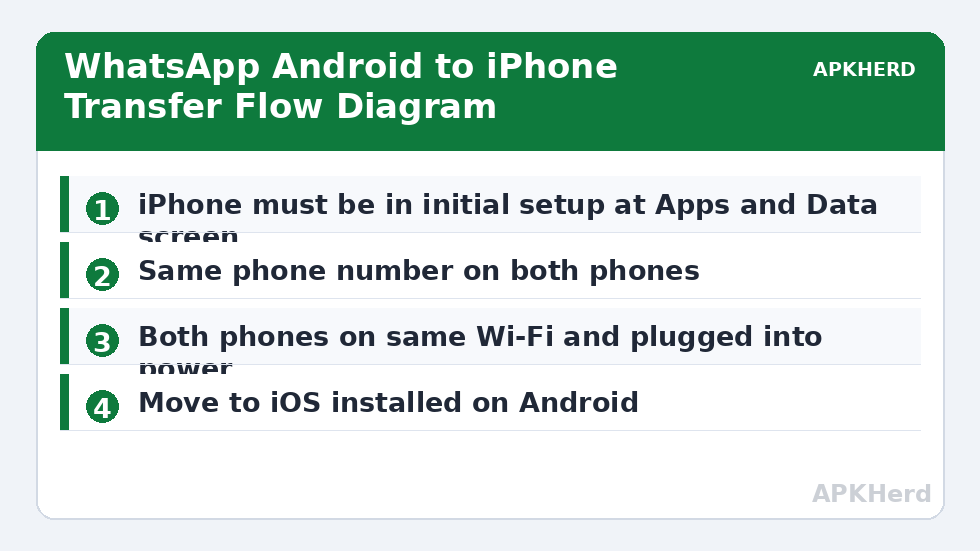
- iPhone that is new or freshly reset, running a recent iOS version, and not yet past the Apps and Data setup screen.
- Both phones plugged into power, connected to the same Wi-Fi network, and using the same phone number on WhatsApp.
- Move to iOS installed on the Android phone from the Google Play Store.
- Enough free storage on the iPhone to hold your WhatsApp data plus the rest of the content you are moving.
That same-number requirement matters. WhatsApp ties your account to a phone number, and the migration validates it. If you are also changing numbers, complete the number change inside WhatsApp on the Android phone first, confirm it works, and only then start the platform transfer. Doing both changes at once is where verification problems usually begin.
You can browse other cross-platform options in our File Sharing guides if you are moving more than WhatsApp data, including photos, folders, and large videos between devices.
Step-by-Step: The Official Move to iOS Transfer
- On the Android phone, open WhatsApp, go to Settings, then Chats, then Chat transfer is not needed on Android — instead, make sure WhatsApp is updated and your chats are present on the device itself, not only in a cloud backup.
- Turn on the iPhone and work through setup until you reach the Apps and Data screen. Choose Move Data from Android.
- Open Move to iOS on the Android phone, agree to the prompts, and enter the one-time code shown on the iPhone.
- On the transfer selection screen, tick WhatsApp along with anything else you want to move, such as photos or contacts. Confirm and leave both phones alone.
- Wait for the transfer bar on the iPhone to finish. Do not switch apps, lock the Android phone for long periods, or leave the Wi-Fi network during this stage.
- Finish iPhone setup, install WhatsApp from the App Store, open it, and verify the same phone number. WhatsApp should detect the transferred data and offer to complete the import.
Transfer time varies widely. A small account may finish in minutes, while an account with 10 GB or more of video can take an hour or longer on a congested network. Keep both devices near each other and near the router, and avoid streaming on the same network during the transfer.
What to Do If the Transfer Does Not Start
Most problems fall into three groups: the WhatsApp option does not appear, the code is rejected, or the transfer stalls partway through. Each has a practical fix that does not involve third-party unlock software.
WhatsApp Is Missing from the Selection List
This usually means WhatsApp on Android is out of date, or the iPhone was already set up once. Update WhatsApp, restart the Android phone, and if the iPhone has passed the Apps and Data screen, erase it via Settings, General, Transfer or Reset iPhone, Erase All Content and Settings, then try again. There is no supported shortcut that adds the option after setup is complete.
The Code Fails or the Phones Disconnect
Turn off any VPN on both phones, disable mobile data switching temporarily if your Android phone keeps jumping off Wi-Fi, and forget and rejoin the home network before retrying. Also disable battery optimisation for Move to iOS in Android settings, because aggressive power saving can pause the app in the background and break the session.
The Import Does Not Appear on iPhone
Install WhatsApp and verify promptly after setup. If you skip verification and use the iPhone for days first, the transferred package can become harder to surface. Signing in with a different number will also hide it. Verify with the exact same number used on Android, including the correct country code.
iPhone to Android, and Other Related Moves
The process works in reverse as well, using WhatsApp’s own chat transfer tools and, on many Samsung and Pixel devices, a cable-based setup flow. The principles are identical: use only the tools provided inside WhatsApp and the phone setup wizard, keep the same number, and allow enough time and storage.
If you are changing phones more broadly, our guide to moving data from an old Android to a new Android covers contacts, photos, and app data in one pass. For individual large files that are not part of WhatsApp, sending large files from Android to PC with LocalSend is often faster than routing them through a chat app at all.
Staying Safe: What to Avoid
Search results for this topic are full of desktop programs promising one-click transfers, unlocks, or backup merging for a fee. Some ask you to disable phone security, install unknown profiles, or upload your chat database to their servers. None of that is necessary for the official transfer, and it creates a real privacy risk, because your chat history is among the most personal data on your phone.
Stick to two sources only: WhatsApp from the Play Store or App Store, and Move to iOS from Apple on the Play Store. Do not enter your WhatsApp verification code into any website or third-party program. WhatsApp will only ever ask for that code inside its own app. If a tool asks for it elsewhere, stop.
After the transfer succeeds, check a few things before wiping the old phone. Open several long chats and scroll back to confirm media loads. Check group chats, starred messages, and documents you care about. Turn on iCloud backup inside WhatsApp on the iPhone and run a first backup, so your history is protected in its new home. Only then reset or trade in the Android phone.
Keep your Google Drive backup until you are certain the iPhone copy is complete, in case you ever move back to Android.
Frequently Asked Questions
Can I transfer WhatsApp from Android to iPhone without resetting the iPhone?
No, not with the official method. The Move to iOS WhatsApp option only appears during initial iPhone setup, so an iPhone that has already been set up must be erased first. Back up anything already on the iPhone before you reset it.
Does the transfer work if I change my phone number at the same time?
It is not recommended. Change your number inside WhatsApp on the Android phone first, confirm the new number works, and then start the platform transfer using that same number on the iPhone.
Will my Google Drive WhatsApp backup restore on iPhone?
No. iPhone WhatsApp uses iCloud for backups and cannot restore a Google Drive backup. The Move to iOS transfer moves the data directly between phones instead of using a cloud backup.
How long does the WhatsApp transfer usually take?
It depends on how much media you have and how fast your Wi-Fi is. Small accounts can finish in minutes, while accounts with many gigabytes of video can take an hour or more on a typical home network.
Is it safe to use paid third-party WhatsApp transfer tools?
The official transfer is free and supported, so third-party tools are unnecessary for most people. Tools that ask for your verification code, chat database, or security changes carry privacy risks and should be avoided.