
Your phone buzzes in your pocket while a document is open on your PC, the text you need is in a message, and the photo you want is still only on the handset. A good kde connect android pc file sync guide solves that daily friction without a cloud account: KDE Connect links your Android phone and your computer over your local network, then handles files, clipboard text, notifications, and even media controls as if the two devices were one workspace.
KDE Connect is free and open source, originally built for Linux desktops and now widely used on Windows and macOS as well. It does not upload your files to a company server to move them across the room. The connection stays on your Wi-Fi or wired local network, encrypted, and under your control — which is exactly why it has become a favourite among people who want AirDrop-like convenience without locking themselves into one brand.
How KDE Connect Works and Why It Is Secure
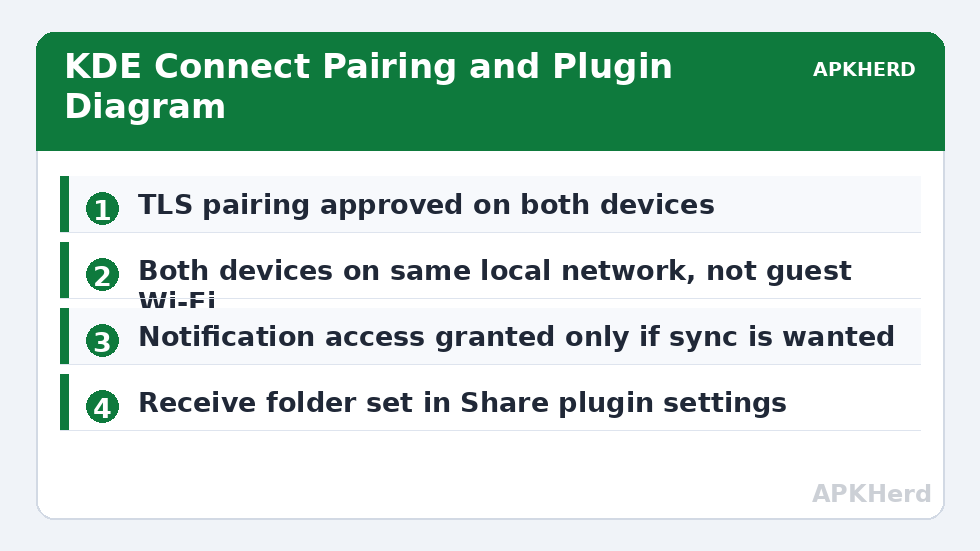
KDE Connect pairs devices using TLS encryption. When you pair a phone and a PC for the first time, both devices exchange certificates and you must accept the pairing request on the other device, checking that the request is expected. After pairing, the encrypted channel is used for every plugin, whether you are sending a file, sharing clipboard text, or mirroring a notification.
That pairing step matters. An unpaired device on the same network cannot browse your files or read your notifications. Each plugin also has its own permission: you can allow file transfer but block notification access, or share the clipboard but disable remote input. On Android, the app will ask for the relevant system permissions — notification access for notification sync, storage or media access for file sharing, accessibility only if you choose to enable remote input features — and you should grant only what you intend to use.
| Feature | What It Does | Permission Needed |
|---|---|---|
| Share files | Send files and folders between phone and PC | Storage / media access on Android |
| Share clipboard | Copy on one device, paste on the other | Clipboard access; manual send on newer Android versions |
| Notification sync | Show and dismiss phone notifications on PC | Notification access on Android |
| Multimedia control | Control PC media playback from phone | None beyond pairing |
| Find phone / battery | Ring phone, see battery level on PC | None beyond pairing |
Speed is honest local-network speed. On a typical modern home Wi-Fi network, users commonly report file transfers in the range of tens of megabytes per second when both devices have a strong signal, and noticeably less on older routers or at distance. A wired PC connection helps stability, because only the phone’s wireless link then limits the transfer. Small files and clipboard text feel instant; a multi-gigabyte video will still take minutes, just as it would with any local tool.
KDE Connect Android PC File Sync Guide: Install and Pair
- Install KDE Connect on Android from the Google Play Store or F-Droid, and install the matching desktop app on your PC from the official KDE Connect site or your system’s app store.
- Connect both devices to the same local network. A phone on mobile data or on a guest Wi-Fi network will not discover the PC.
- Open KDE Connect on both devices. Your PC should appear in the phone app’s device list, and your phone should appear in the desktop app.
- Select the device and tap Request pairing. Accept the request on the other device and confirm the pairing prompt matches what you initiated.
- Open the plugin settings for the paired device and enable only the features you want: file sharing, clipboard, notifications, and any others.
If discovery fails, check the boring causes first. Many routers enable AP or client isolation on guest networks, which deliberately blocks devices from seeing each other. Move both devices to your main network. Firewalls on the PC can also block discovery, so allow the KDE Connect app through the firewall prompt on first launch instead of dismissing it. The desktop and mobile apps should both be reasonably current; very old versions can fail to pair with new ones.
For broader local sharing options, our File Sharing hub compares KDE Connect with browser tools and direct Wi-Fi methods for different situations.
Sending Files, Clipboard Text, and Notifications Day to Day
Files and Folders
From Android, open KDE Connect, pick your PC, and choose Share file to pick a file from storage or from the share sheet in another app — most apps’ Share menus can send directly to KDE Connect. From the PC, use the desktop app or, on many Linux desktops, the file manager integration to send to the phone. Received files land in the download or configured receive folder on each side, so set that folder somewhere you will actually look, and check it in plugin settings after your first transfer.
For very large single files, treat KDE Connect like any Wi-Fi transfer: keep the phone awake, stay near the router, and avoid starting a second large transfer at the same time. If you regularly move 4 GB videos, compare the approach in our guide to sending a 4 GB video from phone to PC without compression, which covers wired options that can be steadier for huge files.
Clipboard Sync
Clipboard sharing is the feature people miss most when it stops working. On many current Android versions, background clipboard access is restricted, so KDE Connect may require you to tap Send clipboard from the app or its notification to push the current clipboard to the PC, rather than syncing every copy automatically. Text copied on the PC is generally available to paste on the phone after sync. Keep expectations realistic: this is designed for text and links, not for moving images or formatted documents through the clipboard.
Do not sync a clipboard you share carelessly. Passwords copied on one device can appear on the other if clipboard sharing is enabled. Pause the plugin when you are handling sensitive codes, or copy a harmless piece of text afterwards to replace the clipboard contents.
Notifications and Extras
With notification access granted, phone notifications appear on the desktop, where you can read, dismiss, and for many messaging apps reply from the PC. You can filter which apps are mirrored, which is essential — mirroring every app produces a noisy desktop within a day. Start with messages, calls, and email, and add more only if you need them.
Useful extras include battery status on the desktop, ring-my-phone for finding a handset in the house, multimedia control for pausing PC playback from the sofa, and presenting or remote-input tools on supported setups. Enable them one at a time so you know which permission belongs to which behaviour.
Troubleshooting Pairing and Sync Problems
When devices stop seeing each other after working before, the network has usually changed: a new router, a VPN switched on, or the phone joining a different band or network name. Confirm both devices show the same network, disable VPNs temporarily to test, and restart the KDE Connect app on both ends. Unpairing and pairing again forces fresh certificates and fixes a surprising number of stale-session faults — but only accept a new pairing request you initiated yourself.
If file sharing works but notifications do not, the problem is almost always the Android notification access toggle, which can reset after app updates. Re-enable it in Android Settings under notification or special app access. If clipboard pushes fail, check whether your Android version requires the manual send action described above.
Users who prefer a no-install browser route for occasional transfers can also look at Sweech vs Portal vs AirDroid for browser transfers. KDE Connect earns its install when you transfer often; browser tools earn their place when you do not.
Finally, keep both apps updated from their official sources. KDE Connect is actively maintained, and pairing, clipboard behaviour on new Android versions, and desktop integrations all improve through updates. An install sideloaded from an unknown site removes the trust that makes the pairing model worthwhile in the first place.
Frequently Asked Questions
Is KDE Connect safe to use on home Wi-Fi?
Yes, when paired correctly. KDE Connect uses TLS encryption after a pairing step you must approve on both devices, and transfers stay on your local network. Only accept pairing requests you started yourself.
Why does clipboard sync need a manual tap on Android?
Newer Android versions restrict background clipboard access for privacy. KDE Connect therefore often requires you to tap Send clipboard in the app or its notification to push text to the PC.
Can KDE Connect work without Wi-Fi?
It needs both devices on the same local network, which is usually Wi-Fi for the phone. It does not work over mobile data alone or send files through a cloud server.
Which folder do received files go to?
Received files go to the folder set in the Share and Receive plugin settings, often a Downloads location by default. You can change it on both the phone and the PC.
Does KDE Connect work between Android and Windows?
Yes. KDE Connect has official desktop builds for Windows as well as Linux and macOS, and the Android app pairs with them in the same way.