
The constraint is simple: your PC already has the folder, your phone already has Wi-Fi, and no app should need a cloud account to connect them. Learning to access pc shared folder android smb connections properly gives you direct, private access to shared folders on your own network — documents, photos, and media — using SMB, the file-sharing protocol Windows has used for decades and that Android file managers fully support.
SMB, short for Server Message Block, lets one device browse, open, copy, and save files in folders another device shares. When it is set up with current protocol versions and a proper password, it is one of the most dependable home transfer methods available. When it is set up carelessly — old protocol versions, guest access, no password — it is a genuine security problem. This guide does both halves: the setup, and the safety rules that are not optional.
Access PC Shared Folder Android SMB: Set Up the Windows Share
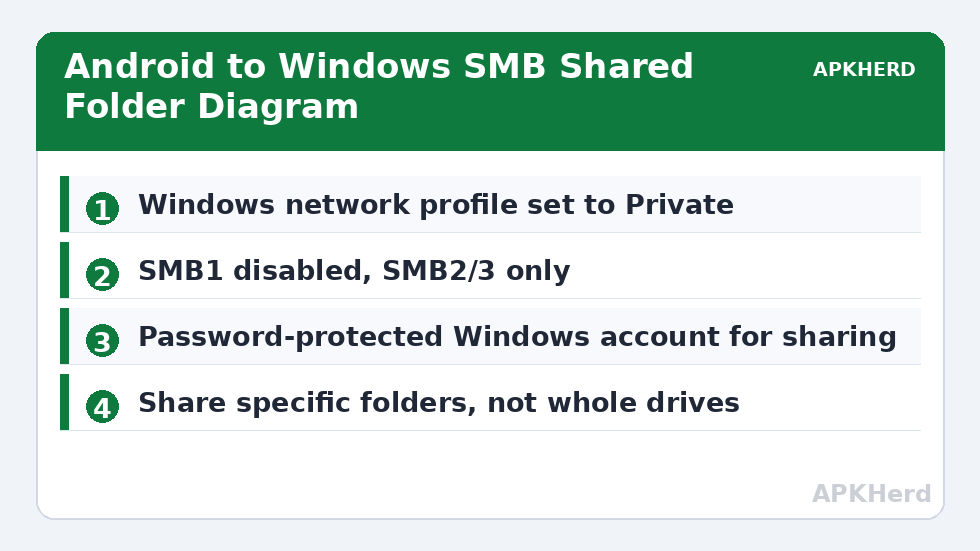
- On the Windows PC, connect to your private home network and set the network profile to Private, not Public. Windows blocks sharing discovery on Public profiles by design.
- Right-click the folder you want to share, open Properties, then the Sharing tab, and choose Share or Advanced Sharing. Add your own Windows user account with the access level you need — Read for viewing and copying from the PC, Read/Write only if the phone must save files back.
- Make sure you sign in to Windows with a password. Windows generally will not allow network access to shared folders for accounts with a blank password, and that is a protection, not a bug.
- Note the PC’s network name or local IP address. A static or reserved IP in your router settings makes the connection far more reliable over time than an address that changes weekly.
- Confirm Windows file and printer sharing is allowed through the firewall for Private networks if the phone cannot see the PC at all.
Share the narrowest folder that does the job. Sharing an entire drive for convenience exposes everything on it to anyone who obtains your Wi-Fi password. Share a “Shared with phone” folder or the specific media and document folders you actually use, and review the list occasionally.
For other ways to move files around the house, browse our File Sharing guides, which cover everything from hotspot servers to browser-based transfer.
Warning: SMB1 Is Insecure and Must Stay Disabled
This point deserves its own section, because old tutorials still get it wrong. SMB1 is the original, decades-old version of the protocol. It has serious known vulnerabilities — it was the protocol exploited by the WannaCry ransomware outbreak — and Microsoft has disabled it by default in current Windows versions for that reason. Some old guides tell you to re-enable SMB1 when a phone cannot connect. Do not do that.
Modern Android file managers and current Windows both support SMB2 and SMB3, which are faster, more reliable, and far more secure. SMB3 can also encrypt traffic on supported setups. If a specific very old app only offers SMB1, the correct fix is to replace the app with one that supports SMB2/3, not to weaken the PC for every device on your network. Never present disabling security features as a silent fix, and never leave SMB1 enabled “temporarily” — temporary settings are the ones that stay for years.
The same caution applies to guest access. Do not enable insecure guest logons or remove the password requirement to make the connection “just work.” A password-protected share on your private network is the correct configuration, and every reputable Android client handles it without complaint.
Connecting from Android
Use a file manager with proper SMB2/3 support — several well-known Android file managers offer network storage or SMB as a built-in location, and the phone maker’s own file app may include it too. The steps follow the same pattern in most apps:
- Open the file manager, find Network, Remote, or Add storage, and choose SMB or LAN.
- Enter the PC’s IP address or network name, the share name if asked, your Windows username, and your Windows password.
- Save the connection. Browse the shared folder, open a small test file first, then try copying in both directions if you granted Read/Write.
If the connection fails, troubleshoot in order. Confirm the phone and PC are on the same network and not separated by guest Wi-Fi isolation. Confirm the PC is awake — a sleeping PC cannot serve files. Double-check the username: for Microsoft-account sign-ins on Windows, the username is typically the account email or the local account name shown in Windows settings, and the password is the account password, not a PIN. A Windows Hello PIN does not work for SMB sign-in, which confuses many people on the first attempt.
Day-to-Day Use and Performance
Once connected, an SMB share behaves like slow, remote storage: perfect for opening documents, streaming music, browsing photos, and copying files in batches. Typical speeds follow your Wi-Fi link — on a typical strong 5 GHz home connection, users commonly report copying in the range of 15–50 MB/s, and much less on 2.4 GHz or at distance. If performance disappoints, the network fixes in our guide to fixing slow LocalSend speeds — band, channel, wired PC — apply equally to SMB, because both ride the same Wi-Fi.
For media playback, many Android video and music players can stream directly from the share without copying the file first. For editing or large batch copies, copy the files to the phone first and work on the local copies; editing a large file live over Wi-Fi invites corruption if the connection drops mid-save.
SMB is also a two-way street worth using deliberately. A phone photo backup routine that copies new photos into a dated folder on the PC each week is simple, private, and free of subscriptions. Compare that pattern with dedicated sync in our KDE Connect sync guide to decide which fits how you already work — many people end up using both, KDE Connect for quick sends and SMB for storage access.
Keeping the Setup Safe Over Time
- Keep SMB1 disabled permanently, and use only clients that support SMB2 or SMB3.
- Keep a real password on the Windows account used for sharing; never enable guest or password-free access.
- Share specific folders with the lowest permission that works, not whole drives with full control.
- Never expose SMB to the internet or set up router port forwarding for it. SMB is for your local network only; use a proper VPN if you need remote access to home files.
- Keep Windows and your Android file manager updated, and remove shares you no longer use.
Follow those rules and SMB remains what it should be: a mature, fast-enough, private way for your phone and PC to share files at home, with no uploads, no accounts beyond your own, and no weakened security traded away for convenience.
It also helps to test the setup again after major Windows updates or a router change. Updates occasionally reset a network profile from Private back to Public, and a new router may hand the PC a different IP address, either of which makes a working share appear to vanish. Checking the profile, the address, and the sharing settings in that order restores most connections in a few minutes, without touching any security setting at all.
Frequently Asked Questions
Is it safe to enable SMB1 so my phone can connect?
No. SMB1 is insecure, has known exploited vulnerabilities, and must stay disabled. Use an Android file manager that supports SMB2 or SMB3 instead — current apps do.
Why does SMB ask for a password and not accept my Windows PIN?
SMB sign-in uses your Windows account password, not a Windows Hello PIN, which only works on the PC itself. Enter the full account password for the user that owns the share.
Can I access SMB shares over the internet?
You should not expose SMB directly to the internet or forward its ports on your router. If you need remote access, connect to your home network through a reputable VPN first, then use SMB.
Why can my phone not see the shared folder?
Check that both devices are on the same private network, the PC network profile is set to Private, the PC is awake, and the folder is shared to the account you are signing in with.
What speeds should I expect copying over SMB?
Speeds follow your Wi-Fi. On a typical strong 5 GHz connection, reported copying is often around 15–50 MB/s, while 2.4 GHz or a weak signal will be noticeably slower.