
Seedvault is the backup system your custom ROM probably already includes and you have never opened. Built into LineageOS and several other ROMs (and available on rooted or privileged setups elsewhere), it was designed by people who wanted backups without Google’s cloud and without the allowBackup roulette. This seedvault backup custom rom guide explains how Seedvault works, what it genuinely captures, where its design still frustrates, and how its recovery-word model changes the way you must protect the backup itself.
How Seedvault differs from everything else in this category
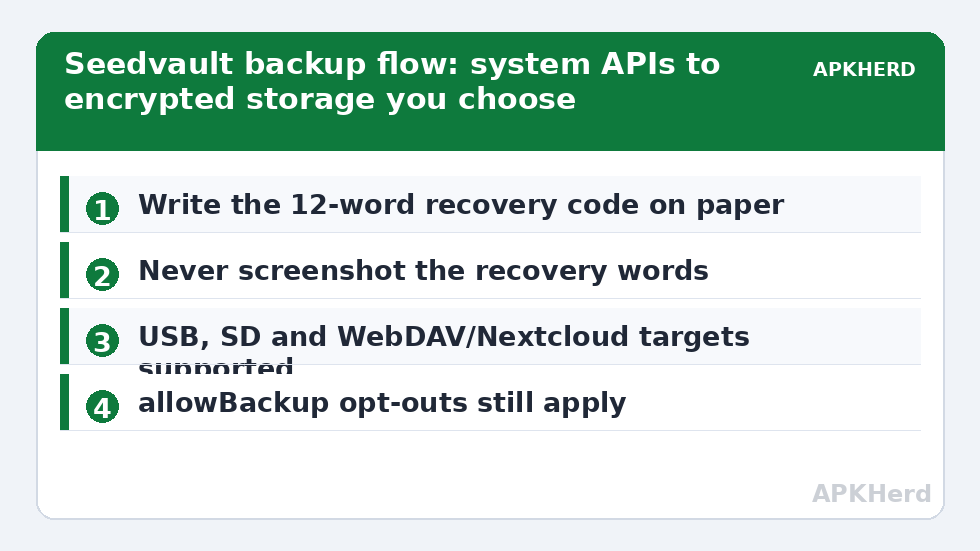
Seedvault plugs into Android’s own backup framework as the transport — the same underlying APIs Google One uses — but writes to storage you choose: internal storage, a USB drive, an SD card, or a WebDAV server such as a Nextcloud instance. The defining design decision is the 12-word recovery code generated at setup. That word list is the encryption key to your backups. There is no account, no password reset, no “forgot my code” link. Lose the words and the backup is mathematically unrecoverable; anyone who finds the words owns the backup. That is a stronger and more honest security model than most consumer tools, and it demands you treat the word list like a house key: written down, stored offline, ideally in two separate physical places.
Because it uses the system backup APIs, Seedvault inherits their central limitation: apps that set allowBackup=false are excluded, exactly as with Google One. Seedvault cannot override a developer’s opt-out. What it changes is custody and scheduling, not the permission model.
Seedvault backup custom rom guide: setup, step by step
- Find it: Settings → System → Backup. On LineageOS and ROMs that ship Seedvault, it appears as the backup provider. If your ROM offers a choice of backup transport, select Seedvault.
- Generate your recovery code and write the 12 words down on paper, in order. The app will ask you to confirm them. Do not screenshot them — screenshots sync to photo clouds, which defeats the entire model.
- Choose the backup location. A USB-OTG drive or SD card is the classic choice; a WebDAV/Nextcloud target suits people running their own server (the same audience as our self-hosted photo guide).
- Enable automatic backups and set the schedule. Seedvault is designed to run quietly; daily over charging is a sensible default.
- Trigger a first manual backup immediately and let it finish before judging the app.
What the first backup actually contains
| Data | Seedvault behaviour |
|---|---|
| App data (permitted apps) | Backed up via system APIs; same allowBackup limits as Google One |
| Call history, SMS | Included through system backup datasets |
| Device settings | Included |
| Files | Not a general file backup — pair with a storage copy for documents and media folders |
| Expert mode | Optional handling for device-protected storage and additional data classes on supported builds — read the in-app notes carefully before enabling |
Notice the recurring theme of this whole category: Seedvault is the app-data and settings layer. Photos, downloads, and documents still need a file-level backup — on a de-Googled phone, usually a USB copy, Syncthing, or Nextcloud sync to your own hardware. Combine layers deliberately, as in our pre-ROM backup layering guide.
Restoring: the moment the word list earns its keep
Restore happens most cleanly during initial setup of a fresh ROM install, when the setup wizard offers Seedvault restore if it detects a backup on connected storage. Enter the 12 words, pick the backup set, and the system restores apps and data. You can also restore later from Settings on supported builds, with the usual caveat that the setup-time path is the most complete.
Test this before you need it. The realistic test on a ROM device: back up, then on a spare device or after a planned clean flash of the same ROM family, run the restore and audit three things — a messaging app’s history, one permitted app’s data, and your settings. Confirm the word list you wrote down is the one that works; transcription errors in word 9 are a heartbreakingly common discovery at restore time. If the words fail, regenerate the backup set with a new code while the old phone still lives.
Honest limitations
Seedvault’s development pace is modest and its polish varies by ROM integration; progress reporting during big restores can be sparse. The allowBackup ceiling is real — your banking app will not be in there. Restores across wildly different Android versions can partially fail per-app. And the custody model means your backup security is your handwriting: no recovery desk exists. For users comfortable with those terms — the custom ROM and de-Googled audience, precisely — it remains the most principled option in this entire category, and the comparison with the other open-source tool, in our Neo Backup guide, is worth reading before choosing. The full method map is at backup tools.
Choosing the backup medium: what experience teaches
The target you select shapes reliability more than any setting. A USB flash drive kept plugged into the phone’s charging routine is the most faithful option — backups run while you charge, and the medium leaves with you when you travel. SD cards are convenient but are the most failure-prone medium in the drawer; if you use one, treat it as a cache and duplicate the backup folder to a computer monthly. WebDAV to a home server suits always-home users and pairs beautifully with a de-Googled setup, but your backup then depends on your server’s uptime and its own backup hygiene — the server becomes part of the plan, with its own copies to maintain. Whatever you choose, keep the folder structure intact when copying: Seedvault backup sets are a coordinated directory of encrypted chunks and metadata, not individual files to cherry-pick.
One more discipline: when you change ROMs or devices, generate a fresh Seedvault setup rather than assuming an old backup set will restore across the move. Cross-ROM restores often work, but “often” is a word to retire before a planned migration, not during it.
Seedvault in a de-Googled stack: what surrounds it
On a de-Googled phone, Seedvault rarely stands alone, and its neighbours matter. microG or sandboxed services change which apps can use cloud saves at all; F-Droid becomes the app source, meaning app availability is high but update cadence differs; push notifications and licence checks in some paid apps behave differently without Play Services, which affects what “restored” looks like in practice. None of this diminishes Seedvault — it was designed for exactly this environment — but calibrate expectations: your restore test app should be the most Google-dependent app you still run, not the easiest one. If that app restores cleanly, the rest of the stack almost certainly will.
Frequently Asked Questions
Is Seedvault available on stock Samsung or Pixel phones?
Generally no — it needs system-level (privileged) integration, which is why ROMs ship it. Stock devices cannot grant a Play Store install the permissions it needs. On stock hardware, layer Google One plus file copies instead.
What happens if I lose the 12-word recovery code?
The backups encrypted under it are unrecoverable, permanently. That is by design. Write the words on paper at setup and store them separately from the device; consider a second copy in a different location.
Does Seedvault back up apps that block backup?
No. It uses the same Android backup framework as Google One, so allowBackup=false apps are excluded. No non-root tool can override that; root tools like Swift Backup in root mode bypass it by reading data directly.
Can Seedvault back up to my own server?
Yes — WebDAV targets such as Nextcloud are supported, which makes it a natural fit for de-Googled setups with self-hosted storage. The backup remains encrypted under your word list in transit and at rest.
Does Seedvault replace a file backup for photos?
No. Seedvault covers apps, messages, and settings. Photos and documents need their own file-level copies via USB, Syncthing, Nextcloud, or a photo server.