

WhatsApp’s Google Drive backup is convenient until the day it is not: a full Drive, a changed Google account, a backup stuck at 99 percent for a week. Underneath the cloud feature sits the older, more controllable system — whatsapp local backup restore no google drive is a fully supported path, because WhatsApp writes a local backup to your phone’s storage every night at around 2 a.m. whether or not Drive backup is enabled. This guide shows how to find those files, protect them properly, and restore from them on a new phone or a fresh install.
What the local backup contains
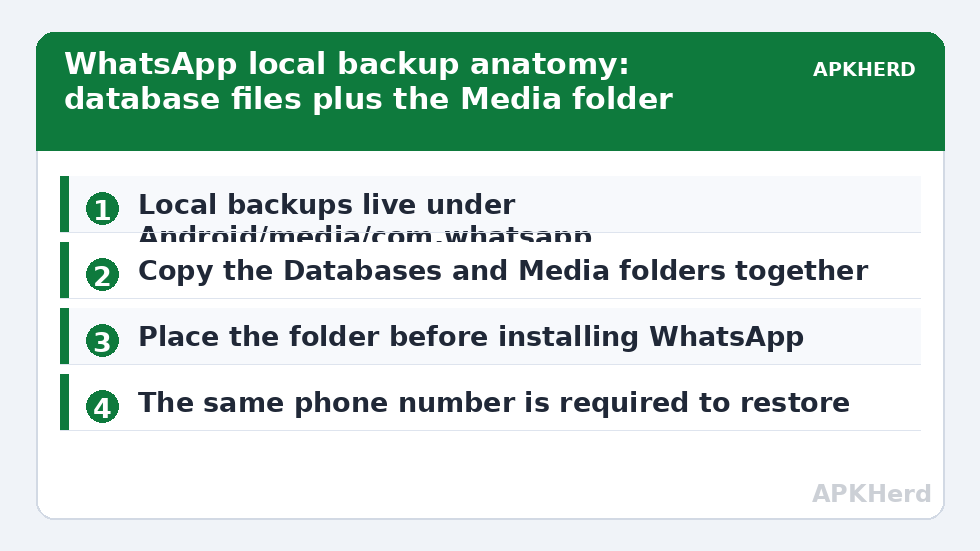
The local backup lives in the WhatsApp folder on internal storage — on modern Android, under Android/media/com.whatsapp/WhatsApp/Databases — as files named msgstore-YYYY-MM-DD.1.db.crypt14 (the extension number varies with encryption version). WhatsApp keeps the last seven days of backups, rotating automatically. The companion Media folder holds your photos, videos, voice notes, and documents. A complete local migration needs both: the database restores your chat history structure, and the media folder makes the attachments inside those chats actually open. Copying only the database is the classic mistake that leaves years of grey placeholder thumbnails.
Be clear about scope: the .crypt database is encrypted with a key tied to your WhatsApp installation and phone number verification. You cannot open it on a PC, and a restore requires verifying the same phone number on the target install. This is not a format you can convert or browse — it is a transplant mechanism, not an archive format. If you want readable chat exports, WhatsApp’s per-chat “Export chat” feature is the separate, limited tool for that.
Making the backup fresh and moving it off the phone
- In WhatsApp: Settings → Chats → Chat backup. Note the “Last backup: Local” time. Tap Back Up Now if the local time is stale — this writes a current local copy even with Drive backup off.
- Connect the phone to a PC by USB (or use a file manager that can reach the path) and copy the entire WhatsApp folder — Databases, Media, and all — to a dated folder on the computer. Size check: for media-heavy users this is several GB. If the copy is suspiciously small, you copied the wrong WhatsApp folder (some phones have a legacy path at storage root too).
- Apply 3-2-1: that PC folder is copy one; duplicate to an external drive; a third copy can go to cloud storage, but encrypt it first — chat backups are intensely personal, and our encryption guide shows the workflow. Note the database is already WhatsApp-encrypted, but the Media folder is plain, readable files.
WhatsApp local backup restore no Google Drive: restoring on a new phone or fresh install
- Before installing WhatsApp on the target phone, copy the WhatsApp folder into the same relative location: Android/media/com.whatsapp/WhatsApp. Getting the folder in place before first launch is what makes WhatsApp detect it.
- Install WhatsApp, verify the same phone number, and proceed through setup. When it searches for backups and offers the local one, accept Restore. If it only mentions Google Drive, you likely placed the folder wrongly or installed before copying — start over; the detection moment is at first verification.
- Wait for the restore to complete fully, including media indexing. Large libraries can take a long while before every photo appears; the chat list returning is not the finish line.
Verification and the failure patterns
After restore, verify three specific things: your oldest chat scrolls back to its true beginning (not a truncated recent slice), a photo from a year-old chat opens at full size, and a voice note plays. Then check the chat list for any group that appears empty — groups restore their structure from the database, and an incomplete media copy shows up as missing attachments rather than errors.
Known failure patterns: restoring a database from a newer WhatsApp version into an older one can fail (update the target app first); switching phone numbers mid-process breaks the key binding (change the number inside WhatsApp on the old phone first, using its change-number feature); and dual-app/WhatsApp Business installs keep separate folders — confirm which app your backup belongs to.
Local versus Drive: run both, deliberately
The strongest setup uses each for what it is: Drive backup as the zero-effort daily safety net, and a manual copy of the local folder whenever something big changes — new phone, ROM flash, long trip. The pre-flash scenario is covered end-to-end in our full backup before a custom ROM guide, where WhatsApp is Layer 2. And do not forget the same local-copy habit applies to other data; see the whole system at backup tools.
Storage economics: your WhatsApp folder is bigger than you think
Years of forwarded videos and voice notes quietly make WhatsApp the largest single app footprint on many phones — 10 to 40 GB is unremarkable for heavy group-chat users. That size has three planning consequences. First, your PC copy needs real room; check before you start the migration-day copy, not at 87 percent. Second, the seven-day rotation only protects the database; if you disable local copying for months and discover media was pruned (WhatsApp can remove media you have not opened when storage pressure hits), the database restores conversations whose attachments no longer exist anywhere. Periodic full-folder copies are the actual protection; the rotation is just freshness. Third, use WhatsApp’s own storage manager (Settings → Storage and data → Manage storage) before a migration to delete the handful of monster group threads hoarding gigabytes — your backup, copy time, and restore time all shrink dramatically, and the chats themselves remain.
If you run WhatsApp Business alongside personal WhatsApp, repeat this entire routine per app: separate folders, separate databases, separate restores. Migrations routinely save one and orphan the other.
End-to-end encrypted backups and the local method: use the right one
WhatsApp’s optional end-to-end encrypted backup applies to the Drive (and iCloud) copy, sealed with a password or a 64-digit key you must keep — lose it and WhatsApp itself states the backup cannot be recovered, by design. The local method in this guide needs no such key because the database encryption is bound to your verified number and installation flow. Choose by scenario: Drive + E2E suits people who want zero manual steps; local copies suit people changing phones today, flashing ROMs, boycotting clouds, or rescuing a situation where Drive is broken. Nothing stops you running both, and for high-stakes migrations (new phone plus number change in the same week), both is the professional answer.
Frequently Asked Questions
Where exactly is the local WhatsApp backup stored?
On most current devices: Internal storage → Android → media → com.whatsapp → WhatsApp → Databases. Older installs may use a WhatsApp folder at the storage root. The file is named msgstore with a date, ending in .db.crypt14 or a similar suffix.
Can I restore a local backup without the same phone number?
No. The backup key is bound to the verified number. If you are changing numbers, use WhatsApp’s in-app change-number feature on the old phone first, then back up and migrate.
How many days of local backups does WhatsApp keep?
Seven days of rotating nightly backups, plus the most recent one created when you tap Back Up Now. Copy the dated one you want; the undated msgstore.db is the latest restore candidate.
Why did my chats restore but photos show as blurry placeholders?
The database restored without its Media folder, or the media copy is incomplete. Re-copy the full WhatsApp Media folder to the same location and give WhatsApp time to index; in stubborn cases, a reinstall with the complete folder in place first fixes it.
Is the local backup encrypted?
The database is, yes — that is what the .crypt14 suffix means. The Media folder is not; those are ordinary image and video files. End-to-end encrypted Drive backup is a separate optional feature with its own password or 64-digit key.