
You can clone apps android tv fire tv stick hardware, but the TV changes every assumption the phone guides make. There is no work profile on Android TV, no OEM dual-apps feature, and no Google Play multi-account switcher for most streaming apps — instead, the platform gives you something phones mostly lack: true multiple user profiles at the OS level on Android TV, and on Fire TV, Amazon’s own profile system inside a much more locked-down store. Add a remote-control interface that makes typing passwords an endurance sport, and the practical playbook becomes very different. This guide covers what “cloning” realistically means on each platform, the profile features that usually make cloning unnecessary, and the sideloading caveats specific to TV devices.
First, Check Whether the App Already Solves It
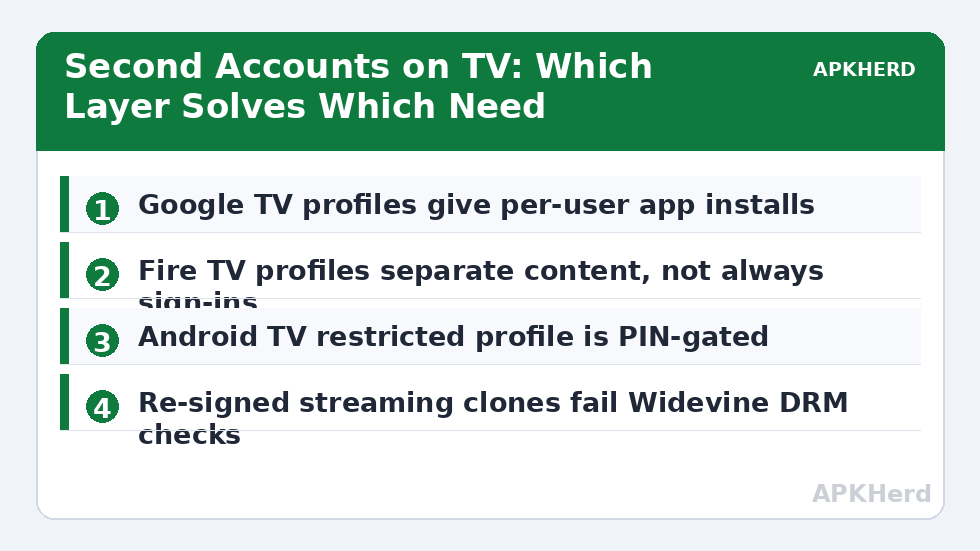
On TV, the second-account problem is usually solved above the app layer. Netflix, Prime Video, YouTube, Disney+, and most major streamers have in-app profiles — separate watch histories and recommendations under one subscription — which is what most households actually want. Android TV itself (Google TV especially) supports multiple Google accounts and user profiles with separate home screens and app sets: on Google TV, add profiles under Settings > Accounts & sign-in, and each profile installs its own copies of apps, which is functionally a clone with OS support behind it. Fire TV offers up to six household profiles for content separation, though app sign-ins remain largely device-level — the honest limitation of Amazon’s approach, and the reason people start hunting for cloning options there at all.
Android TV: Multiple Users and Per-Profile Installs
For a genuine second installation of the same app with a different account — say, two regional instances of a streaming app, or a work media account beside a personal one — Android TV’s user model is the clean route. Each user/profile maintains its own app data; installing the same app under a second profile yields an independent sign-in and library. Menu paths vary by maker (Sony, TCL, Hisense, Chromecast with Google TV all differ slightly), but the pattern is Settings > Accounts (or Device Preferences > Users on older Android TV builds). On older Android TV versions without multi-user, the fallback is per-app workarounds: some apps support account switching in their own settings; some do not, and signing out/in is the only switch available.
Fire TV: The Locked Garden Rules
Fire TV devices run Fire OS, permit one primary Amazon account per device (plus household profiles), and treat sideloading as a tolerated developer feature rather than a consumer one. There is no dual-apps function, and consumer “cloner” apps from the Amazon Appstore are scarce and unimpressive. The realistic options, in order of sanity: use the app’s own profiles if it has them; use a second profile if the app respects Fire TV profiles (many do for recommendations, fewer for sign-ins); deregister/re-register the device only if the whole device changes hands; or accept a second cheap stick dedicated to the second account — at Fire TV Stick prices, a second device is frequently cheaper in frustration than any hack. Deriving a second copy of an app by sideloading a re-signed clone is technically possible and practically miserable: signature-modified streaming apps typically fail DRM and integrity checks, and Widevine-protected content is unforgiving of tampering.
Sideloading on TV: What Changes vs a Phone
If your need is legitimate — installing a phone-style app that is not in the TV store, or running two instances of an open-source utility — the mechanics are familiar (enable developer options, allow installs from your file source, use a tool like a file manager or the Downloader app), but the friction is higher: no touch interface, remote-typed URLs, and apps built for portrait touchscreens rendering sideways. Tools that virtualise apps on phones largely do not exist in maintained TV form; the full virtual-phone products assessed in our VMOS/X8 Sandbox safety review are phone-centric and a poor fit for a living-room box. Modified clones on TV inherit every hazard from the phone world — the “App not installed” family of failures included, dissected in our split-APK cloning error guide — plus DRM refusal on top.
Household Scenarios and the Right Tool for Each
- Kids vs adults on one TV: app profiles + the platform’s parental controls/PINs. No cloning required, and content ratings actually apply.
- Two adults, separate streaming accounts: Google TV profiles on Android TV; on Fire TV, app-level profiles where supported, or a second stick where not.
- Second account for a game: Android TV per-user installs work; on Fire TV, most games tie to the device Amazon account — a second profile rarely helps, and game-specific account switching is the honest answer.
- Keeping a utility app out of sight: TV launchers offer app-hiding; the drawer-hiding principles in hiding cloned apps from the launcher map loosely, though TV hiding is about home-row curation, not privacy.
The pattern across all four: on TV, “clone the app” is usually the wrong frame — profiles at the OS or app level solve the underlying need with platform support, and the cases that genuinely need duplication are narrow enough to justify dedicated hardware. More duplication guides for the phone in your pocket are under App Cloners.
Android TV’s Restricted Profile: The Forgotten Middle Ground
Buried in many Android TV builds is a Restricted Profile — a PIN-gated, limited environment originally designed for exactly the living-room problem: shared hardware, different trust levels. Inside it, only apps you explicitly allow are visible, purchases and settings are locked away, and exiting requires the PIN. It does not duplicate apps with separate accounts, so it is not a cloner; but combined with a streaming app’s own profiles it covers the overwhelming majority of household “second account” requests, which are really “keep the kids and the guests out of my stuff” requests. Google TV’s per-user profiles have largely superseded it on newer devices, yet on older Android TV boxes the restricted profile remains the only built-in boundary available — worth checking Settings > Device Preferences or the Security & restrictions section before concluding your box has no options at all.
Before cloning anything on a TV device, audit its storage with fresh eyes. Streaming boxes commonly ship with 8 or 16 GB, most of it already spoken for, and a cloned app duplicates not just the installer but its cache and data growth — two copies of a media app can quietly consume the free space the system needs for updates, which then fail in confusing ways. If your Android TV supports a USB drive formatted as device storage, adopt it before cloning; if not, clone only the one app the household genuinely needs twice.
Frequently Asked Questions
Does Android TV have a dual apps feature like phones do?
No. Android TV and Google TV do not include OEM dual-apps cloning. Instead, Google TV supports multiple user profiles, and installing the same app under a second profile gives you an independent copy with its own sign-in and data — which covers most reasons people look for cloning on TV.
Can I run two accounts of a streaming app on Fire TV Stick?
Usually through the app’s own profiles (Netflix, Prime Video, and similar offer them) rather than true separate sign-ins. Fire TV profiles separate recommendations and watchlists but often share the underlying app sign-in. If you need two fully separate accounts of an app that lacks in-app profiles, a second inexpensive stick is the practical solution.
Is sideloading a cloned app onto Fire TV a good workaround?
Rarely. Signature-modified clones of streaming apps typically fail DRM (Widevine) and integrity checks, so protected content will not play, and the clone cannot update from any store. Sideloading remains reasonable for legitimate, unmodified apps that simply are not listed in the TV store.
How do I keep children’s viewing separate from mine on one TV?
Use the streaming apps’ own profiles with maturity ratings set per profile, plus the platform’s parental controls and purchase PINs. This is fully supported, keeps recommendations and histories separate, and avoids any need for cloned apps or second sign-ins.
Why do phone app cloners not work on my TV?
Mainstream cloners are built for phone Android — they rely on work profiles or virtualisation frameworks that Android TV does not ship, and their interfaces assume touch. On TV the supported equivalents are OS-level user profiles (Google TV) and app-level profiles, not cloner apps.