
Every guide in this category quietly assumes you will remember to run the backup. You will not — nobody does, which is why automatic backup android to nas pc setups exist: point the phone at a folder on your own hardware, and copies flow whenever you are home on Wi-Fi, with no Google account in the loop. This guide compares the three realistic sync engines (Syncthing, SMB-based folder sync apps, and vendor NAS apps), walks a full Syncthing setup, and finishes with the restore test that separates an automatic backup from automatic false confidence.
Automatic backup Android to NAS PC: pick your sync engine with eyes open
| Tool | How it works | Strengths | Weak points |
|---|---|---|---|
| Syncthing (and Syncthing-Fork) | Peer-to-peer sync directly between phone and PC/NAS, encrypted in transit | No cloud, no account, works to any computer; versioning available | Both devices must be on/awake to sync; setup concepts (folder types) take ten minutes to learn |
| FolderSync | Syncs folders to SMB shares, NAS, or cloud providers on a schedule | Very flexible targets incl. SMB; fine-grained schedules and filters | Free tier limits; SMB speed and credential quirks need care |
| NAS vendor apps (Synology Drive, QNAP) | Vendor’s own phone app syncs to its NAS | Smooth if you own that brand | Locks you to the vendor’s ecosystem and app quality |
| USB scheduled copy via PC scripts | PC-side script pulls folders when the phone is plugged in | Dead reliable, fast | Only as automatic as your plugging-in habit |
Syncthing is the default recommendation for most people in this audience: your data travels directly between your devices, encrypted, over your own network (or securely relayed if you enable it), and the “server” is any PC or NAS you already own.
Syncthing setup, end to end
- Install Syncthing on the PC or NAS (or use the Syncthing package in your NAS’s app store) and Syncthing-Fork on the phone from F-Droid or the Play Store build.
- Pair the devices: show the phone’s device ID QR code from the PC’s web interface and scan it, then accept the pairing on the phone. Each device must approve the other — that mutual approval is the security model.
- On the phone, create a folder entry for each thing worth protecting: DCIM/Pictures, Download, Documents, the WhatsApp folder, your SMS archive folder, emulator save folders, and the Swift Backup folder if you use it.
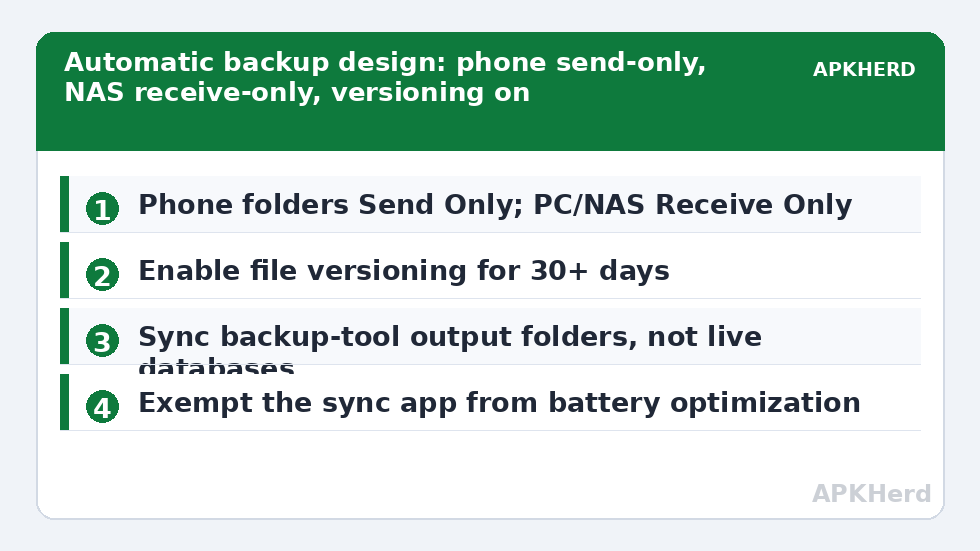
- Set each phone folder to Send Only and the PC/NAS counterpart to Receive Only. This asymmetry is deliberate: deletions or accidents on the PC must never propagate back and delete the phone’s only copy before you notice. Your archive should be append-and-review, not a mirror of mistakes.
- On the PC side, enable file versioning (staggered or simple) for at least 30 days of history. Versioning is what turns “sync” into “backup” — without it, a corrupted or accidentally deleted file syncs its badness everywhere, the classic sync-is-not-backup trap.
- Set run conditions on the phone: sync only on Wi-Fi, only on your home network if you prefer, and either always-run or on the app’s schedule. Disable battery optimization for the sync app so Android does not strangle it — the same fix our performance guides recommend for any background-critical app.
What belongs in the synced set (and what does not)
Sync content folders and the outputs of other backup tools — that layering is the design. Syncthing moving your Swift Backup folder means your app backups gain an off-device copy automatically; Syncthing moving your SMS archive folder does the same for messages. What not to sync: entire internal storage wholesale (you will copy caches, thumbnails, and gigs of junk, and the sync will never feel finished), and live database files of apps while they are running (a copied-open database can be inconsistent — that is what the app-aware tools like Swift Backup exist for).
The 3-2-1 check and the restore test
Count your copies honestly. Phone original (1), NAS/PC synced copy (2) — that is two copies on two devices, which survives a dead phone or a dead drive, but not a fire or theft at home. Add the third: an external drive you rotate, or an encrypted cloud copy of the archive folder (encrypt first, per our encryption guide), and the structure matches the 3-2-1 plan exactly.
Then test an actual restore: delete one photo from the phone, confirm the NAS copy still opens; corrupt nothing, but retrieve a WhatsApp folder file from the NAS and confirm its date. And once, on a spare device or after a reset, restore something meaningful end-to-end. Our restore testing routine gives the full checklist; automation without testing is just a faster way to be wrong.
Speed and behaviour expectations
On home Wi-Fi, modern phones move photos at tens of MB per second in real-world conditions; the first sync of a 100 GB library takes hours, but daily deltas finish in moments. Keep the NAS/PC awake during the window you charge the phone — overnight alignment makes the whole system feel invisible, which is the point. Watch the first week: check the app’s “last sync” and the folder’s recent files daily until trust is earned, then weekly glances suffice. Full category index: backup tools.
Troubleshooting the silent failures
Automatic systems fail quietly, so learn their tells. “Last sync” frozen days ago: the phone-side app was battery-optimized or the run conditions (Wi-Fi network name, charging state) no longer match your routine — a new router SSID silently voids “home Wi-Fi only” rules. Conflicts piling up: something is editing files on both sides; with the Send Only/Receive Only design in this guide, conflicts usually mean a second two-way folder pair exists — audit your folder list. NAS copy complete but files unreadable: transfer interruptions mid-file; Syncthing verifies hashes and re-transfers, so persistent corruption points at dying storage on one end — check disk health before blaming the sync. Sync never finishes: you included a cache or thumbnail directory that churns constantly; exclude caches and let the meaningful folders complete.
Build the detection habit into the system: a calendar reminder on the first of the month to glance at last-sync time and the archive’s newest files. Automation handles the copying; a human still has to supervise the automation, briefly and on schedule.
Security notes for a sync that never sleeps
Your sync fabric touches your most personal folders, so treat its credentials like the valuables they are. Syncthing’s device-approval model means a new device cannot join silently — protect that approval step by keeping the PC interface local (do not expose the Syncthing web UI to the internet) and reviewing the paired-device list occasionally. For SMB-based syncing, use a NAS account with permission limited to the backup shares, not your admin login; a compromised phone should not inherit the keys to the whole NAS. Finally, remember the synced archive contains other tools’ exports — SMS archives, app backups — which carry their own sensitivity; the encryption rules from this category apply to the archive as a whole, not folder by folder.
Frequently Asked Questions
Is Syncthing a real backup if it syncs deletions?
Configured as in this guide — phone Send Only, receiver Receive Only, versioning on — deletions on the phone do not delete the archive, and past versions are retained. Configured as a naive two-way mirror, yes, it would propagate deletions; the settings are what make it a backup.
Does the data pass through any cloud?
No. Syncthing connects devices directly and encrypts traffic between them. Optional relay servers can help devices find each other across networks but cannot read the content. On your home LAN it is purely local.
Will this drain my battery?
Continuous always-on sync has some cost; scheduled or Wi-Fi-plus-charging conditions reduce it to negligible. The initial large sync is the only heavy session — run it plugged in.
Can I back up app data this way?
Only what lives in accessible folders. Private app data still needs app-aware tools (Swift, Google One, ADB) — sync those tools’ output folders, which is exactly the layered design described above.
What if I do not own a NAS?
Any Windows, Mac, or Linux PC that is regularly on works, and an old laptop makes a fine backup target. The principles — send-only, versioning, third copy off-site — matter more than the hardware badge.