
A 4 GB video is sitting on your phone, your router is two rooms away, and a USB cable would be faster if you could find one. This is exactly the job Wi-Fi Direct was built for. The guide below walks through wifi direct android to pc setup in the order that actually works: check both radios, create the group, connect the PC as a legacy client if needed, then send the file with an app that speaks the protocol properly.
Wi-Fi Direct is not normal Wi-Fi and it is not Bluetooth. It is a peer-to-peer standard where one device becomes the group owner and acts like a lightweight access point, while the other joins as a client. No router, no internet, and no mobile data are involved. On Android the group owner is usually the phone. On Windows, support depends on the wireless adapter and driver.
Getting wifi direct android to pc setup right first time
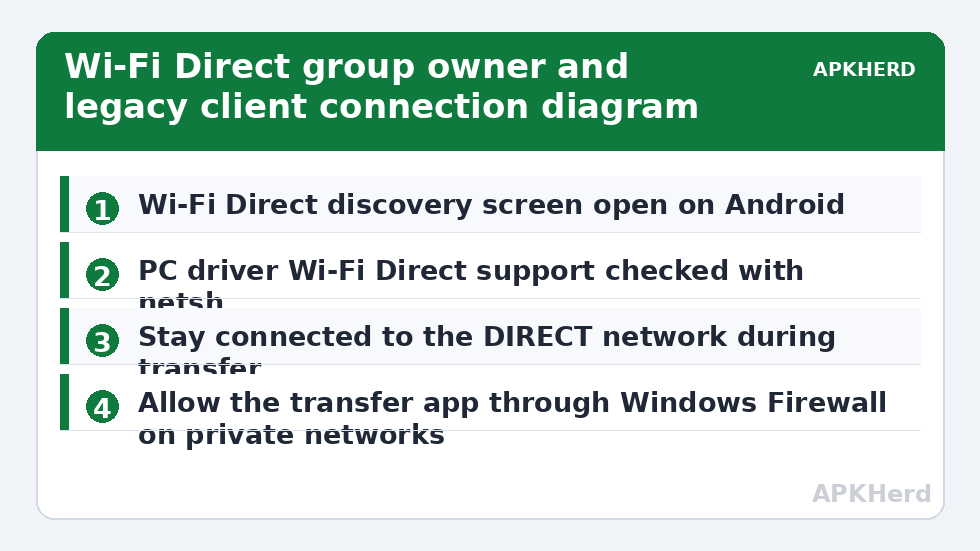
Start with compatibility, because most failures are decided before you tap Connect. Your phone needs Wi-Fi Direct support, found on almost every recent Android under Settings, Network, Wi-Fi, Wi-Fi preferences, Advanced. Your PC needs an adapter that reports Wi-Fi Direct support: in Windows Command Prompt, run netsh wlan show drivers and check the wireless display or Wi-Fi Direct line. If unsupported, updating the adapter driver from the manufacturer is the first fix.
Turn off anything that fights for the radio. A VPN on either device can block peer discovery, and mobile hotspot can stop the phone acting cleanly as group owner. Keep both devices within two or three metres for pairing; walls and interference make negotiation time out, and a failed first attempt often leaves a stale invitation to clear.
What the group owner and legacy client roles mean
When Android creates a Wi-Fi Direct group, it advertises a network name that often starts with DIRECT- and generates a password. A modern Windows PC can join as a peer. An older adapter joins as a legacy client, basically a normal WPA2 client on that temporary network: slower to negotiate, but perfectly usable. This explains the most confusing symptom: Windows warns the network has no internet. That warning is expected; stay connected or the transfer channel disappears.
Step-by-step connection on Android and Windows
- On the phone, turn Wi-Fi on, turn mobile data off temporarily if your phone keeps switching networks, and open the Wi-Fi Direct screen so the phone is discoverable.
- On the PC, open Settings, Bluetooth and devices, and Add device, or open the app you will use for the transfer if it has its own discovery screen.
- Wait for the PC name to appear on the phone, or the phone name to appear on the PC, then tap it once and wait for the invitation.
- Accept the invitation on the other device within about 30 seconds. Enter the group password if Windows asks for it; you can reveal it on Android under the connected peer details on some models, or in the tethering and hotspot section.
- Confirm both sides say Connected, not just Invited or Available. Invited is not a connection and no app will send through it.
- Open your transfer app, select the PC as the receiver, choose the files, and keep both screens awake until the first file completes.
The app layer matters because Wi-Fi Direct itself only creates the link. It does not provide a shared folder or a send button. Tools built for local sending handle addressing, port choice and retries for you. If you prefer a broader comparison of local methods, our guide to sending large files from Android to PC with LocalSend covers a router-based alternative, and the File Sharing hub collects every method in this category in one place.
Typical speeds explain why people persist with Wi-Fi Direct despite the fussy pairing. On a clean 5 GHz link with modern phones, users typically report 20 to 45 MB/s for large single files, falling to 8 to 18 MB/s on 2.4 GHz or older adapters. Small files are always slower per file because of per-file overhead, so zip a folder of photos into one archive first if you can. These are typical ranges, not guarantees: a crowded apartment block, a metal desk, or a PC adapter limited to one spatial stream will pull the real number down sharply.
Choosing the right app for the transfer itself
Windows has no built-in receive folder for Wi-Fi Direct file pushes from Android, so you need a receiving endpoint: a maker PC companion, or a cross-platform local tool that allows manual connection by IP address. When the group forms, the group owner usually sits at 192.168.49.1, a long-standing Wi-Fi Direct convention, so try that address first for the phone side.
Avoid tools that silently fall back to cloud upload. Check that the app states it works offline or on a local network, and watch the progress behaviour: a local transfer starts instantly and holds a steady rate, while a cloud relay often pauses, compresses, or asks you to sign in. For very large videos where compression would ruin the point, see also sending a 4 GB video without compression, which explains container and filesystem limits that apply whichever method you choose.
Troubleshooting when devices will not see each other
Work from least to most disruptive. First, toggle Wi-Fi off and on both devices and reopen the discovery screens; discovery only runs while those screens or services are active on many phones. Second, forget any previous DIRECT- network saved on the PC, and remove the remembered peer on Android, then pair fresh. Stale group credentials are the single most common cause of an instant failure after the first successful session. Third, move both devices away from USB 3 hubs and docks, which are a well-known source of 2.4 GHz interference, and try again.
Fourth, check the Windows firewall prompt. The first time a receiving app listens on the Direct interface, Windows may classify it as a new network and block inbound connections by default. Allow the app on private networks. Do not disable the firewall entirely to test this; allowing one named app is the safer, narrower change, and disabling the firewall leaves the PC exposed on every other network it joins later. Fifth, update the PC Wi-Fi driver and restart both devices. Only after that should you reset network settings on Android, because that also erases saved Wi-Fi networks and Bluetooth pairings and is a genuine nuisance to rebuild.
When Windows connects but transfers stall at zero
A connected group with a stalled transfer is usually an addressing or app problem, not a radio problem. Confirm the PC did not jump back to your home router; Windows loves to abandon a network with no internet. Then confirm the receiving app is running and listening before you press send. Finally, try one medium file, around 100 MB, before queueing 30 GB. If it passes cleanly, the earlier stall was likely a sleep or power-saving event, so plug both devices in and keep the phone awake for long transfers.
| Symptom | Most likely cause | First fix |
|---|---|---|
| PC never appears on phone | Discovery screen closed or adapter lacks Direct support | Keep discovery open, check driver report |
| Invitation times out | Accepted too slowly or stale peer record | Remove remembered peer, pair again |
| Connects, then drops | Windows rejoins router with internet | Stay on the DIRECT network during transfer |
| Very slow speed | 2.4 GHz group or single-stream adapter | Move closer, zip small files, use 5 GHz capable kit |
Security deserves a plain word. A Wi-Fi Direct group is protected by WPA2 with the generated password, so nearby strangers cannot simply join. Still, accept invitations only from your own PC, and remove the group when you finish, or either device may auto-join later in a place you did not intend. For transfers on networks you do not control, read sending files securely on public Wi-Fi.
Frequently Asked Questions
Does Wi-Fi Direct need an internet connection or a router?
No. Wi-Fi Direct creates a direct peer-to-peer group between the phone and the PC, with one device acting as group owner. No router, internet access, or mobile data is required, which is why it works in places with no infrastructure at all.
Why does Windows warn that the DIRECT network has no internet?
That warning is expected and harmless for this purpose. The temporary Wi-Fi Direct group only connects your two devices to each other. Stay connected to it during the transfer, then rejoin your normal network afterwards.
What transfer speed should I realistically expect?
Typical reported speeds are around 20 to 45 MB/s on a clean 5 GHz link with modern hardware, and 8 to 18 MB/s on 2.4 GHz or older adapters. Large single files transfer faster than many small files, so archiving folders first usually helps.
My PC does not list Wi-Fi Direct as supported. Can I still use it?
If the adapter or its driver genuinely lacks Wi-Fi Direct support, the PC cannot join a Direct group. Updating the manufacturer driver sometimes adds support. Otherwise use a router-based local tool, a USB cable, or a phone hotspot method instead.
Is Wi-Fi Direct safe to use in public places?
The group itself is protected by a WPA2 password, but you should only accept invitations from your own devices, verify the device name before accepting, and delete the group when you finish so neither device auto-joins later without you noticing.