
A four-minute clip shot in 4K can easily pass 4 GB, and the moment you try to send 4gb video phone to pc no compression tools often get in the way: messengers shrink it, cloud uploads stall, and email refuses it outright. The file itself is not the problem. The problem is choosing a transfer path that moves the original bytes, untouched, at a speed your hardware can actually sustain.
Compression and transfer are different things. WhatsApp, Telegram in some modes, and many social apps re-encode video to save bandwidth, which lowers bitrate and visibly softens detail. A proper file transfer — over USB, over your local network, or onto a card — copies the file bit for bit. If the file size and name match on the PC afterwards, nothing was re-encoded. This guide compares the honest options for getting there.
| Method | Typical Speed Range | Compression | Best For |
|---|---|---|---|
| USB cable (USB 3.x port and cable) | Roughly 40–150 MB/s reported, varies by phone storage | None | Largest files, most reliable |
| LocalSend / KDE Connect over 5 GHz Wi-Fi | Typically 15–60 MB/s on a strong signal | None | No cable handy, mid-size videos |
| USB OTG drive or microSD card | Limited by drive/card write speed, often 10–80 MB/s | None | No network, no cable to PC |
| Cloud drive upload then download | Limited by broadband upload, often far slower | None if sent as a file | Sharing onward, not speed |
| Messenger “send as file/document” | Varies, plus size limits apply | None in document mode only | Smaller clips within limits |
Those ranges are typical and reported figures for home hardware, not guarantees. Phone storage speed, cable quality, router position, and PC disk speed all move the result. What matters is the order: wired is usually fastest and steadiest, local Wi-Fi is next, and internet upload is last by a wide margin for most home connections.
Send 4GB Video Phone to PC No Compression Over USB
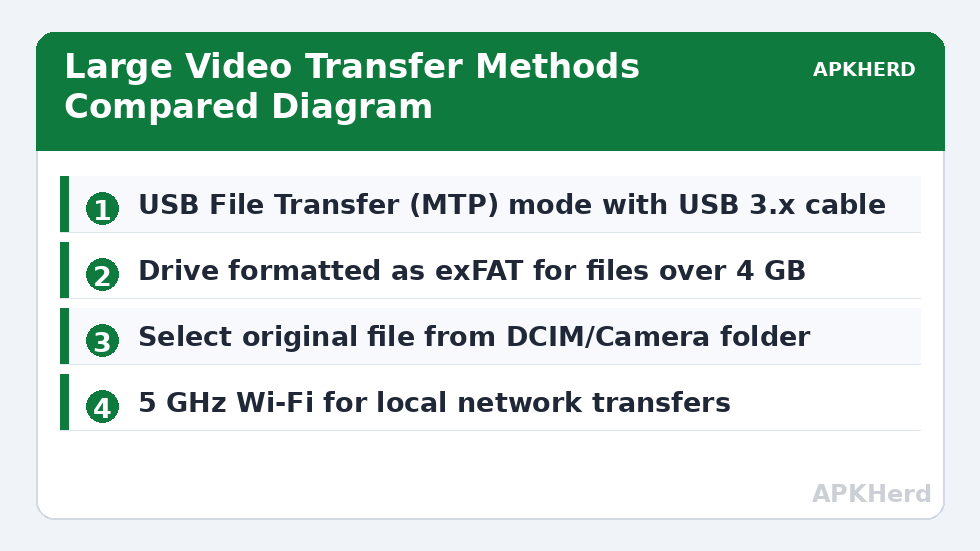
USB is the benchmark method, and it deserves first place. Connect the phone to a USB 3.x port on the PC with a cable that actually supports data and USB 3 speeds — many bundled charge cables are USB 2.0 only, which caps real transfers at roughly 30–40 MB/s on a good day and often less. Unlock the phone, pull down the USB notification, and choose File Transfer (MTP) on Android. On iPhone, trust the computer when prompted and use the Photos app or a file copy through the supported apps.
MTP on Android is convenient but not fast at browsing folders with thousands of items. Navigate directly to the camera folder, usually DCIM/Camera, select the video, and copy it in one operation rather than dragging files one by one. Do not let the phone lock mid-copy; set the screen timeout longer temporarily or keep the phone awake and plugged in.
Verify the copy before deleting anything. Compare the file size on the PC with the size shown in the phone’s file manager — they should match to the byte. Play the PC copy and check duration and quality. Only then remove the original, and even then, keep it until your PC backup has run if the clip matters.
Our File Sharing collection covers the wireless alternatives in depth if cable transfer is not possible in your setup.
Wireless Options That Keep the Original File
LocalSend and Similar Local Network Tools
LocalSend sends files directly between devices on your local network without re-encoding anything. Select the original video file from storage — not from a gallery share option that offers to “optimise” or trim it — and send it to the PC. On a 5 GHz Wi-Fi connection with a strong signal, a 4 GB file at a typical 30 MB/s takes a little over two minutes; on a weak 2.4 GHz connection at 8 MB/s, the same file takes more than eight minutes. If your transfers feel far slower than that, work through our guide to fixing slow LocalSend transfer speeds before blaming the app.
SMB Shares and Home Servers
Copying the video to a PC shared folder from a phone file manager also preserves the file exactly, because SMB is a file protocol, not a media service. The speed follows your Wi-Fi link, and the PC must be awake with the share available. This route suits people who already use network folders; see how the pieces fit together in accessing PC shared folders from Android using SMB.
The FAT32 Trap with USB Drives and Cards
The most common “mystery failure” with large videos has nothing to do with the phone. FAT32, still the default format on many USB drives and older cards, cannot store a single file larger than 4 GB minus one byte. A 4.2 GB video will fail to copy or split at exactly that boundary, no matter how much free space the drive shows.
The fix is to format the drive as exFAT, which supports very large files and is read natively by current Android, Windows, and macOS versions. Formatting erases the drive, so move its contents elsewhere first. NTFS also handles large files and works well for Windows PCs, but Android support for writing to NTFS varies by device, making exFAT the safer general choice for a drive that moves between phone and PC. Our guide to USB OTG phone-to-phone transfers explains OTG adapters and drive handling in more detail.
What to Avoid If Quality Matters
Do not send the video as a normal media message in WhatsApp or similar apps and expect the original back. Standard media sending compresses aggressively and may also cut resolution. Sending “as a document” or “as a file” in apps that offer it avoids re-encoding, but size limits apply and vary by app, and a 4 GB file exceeds most of them. Treat messenger transfer as a small-clip convenience, not a large-file method.
Avoid online “free file transfer” websites that require uploading the uncompressed video unless you understand where the file is stored, how long it is kept, and who can access the link. For a private family video, a cable in your own home beats a server you know nothing about. Avoid also any app that promises to “boost” transfer by re-encoding to a “smaller same-quality” file — smaller means data was removed, by definition.
Finally, do not edit or export the video from a gallery editor before transferring, unless you check the export settings. Several editors default to a lower resolution export, so the file that reaches the PC was already reduced before the transfer began. Transfer the original from the camera folder first, keep it as your master, and edit a copy.
A Simple Workflow for Every Large Video
- Check the file size and location in your file manager — confirm it is the original in DCIM/Camera or your camera app’s folder.
- Choose USB for files above a few gigabytes when a cable is available; choose local Wi-Fi tools when it is not.
- If using a drive, confirm it is formatted as exFAT before you start, not after the copy fails.
- Copy once, verify size and playback on the PC, and run your normal PC backup.
- Delete the phone copy last, only after verification, to reclaim space safely.
Followed consistently, that routine makes large-video transfer boring in the best way: the file that arrives is the file you shot, every time, with no surprise quality loss discovered weeks later when the phone copy is already gone.
Frequently Asked Questions
Why does my 4 GB video fail to copy to a USB drive with free space?
The drive is probably formatted as FAT32, which cannot store a single file of 4 GB or larger. Reformat the drive as exFAT after backing up its contents, and the same copy will succeed.
Does LocalSend compress videos during transfer?
No. LocalSend copies the file you select over your local network without re-encoding it. Choose the original file from storage rather than a gallery option that offers optimisation.
Is USB or Wi-Fi faster for a 4 GB video?
USB 3.x with a proper data cable is usually faster and steadier. On typical home Wi-Fi, local transfers are commonly reported in the 15–60 MB/s range, while a good wired copy can exceed that.
Can I send a 4 GB video through WhatsApp without compression?
Not reliably. Standard WhatsApp media sending compresses video, and document mode has size limits that a 4 GB file will exceed. Use USB or a local file transfer tool instead.
How do I confirm the PC copy was not compressed?
Compare the file size on the PC with the original on the phone — they should match exactly. Then play the PC file and check its resolution and duration in its properties.