
LocalSend is not slow by design — it sends files directly between your devices on your local network, with no server in between. So when you try to fix slow localsend transfer speed problems and a photo bundle crawls at 2 MB/s, the bottleneck is almost always your Wi-Fi: the band you are on, the channel width, the congestion from neighbouring networks, or a router setting quietly throttling local traffic. This guide works through those causes in the order they actually occur.
First, set a realistic target. On a strong 5 GHz connection close to the router, typical LocalSend transfers are commonly reported in the 20–60 MB/s range depending on the phone, PC network adapter, and router. On 2.4 GHz, typical results are far lower — often 4–12 MB/s — because that band has less capacity and far more interference. If you are seeing 2.4 GHz numbers on a 5 GHz setup, something is misconfigured, and it is fixable.
Fix Slow LocalSend Transfer Speed: Start with Band and Signal
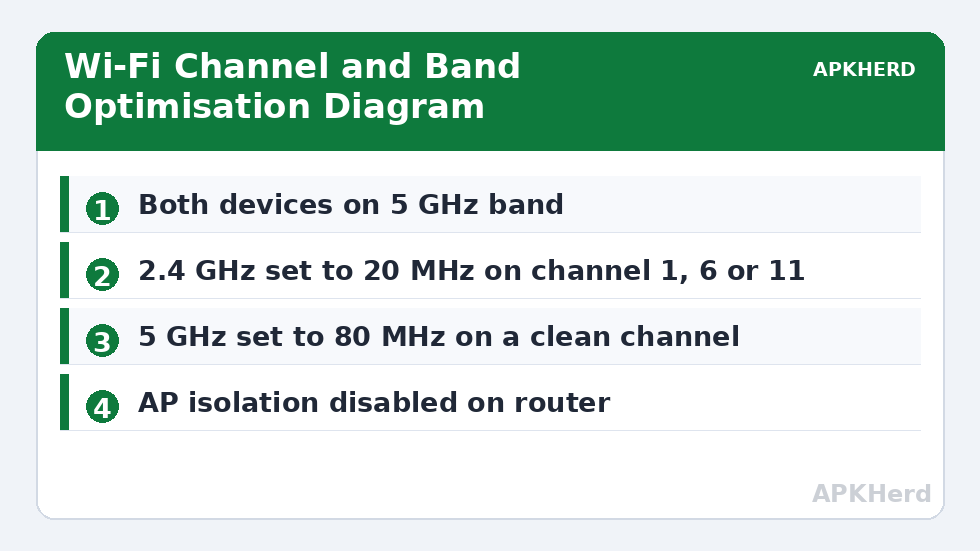
Confirm Both Devices Are on 5 GHz
The single most common cause of slow transfers is one device sitting on 2.4 GHz while the other is on 5 GHz, or both falling back to 2.4 GHz because the 5 GHz signal is weak at that spot in the house. Check the Wi-Fi details on the phone and PC and confirm the band or the network name — many routers use different names for each band, while others merge them and steer devices automatically, sometimes badly.
If your router merges bands under one name and keeps pushing your phone to 2.4 GHz, test by temporarily giving the 5 GHz network its own name, if the router allows it, and connecting both devices to it. Move closer to the router for the test. If speed jumps, the problem was band steering or signal, not LocalSend.
Signal Strength Beats Router Marketing Numbers
Wi-Fi rates fall in steps as signal weakens. A phone two rooms away through brick walls may negotiate a small fraction of the rate it gets in the same room as the router. For a large transfer, simply moving both devices into line-of-sight range of the router — or connecting the PC by Ethernet cable so only the phone uses Wi-Fi — removes half the wireless path entirely. A wired PC is the most underused speed fix in home file transfer.
While you are checking signal, also check who else is using the network. A cloud backup, a game download, or 4K streaming on the same band will share that airtime with your transfer. Pause heavy jobs during a big copy rather than diagnosing a network that is simply busy.
More background on local transfer choices is in our File Sharing section, including when a cable beats fixing Wi-Fi at all.
Channel Width and Congestion: The Router Settings That Matter
2.4 GHz: Use 20 MHz and Channels 1, 6, or 11
On 2.4 GHz, wider is not better. That band has only three non-overlapping channels — 1, 6, and 11 in most regions — and a 40 MHz channel width overlaps neighbours and invites interference, often reducing real throughput. Set 2.4 GHz channel width to 20 MHz, choose whichever of channels 1, 6, or 11 is least used around you, and leave it fixed instead of on Auto if Auto keeps picking a crowded channel.
A free Wi-Fi analyser app on your phone shows which channels nearby networks occupy and how strong they are. You are looking for the quietest of the three channels at the place where you actually transfer files, not next to the router.
5 GHz: Wider Channels Help, If They Are Clean
On 5 GHz the advice reverses. An 80 MHz channel width allows much higher rates and the band has more non-overlapping channels, so congestion is usually lower. If your router is set to 20 or 40 MHz on 5 GHz, raising it to 80 MHz can substantially improve local transfer speeds for devices that support it. In dense apartment blocks, scan first: if the wide channels around you are all occupied by strong neighbours, a clean 40 MHz channel can outperform a congested 80 MHz one. Test one change at a time and re-measure with the same file.
Some 5 GHz channels are DFS channels, shared with radar, and routers may switch away from them when radar is detected, dropping connections mid-transfer. If transfers on a DFS channel keep resetting, move to a non-DFS channel in your region’s allowed list and test again.
Device and App Settings That Quietly Limit Speed
- VPNs and firewalls: A VPN on either device can route or inspect local traffic and cut speed. Disconnect it for a local transfer test. Firewalls should allow LocalSend, but security software that scans every file can also slow the receiving side — test with a single large file to see the effect clearly.
- Battery saving: Aggressive power saving on the phone can throttle Wi-Fi and pause background apps. Keep the phone plugged in, screen behaviour normal, and battery optimisation off for LocalSend during big transfers.
- Old network adapters: A PC on an old Wi-Fi 4 (802.11n) USB adapter will limit the pair no matter how new the phone and router are. Check the link rate in your operating system’s Wi-Fi status; if it shows low double-digit Mbps, the adapter is the ceiling. Ethernet or a newer adapter fixes it permanently.
- Storage speed: Writing a file cannot be faster than the destination disk. An old, nearly full hard drive or a slow SD card as the receive location caps speed. Test by receiving to the PC’s internal SSD.
- Router features: AP isolation must be off for devices to see each other at all, and some “smart” QoS or band-steering features misbehave with local transfers. If everything else checks out, test with QoS disabled.
Measure properly between changes. Use the same large file — a video of 1 GB or more — and time the whole transfer rather than trusting the instant speed readout, which swings up and down. Our guide to sending a 4 GB video without compression shows the file sizes where these differences become impossible to ignore.
When the Answer Is Not Wi-Fi at All
Sometimes the correct fix is to stop optimising and change method. If your router is an old ISP unit with weak 5 GHz coverage, no channel plan will make it fast in a back bedroom. For occasional huge transfers, a USB cable will beat it every time. For regular use, KDE Connect offers a similar local experience — see our KDE Connect Android and PC sync guide — but it obeys the same physics: fix the network, and every local tool gets faster together.
Work through band, then signal, then channel, then device settings, measuring after each step. In most homes, one of those four is responsible, and the transfer that crawled at 2 MB/s ends up limited only by the hardware you actually own.
Keep a short note of what you changed and the speed you measured after each change. Router menus bury these settings in different places depending on the brand, and a note saves you from repeating the whole search the next time a new router, a firmware update, or a moved desk changes the picture again. Once you reach a stable result, leave the settings alone — a well-chosen fixed channel keeps performing, while constant tweaking based on one-off speed tests usually makes a home network less predictable, not faster.
Frequently Asked Questions
What is a normal LocalSend transfer speed?
On a strong 5 GHz connection, typical reported speeds are roughly 20–60 MB/s depending on hardware. On 2.4 GHz, typical speeds are much lower, often around 4–12 MB/s.
Should I use 40 MHz channel width on 2.4 GHz?
Generally no. On 2.4 GHz a 20 MHz width on channel 1, 6, or 11 avoids overlapping neighbours and usually gives better real throughput than a crowded 40 MHz setting.
Does connecting the PC by Ethernet help phone transfers?
Yes. A wired PC removes one wireless hop, so only the phone’s Wi-Fi link limits the transfer. It is one of the most reliable ways to stabilise and raise LocalSend speeds.
Why do my transfers drop or restart on 5 GHz?
You may be on a DFS channel that the router must leave when radar is detected. Switch to a non-DFS 5 GHz channel allowed in your region and test again.
Can a VPN slow down LocalSend?
Yes. A VPN on either device can route or inspect local traffic and reduce speed. Disconnect the VPN during a local transfer to test whether it is the cause.