
The xiaomi dual apps clone apps miui hyperos feature is the most permissive cloner any major manufacturer ships. Where Samsung whitelists a handful of messengers, Xiaomi will offer to duplicate nearly every app on the phone — games, shopping apps, even some banking apps — and that freedom is both the appeal and the trap. This guide covers enabling Dual Apps on MIUI and HyperOS, the settings that decide whether clones actually receive notifications, what to do when Google services misbehave inside a clone, and the honest limits of cloning apps that were never built to have a twin.
Enabling Dual Apps: MIUI and HyperOS Menu Paths
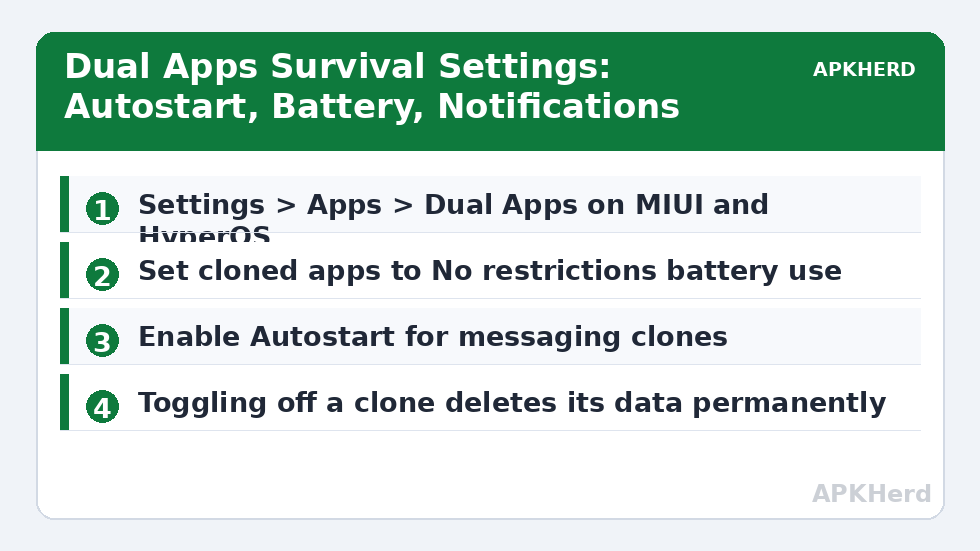
On MIUI 13/14, open Settings, scroll to Apps, and tap Dual Apps. On HyperOS the location is similar — Settings > Apps > Dual Apps — though some builds surface it via the Security app’s utilities panel as well. You will be asked to accept a privacy notice; the first time you enable any clone, the system also creates a Google-services support component for the dual space, which can take a minute. After that, the screen lists your installed apps with toggles. Flip a toggle and a second icon appears on the home screen marked with a small dual-apps symbol in the corner.
One decision appears the first time: whether dual app data should be deleted when you turn a toggle off — there is no way to preserve a removed clone’s data, so treat every toggle-off as permanent deletion. Redmi and Poco builds behave the same way, but Poco Launcher hides the badge differently and some entry-level Redmi models with 3 GB of RAM restrict how many dual apps can run simultaneously for performance reasons. If a toggle is missing for a specific app on a budget model, that restriction is the most likely reason.
The Settings That Matter After Cloning
A fresh Xiaomi clone inherits MIUI’s aggressive power management, which is why so many people conclude Dual Apps “doesn’t work” — messages only arrive when they open the app. Fix this per clone: open Settings > Apps > Manage apps, select the cloned app (it is listed separately), set battery saver to No restrictions, and enable Autostart. Then lock the app in the Recents screen if you use the clone for messaging. Do the same for the original if it also lags. Notification toggles are per copy as well — a muted clone stays muted even if the original is loud, which is either a feature or a trap depending on whether you notice.
If notifications still misbehave after those changes, the cause is usually MIUI’s notification channels being cloned in a half-configured state. Our broader troubleshooting article on why cloned apps crash and lose notifications walks through the diagnostic order, including the Google push (FCM) quirks specific to dual spaces.
Google Services Inside Dual Apps
Xiaomi handles Google apps in the dual space through a mirrored set of services, and on some MIUI builds you must explicitly enable dual copies of Google Play services support or cloned apps that depend on Google sign-in will loop or fail. Historically there was a “Google services” toggle inside the Dual Apps settings gear; on HyperOS it is largely automatic. Symptoms of trouble include a cloned app that cannot sign in with Google, maps that never load inside clones, and Play Store links opening the wrong copy. The reliable reset is: turn the clone off, clear the dual-apps framework data from the settings gear (“Delete dual apps accounts/data” appears on some builds — note this wipes all clones), then re-enable. It is drastic, so back up chat data inside important clones first.
What Xiaomi Will Clone That It Probably Should Not
Because the toggle exists for nearly everything, a word of engineering honesty: many apps assume they are the only instance on the device. Banking and payment apps may refuse to run in a dual space or may run but flag the environment; ride-hailing and delivery apps with device-integrity checks can behave unpredictably; games tied to a single account are fine, but games whose terms allow one account per person do not become two-account-legal because Xiaomi offers a clone button. The platform feature is legitimate — using it to run a second account where the service forbids multiple accounts is still a terms violation, and using it to circumvent a ban is exactly the kind of misuse that gets accounts terminated. Use Dual Apps for the separation it was designed for: work versus personal, or a household member’s account on a shared device.
Dual Apps vs Second Space: Do Not Confuse Them
Xiaomi phones also ship Second Space, an entirely separate user environment with its own lock screen, apps, and files — closer to a second phone profile than to app cloning. Dual Apps duplicates individual apps inside your main space; Second Space duplicates the environment. If your goal is “two WhatsApps,” Dual Apps is lighter and faster. If your goal is a fully separate area a child or colleague can use, Second Space (or Android’s multiple users) is the better tool. People often enable Second Space expecting it to clone an app onto the same home screen and are confused when nothing appears — the two features solve different problems.
Comparison With Other OEM Cloners
Against Samsung’s Dual Messenger, Xiaomi clones more and restricts less, at the cost of more frequent notification and Google-service quirks. OnePlus and Oppo take a middle path with their Parallel Apps / App Cloner features — see the OnePlus and Oppo cloner guide for their app lists and paths. And if your actual goal is simply a second WhatsApp, weigh all of these against WhatsApp’s own account switcher in our roundup of official methods for two WhatsApp accounts. More cloning topics are indexed under App Cloners.
How Clones Update — and Why One Sometimes Falls Behind
Dual Apps clones update through the same channels as the original: when the Play Store (or Xiaomi’s GetApps) updates an app, the dual copy is updated as the same package across spaces, so you should never see the clone running an older version for long. When you do — usually after a store update was interrupted — the symptom is a clone that behaves as though a feature vanished, or one that prompts to update inside the app but cannot complete it. The fix is to update the original from the store, then open the clone once so it picks up the shared new code and migrates its own data. Avoid sideloading a newer APK of just the original from third-party sites: version skew between what the dual-space framework expects and what you forced in is a reliable generator of the “clone crashes on launch” problem, and an unverifiable APK imports every risk discussed elsewhere in this series.
Frequently Asked Questions
Where is Dual Apps on HyperOS?
Open Settings, tap Apps, then Dual Apps. On some HyperOS builds it also appears inside the Security app under Utilities. If you cannot find it, use the Settings search bar and type “Dual Apps” — regional and entry-level builds occasionally move or limit the feature.
Why do messages only arrive when I open the cloned app?
MIUI’s battery management is suspending the clone. Set the cloned app’s battery usage to No restrictions, enable Autostart for it, and lock it in Recents. Also confirm notifications are enabled for the cloned copy specifically, because its notification settings are independent of the original app.
Can I clone Google Play Store or banking apps with Dual Apps?
The toggle may be offered, but results vary. Cloned Google apps sometimes have sign-in or push issues in the dual space, and many banking apps detect duplication and refuse to run for security reasons. That refusal is the bank’s policy, not a fault — use banking apps as single originals.
What happens to a clone’s data when I turn off its toggle?
It is permanently deleted. Turning a Dual Apps toggle off removes the second installation and all of its local data. Back up anything you need — for example a messenger’s chat backup to its cloud account — before disabling the clone.
Is Dual Apps the same as Second Space?
No. Dual Apps creates a second copy of individual apps inside your current environment, visible on the same home screen with a badge. Second Space creates a completely separate user environment with its own apps, files, and optional lock — you switch environments rather than seeing both copies side by side.