
Learning to fix cloned apps crash notifications problems starts with accepting an uncomfortable truth: most “cloner bugs” are not bugs in the cloner at all. They are Android doing exactly what it was told to do — by your phone manufacturer. Modern Android, and especially the customised builds from Samsung, Xiaomi, Oppo, and OnePlus, treats background activity as a battery crime. A cloned app is, to the power manager, a second copy of an app it already distrusts, living in a profile or virtual space it understands even less. So it gets frozen, deferred, and quietly strangled. This guide works through the failure modes in order — crashes first, then notification delays — with fixes sequenced from least to most invasive.
Why Cloned Apps Crash: The Four Real Causes
1. The battery manager killed it, and it restarted badly. Aggressive process killing mid-write corrupts caches and leaves apps in half-initialised states that surface as launch crashes. 2. The clone’s framework is out of date. Virtual-space cloners (Parallel Space and similar) must track every Android and app update; a cloned app updated ahead of its host’s compatibility layer crashes in ways that look random. 3. The app refuses the environment. Banking, payment, and some enterprise apps run integrity checks and deliberately exit under virtualisation or inside unexpected profiles. That is a policy refusal, not a malfunction, and the correct fix is to run those apps as originals. 4. Storage pressure. Clones double an app’s footprint; on a nearly full phone, the clone’s database writes fail and the app dies on launch.
Fix Order for Crashes (Do These in Sequence)
- Restart the phone. Trite, but a reboot clears wedged clone framework processes and stuck profile services, and costs you ninety seconds.
- Update the cloner/profile manager (Parallel Space, Island, Shelter) and the cloned app itself. Virtual cloners especially ship compatibility fixes constantly.
- Clear the cloned app’s cache only (Settings > Apps > the clone > Storage > Clear cache). Never start with “clear data” — that deletes your login and local history.
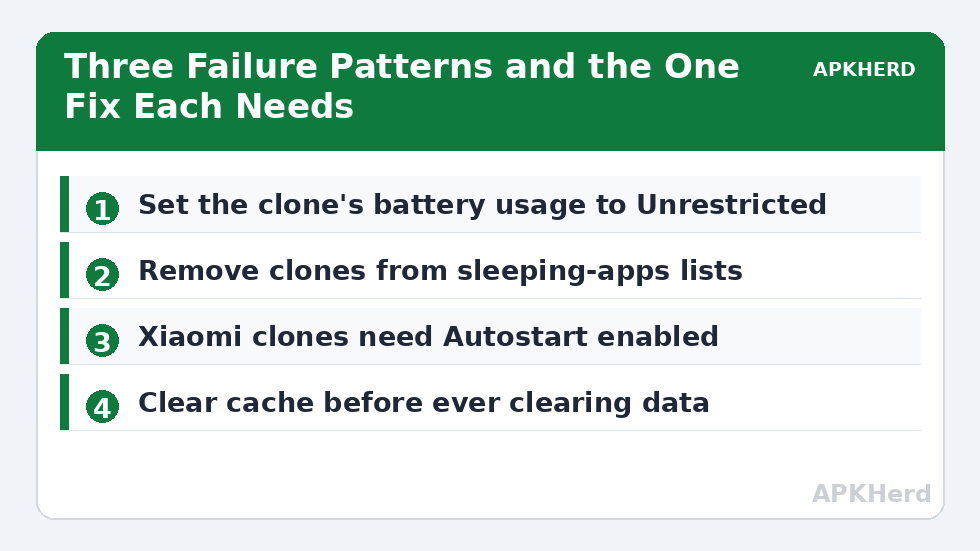
- Exclude the clone from battery optimisation (next section) and remove it from any sleeping/deep-sleeping app lists.
- Check free storage. Keep at least 2–3 GB free; below that, clone frameworks and databases fail unpredictably.
- Re-clone as a last resort. Remove the cloned copy entirely and create it fresh, after backing up anything stored only inside it. For OEM cloners this means toggling the feature off and on; for work profiles, remove and re-add the app in the profile.
If the app is a banking, payment, or government app, stop at cause 3: repeated crashing under cloning is the app enforcing its security policy, and workarounds circulating on forums — patched APKs, integrity-spoofing tools — put your money and accounts at risk. Run financial apps as single originals, full stop.
The Notification Problem, Explained Honestly
Push notifications on Android normally travel through Firebase Cloud Messaging (FCM), which wakes the app to deliver them. Three things break that chain for clones. First, the OEM power manager defers or blocks the clone’s network and process starts, so FCM’s wake-up lands on a frozen app and the message waits until you open it manually — the classic “twenty messages arrive at once” symptom. Second, virtual-space cloners host their guests inside the cloner’s own process model, and FCM registration for the guest can silently lapse after updates. Third, in work profiles, each profile instance registers separately, and a profile left paused (Work profile toggle off) receives nothing by design.
Fix Order for Delayed or Missing Notifications
- Settings > Apps > the clone > Battery: choose Unrestricted (Samsung: also remove from Sleeping apps and Deep sleeping apps under Battery and device care).
- On Xiaomi: set the clone to No restrictions and enable Autostart, then lock it in Recents. HyperOS/MIUI specifics are in the Xiaomi Dual Apps guide.
- Confirm notification permission is granted for the clone itself — its toggles are independent of the original app’s.
- On OnePlus/Oppo, disable sleep-standby/deep optimisation and exclude the clone; the paths are listed in the OnePlus and Oppo cloner guide.
- Leave the clone open in Recents rather than swiping it away; on several OEM builds swiping equals force-stop for cloned instances.
- If you use a VPN or private DNS with aggressive filtering, test with it off — some filters block the FCM ports cloned frameworks rely on.
- For work profiles: check the profile is not paused, and unfreeze the app in your profile manager (a frozen app receives nothing by design).
When Nothing Works: Know Your Cloner’s Ceiling
Sometimes the honest answer is that your duplication method has hit its ceiling. Virtual cloners will always trail app updates; if a mission-critical messenger breaks every second update inside Parallel Space, moving that account into a work profile (a real second installation) eliminates the entire category of failure. Samsung owners should confirm the app is even supported — unsupported apps shoehorned into Dual Messenger via workarounds fail in exactly these ways, and the supported route is described in the Samsung Dual Messenger guide. And if messages matter for work, test your fix with a friend sending messages while the phone sits locked for fifteen minutes — not by opening the app, which masks the problem. The rest of the series, including migration and backup guidance, is gathered under App Cloners.
Isolating the Culprit: A Two-Minute Diagnostic Habit
Before changing five settings, learn to tell which layer failed, because each layer has exactly one right fix. Send yourself a message to the clone, then watch what happens in three places. If the message arrives instantly while the screen is on but not when the phone has slept for ten minutes, the radio is fine and the power manager is guilty — battery settings are your fix. If nothing arrives until the app is opened even with the screen on, push registration is broken — update or re-clone. If notifications arrive but the app crashes when you tap them, the clone’s data or the cloner framework is damaged — cache clear, then re-clone. Writing down which of the three patterns you saw turns a forum post from “notifications broken pls help” into a solvable report, and it stops you applying the wrong remedy and concluding the method itself is hopeless.
Frequently Asked Questions
Why do all my cloned app notifications arrive at once when I open the app?
Your phone’s battery manager is freezing the clone in the background, so push messages cannot wake it. They queue on the server and flood in when you launch the app manually. Set the clone’s battery usage to Unrestricted, remove it from sleeping-apps lists, enable autostart on Xiaomi devices, and lock it in Recents.
Is it safe to clear a cloned app’s data to fix crashes?
Clearing cache is safe and should be tried early. Clearing data (or storage) resets the clone completely — you will be signed out and lose any local-only content such as un-backed-up chat history. Treat clear-data as part of a re-clone, not a first-line fix, and back up first.
Why does my banking app crash only when cloned?
Most banking and payment apps run integrity and environment checks and deliberately refuse to operate inside virtual cloners or unexpected profiles. That is a security policy, not a bug, and it will not be fixed by settings changes. Run financial apps as the single original installation.
Do work-profile clones have fewer notification problems than virtual clones?
Generally yes. A work-profile copy is a genuine second installation with its own push registration, so it avoids the virtual layer’s FCM complications. It can still be throttled by OEM battery policies, and a paused profile or frozen app receives nothing — but those are visible, fixable states.
Will a factory reset fix persistent clone crashes?
It is almost never necessary. Work through the fix order first: update the cloner and app, clear the clone’s cache, unrestrict its battery usage, ensure free storage, then re-clone. Only if the underlying profile or dual-apps framework itself is corrupted — usually after a major OS upgrade — does removing and recreating the whole profile or dual space (with backups done first) become the sensible step.