
“The cloud is someone else’s computer” is a cliché because it is true, and nowhere does it bite harder than a full phone backup: messages, app data, call logs, two-factor seeds — your entire digital life in one folder. The fix is to encrypt android backup before cloud upload so the provider stores sealed ciphertext it cannot read. This guide explains what “encrypted” genuinely means in backup-tool marketing, then gives a concrete client-side workflow using tools with auditable cryptography.
Marketing encryption versus implementation encryption
Three different things get sold under the same word. Transport encryption (HTTPS) protects data on the wire; the provider still stores it readable. Server-side encryption at rest means the provider encrypts its disks but holds the keys — it protects against stolen hard drives, not against the provider itself, compelled disclosure, or an attacker who compromises your account password, because after you log in the data is served decrypted. Client-side (end-to-end) encryption means your device encrypts with a key the provider never sees; the provider stores noise. Only the third model protects a backup against account compromise, and only the third deserves the word for our purposes. When a backup app says “encrypted,” ask: who holds the key? If the answer involves their servers resetting your password for you, they hold the key.
The same scrutiny applies to Google’s own offerings: standard Google Drive backups are account-protected, and while Google has expanded end-to-end encryption for some backup data protected by your lock-screen secret, that still differs from an archive you encrypted yourself with a passphrase you control and can restore without any account — distinctions spelled out in our Google One explainer.
Encrypt Android backup before cloud upload: the workflow on device or PC
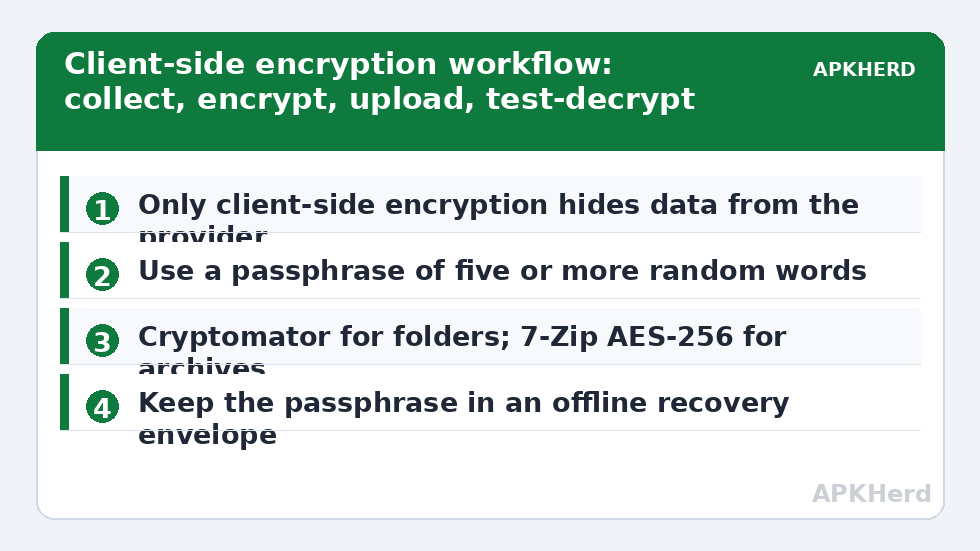
- Collect the backup outputs into one folder per device: Swift/Neo archive folder, SMS XML exports, WhatsApp folder copy, ADB archives, photos you are not syncing elsewhere.
- Encrypt with Cryptomator (Android/iOS/desktop, open source) for a folder-style vault your cloud app syncs, or with a single-archive approach: 7-Zip on PC using AES-256 with an encrypted header (so even file names are hidden), or restic/borg if you live in backup-tool land. For file-by-file mobile convenience, Cryptomator is the friendliest well-audited option.
- Password discipline: a long unique passphrase (five-plus random words), stored in your password manager and — because the password manager itself may live behind this phone — also written in your offline recovery envelope alongside your 2FA backups (2FA guide). Lose the passphrase and the archive is gone; that is the deal, stated plainly.
- Upload only ciphertext: sync the Cryptomator vault folder or upload the .7z. Confirm by logging into the cloud’s web interface from a browser and checking the files are unreadable vault data, not your photos smiling back at you.
- Test-decrypt on a second device quarterly. Encryption you have never successfully opened is indistinguishable from data loss — fold it into your restore testing routine.
What about tools with built-in encryption?
| Tool | Model | Assessment |
|---|---|---|
| Seedvault | Client-side, keyed by your 12-word recovery code | Genuinely end-to-end; you hold the only key. Losing the words loses the backup — by design. See our guide |
| Neo Backup (optional) | Password-based encryption of archives, open source | Auditable implementation; strength depends on your password |
| Swift Backup | Lock/privacy features, closed source | Treat exports as readable for planning purposes; wrap externally |
| WhatsApp E2E backup | Optional password or 64-digit key | Real client-side encryption; losing the key loses the backup, as WhatsApp repeatedly warns |
Notice the pattern: every honest implementation pairs “we cannot see your data” with “we cannot help you if you lose the key.” Any vendor promising both convenience recovery and zero knowledge is describing server-side encryption with extra steps.
Where encrypted copies sit in 3-2-1
Encryption is what makes the off-site copy of the 3-2-1 plan safe to place anywhere: your brother’s NAS, a rented storage box, any cloud. Without it, the off-site copy has to live only in places you physically trust, which most people run out of quickly. Pair this with the local automation from our NAS automation guide — local copies can stay unencrypted for fast restores inside your home, while anything crossing the threshold leaves as ciphertext. That split (fast local, sealed remote) is the professional pattern, and it costs one passphrase to maintain. All methods are indexed at backup tools.
What encryption does not protect (scope honesty)
Client-side encryption protects the archive at rest and in the provider’s hands. It does not protect the live phone (that is the lock screen and device encryption’s job), it does not protect you while the archive is decrypted and open on a compromised PC, and it does not hide metadata like total size and upload timing from the provider. It also cannot rescue a weak passphrase: “Password1” wrapped in AES-256 falls to a dictionary attack in moments, because the file can be attacked offline at full speed. This is why the passphrase guidance above insists on length — five random words resist offline attack in a way no clever short password does. If typing it is annoying, that friction is the security working.
Also be honest about the convenience cost on mobile: encrypting a 30 GB archive on the phone is slow and battery-hungry. The pragmatic pattern most people sustain is: keep automatic local backups unencrypted on home hardware (fast, behind your front door), and encrypt on the PC during the off-site rotation, where power and CPU are plentiful. Sustainability beats theoretical purity — an encryption step you skip protects nothing at all.
Key escrow for real households: plan for your own absence
Strong encryption creates a question families avoid until a crisis asks it: if you are incapacitated, can anyone you trust open the archives? Over-sharing keys casually defeats the model; sharing them never converts your backup into a locked tomb. The middle path most security practitioners endorse for households: the recovery envelope (master passwords, encryption passphrases, 2FA codes) exists in two sealed copies — one at home, one with a named trusted person or in a solicitor-style safe location — with the holder understanding it is for emergencies, not curiosity. Revisit the arrangement when relationships or addresses change. Security that ignores human reality gets bypassed by it, usually at the worst moment.
A final calibration
None of this requires paranoia as a personality. It requires matching protection to consequence: a whole-device backup is one of the few files whose compromise approximates compromising everything, so it earns the strongest treatment you can sustain. Encrypt the copies that leave your home, keep the passphrase survivable, test that you can open them — and then stop thinking about it, which is the real reward.
Frequently Asked Questions
Is my cloud provider’s “encryption at rest” enough?
It protects against physical disk theft at the provider. It does not protect against someone signing into your account, a provider insider, or legal compulsion, because the provider holds the keys and serves data decrypted to whoever authenticates. For whole-life backups, client-side encryption is the meaningful layer.
Which app should I use on Android for encrypting a folder?
Cryptomator is the common recommendation: open source, cross-platform, designed exactly for encrypting folders destined for cloud sync. On a PC, 7-Zip with AES-256 and header encryption is equally solid for one-shot archives.
What if I forget the encryption passphrase?
The data is unrecoverable — that is the security guarantee working as intended. Store the passphrase in a password manager and on paper in an offline recovery envelope. Redundancy applies to keys exactly as it does to data.
Does encrypting backups slow down restores?
Decryption of even tens of gigabytes is minutes on modern hardware with AES acceleration. The real cost is the extra step, not time. Keep local copies unencrypted if instant access matters, and encrypt the copies that leave your home.
Are my SMS exports dangerous unencrypted?
They contain reset codes, bank alerts, addresses, and full conversation history in readable form — yes, treat them as among the most sensitive files you own and encrypt before any off-device storage. See our SMS backup guide for the full privacy analysis.