
Ask what google one backup what it saves misses and Google’s help pages will give you a reassuring list: apps, call history, contacts, settings, messages, photos. The list is true and still misleading, because every item on it has a footnote — per-app data caps, opt-outs, expiry clocks, and a restore process that only fully runs at specific moments. This article goes through the footnotes one by one, then shows how to check what your backup actually contains before you rely on it.
Google One backup: what it saves, misses, and the footnotes attached
| Category | What is saved | The footnote |
|---|---|---|
| App data | Data from apps that permit backup | Historically capped at 25 MB per app for the classic backup transport; apps can opt out entirely, and larger datasets are trimmed or excluded |
| SMS/MMS | Text messages and MMS content | Restoration happens at setup; group MMS handling varies by carrier and messaging app |
| Call history | Call log | Restores at setup; third-party dialer logs may differ |
| Contacts | Google-account contacts | Device-only and SIM contacts are NOT included — the most common “lost contacts” cause |
| Device settings | Wi-Fi passwords, wallpaper, display and accessibility settings, alarms | Deep OEM settings (Samsung-specific menus, vendor features) do not transfer cross-brand |
| Photos and videos | Via Google Photos backup, if enabled | Counts against your storage quota unless the device has a special offer; “storage saver” recompresses originals |
The quota mechanics nobody reads
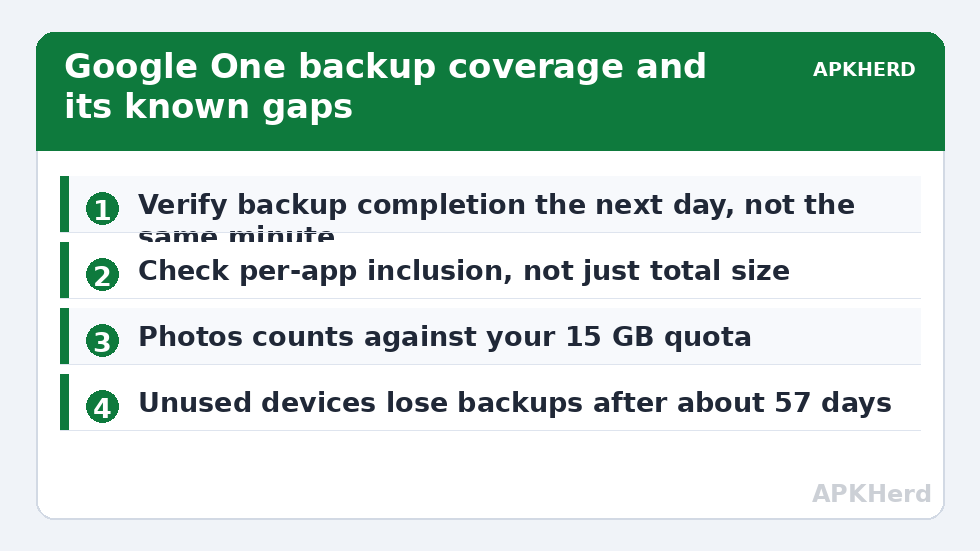
Every Google account includes 15 GB shared across Drive, Gmail, and Photos; paid Google One plans raise it. The Android device backup itself (app data, messages, settings) has historically not counted against that quota — Google treats the device-backup payload separately — but Photos absolutely does, and a full-quality photo library is what actually fills accounts. When the 15 GB fills, Photos backup stops first and everything else gets flaky shortly after, and the warnings are easy to miss inside the Photos app. Check storage at one.google.com from a browser and treat anything above 80 percent full as a backup problem already in progress.
The expiry clock
Google deletes backups of devices that go unused. The documented behaviour: if a device is not used for roughly 57 days, its backup is flagged for expiry and deleted shortly after, with a warning shown in the backup UI. A spare phone in a drawer, a tablet you travel with twice a year, a phone sent for a long repair — all can silently lose their cloud backup while powered off and healthy. If a device matters, wake it periodically, or treat its Google backup as a convenience layer and keep a local copy as the real archive (our automatic local backup guide shows how). This is also why “my backup disappeared” reports cluster around rarely used devices rather than daily phones.
The restore-moment problem
Google’s backup is designed around one restore moment: setting up a new or freshly reset phone. During that setup you pick the backup and the apps, data, messages, and settings flow in. What you cannot easily do is restore selectively later — there is no file-manager-style browse of your backup, no “restore just this app’s data from Tuesday” on a phone already in use. (Settings offers limited restore of certain items on some versions, but it is not a general archive.) Practical consequence: if you skip or botch the setup restore, your recovery options narrow to resetting again. Plan device migrations around that constraint instead of discovering it.
How to audit your own backup today
- On the phone: Settings → Google → Backup. Confirm the toggle is on, note the last backup time, and tap Back up now. If the last backup is weeks old, find out why — usually Wi-Fi-only waiting or a dead quota.
- Check the size. A backup of a few hundred megabytes on a phone full of apps usually means most apps opted out or were trimmed; that is information worth knowing now.
- On a computer: drive.google.com → Storage → Backups. Confirm your device appears with a recent date. This view has shown expiry warnings here before phones surface them.
- Separately confirm Photos: photos.google.com should show your latest pictures, and check whether quality is Original or Storage saver.
- Write down (outside the phone) your Google password situation and 2FA method. The backup is useless if the account is unreachable — see our 2FA backup guide.
What to add on top
Treat Google One as the base layer, not the whole plan. The known gaps map to known supplements: device-only contacts get a manual .vcf export (contacts reliability guide), critical app data gets per-app exports or an ADB archive (ADB guide), and the whole device set gets a second local copy under 3-2-1. Also read our comparison thinking in the backup tools hub when deciding whether a paid tier is worth it for the Photos quota alone — for many people it is, and that is the honest headline Google buries.
Reading the backup screen like an engineer
The Settings → Google → Backup page shows a total size and per-category hints on many devices. Learn to sanity-check it. If you have 150 apps installed and years of messages, a 120 MB total should worry you — it suggests heavy opt-outs and 25 MB-per-app trimming at work. Conversely, a multi-gigabyte figure does not prove your critical app made it; size is a smoke test, not a certificate. The per-app detail (where your version shows it) matters more than the total: open the apps section and look for your two or three most important apps by name. Absence there is the earliest warning you will ever get, delivered while the fix is still easy.
Also understand the “Back up now” rhythm: after tapping it, large backups upload only over unmetered Wi-Fi or your chosen settings and can pause for hours without complaint. The timestamp that matters is the completion shown the next morning, not the tap. People who verify the following day catch the failures; people who verify in the same minute carry false confidence into a reset.
Multiple devices, one account: the quiet interactions
Households often run several devices on one Google account, and backups interact in ways the UI understates. Each device keeps its own backup set, but Photos and Drive storage are shared pools — one family member’s 4K video habit can exhaust the quota and silently stall everyone else’s photo backups. Device expiry also applies per device: the rarely used tablet loses its backup on the same roughly two-month inactivity clock as any spare phone. If you administer family devices, add their backup pages to your quarterly glance; the account holder is the only person positioned to notice, and noticing early is the difference between a wake-up sync and a eulogy.
Frequently Asked Questions
Does Google One backup count against my 15 GB?
The device backup payload itself has historically been excluded from quota, but Google Photos content counts fully. In practice, Photos is what exhausts the storage and then disrupts the whole backup picture.
Why is one app’s data never in the backup?
The developer disabled backup for it (allowBackup=false) or its data exceeds the per-app allowance and is excluded. Financial and authentication apps do this deliberately. Use their in-app export or account sync.
How long is a backup kept if I stop using the phone?
Roughly two months of inactivity triggers expiry — Google documents about 57 days before the backup is marked to expire. Keep spare devices powered and connected occasionally, or archive locally.
Can I restore a Google backup to a phone already set up?
Not comprehensively. The full restore is a setup-time event. Some settings and data can be re-synced anytime, but app data recovery effectively requires the setup flow on a reset or new device.
Does it back up WhatsApp?
WhatsApp runs its own backup into Google Drive storage with its own settings and quota treatment; it is not part of the device backup payload. Manage it inside WhatsApp’s chat backup screen.