

Cache is the most misunderstood folder category on Android. It is not garbage, it is not a virus, and it is not why your phone is “slow.” It is a scratchpad: thumbnails your gallery generated, images your browser downloaded once so it wouldn’t download them again, map tiles, video segments. Learning how to clear cache all apps android safely is still useful — cache can balloon to absurd sizes and occasionally corrupts — but the safe method matters more than the act itself, because the button next to it, Clear storage/data, deletes your logins, settings, and offline files.
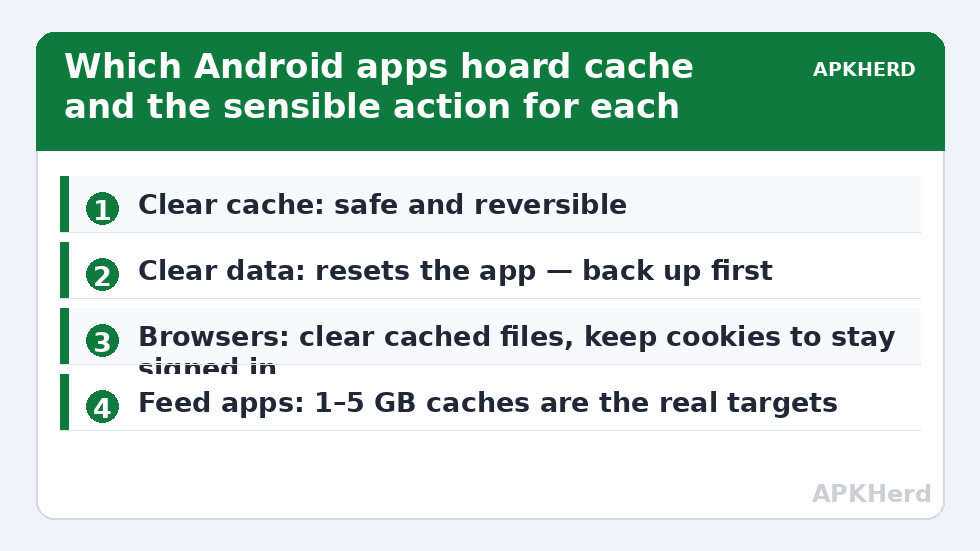
Read that again, because it is the one genuine danger in this whole topic: Clear cache is safe and reversible; Clear data is a factory reset for that app. Before you clear anything beyond cache — and this article will tell you when data clearing is the right call — back up anything the app holds locally: chat exports, game saves that aren’t cloud-synced, downloaded documents. With that warning pinned, here is the honest guide.
How to clear cache all apps android safely on Android 14 and 15
There is no one-tap “clear all caches” button in stock Android, and there hasn’t been for years — Google removed the global option because indiscriminate clearing hurts performance (every app then re-downloads and re-builds, burning data and battery). What exists:
- Per app (the built-in way): Settings > Apps > See all apps > pick an app > Storage & cache > Clear cache. Repeat for the worst offenders, which Settings helpfully sorts by size.
- Files by Google: the Clean tab offers to clear “junk files,” which in practice is mostly temporary files and some caches of apps that expose them. Safe, conservative, small yields.
- Automated per-app clearing: tools like SD Maid SE can use an accessibility service to tap Clear Cache inside Settings for each app in sequence. This is a legitimate use of the system’s own button — see our SD Maid SE guide — but watch the first run to confirm it never wanders near Clear storage.
Which apps actually hoard cache
| App type | Typical cache behaviour | Sensible action |
|---|---|---|
| Browsers (Chrome) | Hundreds of MB to several GB of site data | Clear cache inside browser settings, keep cookies if you hate re-logging |
| Social feeds (TikTok, Instagram) | Video segment caches grow fast, 1–5 GB on heavy use | Clear cache monthly; check in-app storage settings first |
| Maps | Tile cache plus offline areas (offline areas are data, not cache) | Prune offline regions in-app instead |
| Music/video streaming | Downloads are stored as app data, not cache | Manage via in-app download lists — clearing cache won’t touch them |
| Gallery/thumbnails | .thumbnails folder can reach GB scale on big libraries | Safe to clear; it rebuilds smaller. See the thumbnails deep-dive |
How much space will you get back? Honest ranges
Clearing every cache on a typical phone reclaims roughly 500 MB to 3 GB, varying hugely with how video-heavy your apps are — and most of it returns within weeks as apps rebuild their working sets. That is not failure; that is cache doing its job. The permanent wins are narrower: a corrupted cache making an app glitch, a browser cache from a phone you use for heavy research, or a feed app whose cache ran away to 8 GB. Expect a tidy-up, not a transformation. Anyone promising double-digit gigabytes from cache clearing alone is counting your app data in the total and hoping you won’t notice until after you’re logged out of everything.
The myth of the one-tap booster
Why do Play Store “cleaners” show a dramatic animation and declare “2.4 GB junk cleaned, RAM boosted 38%”? Because the animation is the product — it makes you watch an ad. Free RAM is wasted RAM on Android; the system keeps apps resident deliberately so they reopen instantly, and killing them forces cold starts that cost more battery. Likewise, apps cannot clear other apps’ caches on modern Android without the accessibility tap-through trick or root, so any cleaner claiming to deep-clean forty apps in two seconds is counting files it never touched. Our audit of cleaner apps themselves shows what many of them actually collect while performing this theatre.
When clearing data IS the right move
Rarely, an app’s stored data itself corrupts — it crashes on launch, shows phantom notifications, refuses to sync. Then Clear storage (after backing up and noting your login details) is a legitimate surgical fix, essentially reinstalling the app’s brain. Do it for one misbehaving app at a time, never as a bulk “cleanup.” If storage pressure rather than app behaviour is your problem, targeted guides in our storage cleaners hub — WhatsApp’s storage manager, Telegram’s cache cap — free far more space with far less collateral damage.
The browser exception: site data is a third category
Chrome confuses people because it has its own storage universe inside the app. Settings > Apps > Chrome shows a modest cache figure, but inside Chrome itself (Settings > Privacy and security > Clear browsing data, and Site settings > Data stored) you will find per-site storage that can run to gigabytes: web apps, offline pages, embedded video players, and sites that behave like installed apps. “Cached images and files” in Chrome’s dialog is safe to clear in bulk — the worst outcome is sites loading marginally slower once. “Cookies and site data” is the consequential checkbox: it signs you out and resets site preferences. Treat Chrome’s internal clear the way you treat Android’s: cache freely, data deliberately.
When clearing cache genuinely fixes a problem
Cache clearing has one legitimate troubleshooting role that deserves respect: a corrupted cached file can make a specific app glitch in ways that look like deeper faults — images that won’t load, a feed stuck on last Tuesday, a map showing grey tiles, an app crashing only when opening one screen. Clearing that one app’s cache forces a clean rebuild and fixes this class of problem often enough that it should be your second troubleshooting step for any single-app weirdness (the first is force-stop and reopen; the third is checking for an app update). What cache clearing cannot fix: an app that crashes for everyone after an update, account problems, server outages, or a phone that is slow because its storage is 99% full. Diagnosing which problem you have matters more than the clearing itself — a pattern that repeats when you compare the surgical uses in our guide to the insufficient-storage error, where cache clearing helps only in one specific branch.
One more boundary worth memorising: Android’s per-app cache figure includes some things you might not expect, like a music app’s preloaded artwork or a podcast app’s episode thumbnails, while downloaded episodes themselves sit in data. When in doubt about whether something precious lives in “cache,” check inside the app first — apps know their own anatomy better than the Settings label does.
Frequently Asked Questions
Will clearing cache delete my photos or logins?
No. Clear cache removes temporary working files only. Your photos, accounts, and settings live in app data, which is untouched. Apps may feel slightly slower on first launch while they rebuild cache — that is expected.
What is the difference between Clear cache and Clear storage?
Clear cache deletes temporary files. Clear storage (Clear data) wipes the app’s entire local state — logins, settings, downloads, offline content — returning it to first-install condition. Only use it deliberately, per app, after backing up.
How often should I clear cache?
When an app misbehaves or its cache has grown absurd (check Settings > Apps sorted by size). Routine weekly clearing gains nothing; the cache rebuilds and you spend data and battery recreating it.
Can an app clear all caches at once on Android 14 or 15?
Not directly — scoped permissions prevent it. Tools like SD Maid SE automate the system’s own per-app Clear Cache button via accessibility services. Anything claiming an instant one-tap deep clean of every app is exaggerating.
Why does cache come back after I clear it?
Because cache is working space, not waste. Thumbnails, feed videos, and web assets are re-downloaded as you use the apps. A cache that grows back to a similar size is healthy; only runaway growth (several GB for one app) warrants action.