
Files by Google is the only “cleaner” preinstalled thinking that deserves the name, and even Google is careful never to call it that. A proper files by google deep clean junk guide has to start with what the Clean tab really is: a set of conservative suggestion cards, each scoped to one category of file, each requiring your confirmation. It will not find 14 GB of mysterious junk, because phones do not contain 14 GB of mysterious junk. What it will do — safely, without ads, without pretending to scan for viruses — is clear the four or five categories where ordinary users actually accumulate waste.
Anatomy of the Clean tab, card by card
| Card | What it targets | Watch out for |
|---|---|---|
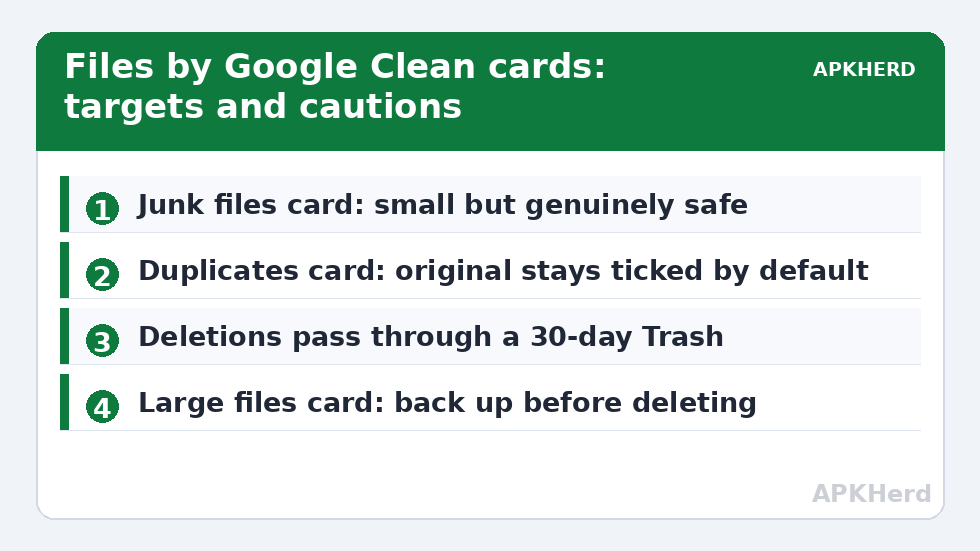
| Junk files | Temporary files and caches apps expose for cleanup | Small but genuinely safe; sizes are usually tens to hundreds of MB |
| Duplicate files | Byte-identical copies across folders | Review pairs before confirming |
| Large files | Your biggest single files, usually videos | These are YOUR files — back up before deleting |
| Downloaded files | Everything in the Download folder | Old tickets, PDFs, and installers hide here — skim first |
| Unused apps | Apps not opened in weeks (needs usage access) | Uninstalling frees the app AND its data — check for local saves |
| Screenshots / memes / blurred photos | Media suggestions powered by on-device ML | Suggestions, not verdicts — review each one |
Two warnings before you sweep. First, back up anything irreplaceable — the Large files and Downloaded files cards happily list your only copy of a scanned document or a child’s first-steps video. Second, nothing on this tab is Trash-proof by default: deletions through Files go to its Trash for 30 days (Files > Trash), which is a safety net worth knowing about before you need it.
The files by google deep clean junk guide workflow, in order
- Junk files first. Tap the card, confirm. Expect tens to a few hundred megabytes. This is roughly the same set of temp files you’d get from per-app clearing, minus the effort — compare with the manual method in our cache-clearing guide.
- Duplicates. Work through the pairs; the original stays ticked. If the card doesn’t appear, you may simply not have duplicates Files can see — messaging-app copies need the manual pass described in our duplicates guide.
- Large files. Sort descending and interrogate the top ten. Anything you recognise as precious gets backed up or left alone; anything you don’t recognise gets opened before it gets deleted.
- Downloads folder. The archaeological layer of Android. Boarding passes from 2022, a 400 MB firmware file, seventeen copies of a menu PDF. Most of it can go.
- Unused apps. Grant usage access if asked, then uninstall with intent: an unused 800 MB game also releases its data folder, unlike cache clearing.
The Browse tab: where the deep clean actually happens
Seasoned users skip the cards and go straight to Browse > Internal storage, sorted by size. This is where you find the folders the cards never mention: the 2 GB a podcast app cached outside its sandbox accounting, the screen-recording folder from a project you finished, the Android/data leftovers detailed in removing leftover folders after uninstalling. Files by Google also shows a per-category storage breakdown (Apps, Images, Videos, Audio, Documents) under Browse, which mirrors Settings > Storage and tells you which category deserves your ten minutes.
What Files by Google deliberately does not do
- It does not clear other apps’ private caches wholesale — Android forbids it, Google respects it.
- It does not “boost RAM,” defragment anything, or scan for malware (Play Protect already does the last one, properly).
- It does not nag, upsell, or run ads. If your “Files” app does any of those, it is a clone — check the developer name says Google LLC.
Those limits make it the baseline recommendation across our storage cleaners guides: everything third-party must justify why it deserves permissions Google’s own tool doesn’t ask for.
How much will you actually free?
Honest ranges: a first deep clean on a two-year-old phone commonly returns 1–5 GB, dominated by large files, downloads, and unused apps rather than “junk.” The Junk card alone is usually under 500 MB. Results vary by device and habits — a phone already backed up and pruned monthly may yield a few hundred megabytes total, and that small number is a sign of health, not a failed clean.
Three more Files features that belong in a deep clean
The storage bar and categories. Open Browse and the top of the screen shows your internal storage total with a category breakdown one tap deeper (Apps, Images, Videos, Audio, Documents and more, each with its own file list sortable by size). This is the fastest built-in way to answer “which category is eating the phone?” before you start deleting inside the wrong one. If Videos dwarfs everything, your afternoon belongs to the camera roll and messaging folders, not the Clean tab.
The Safe folder. Files by Google includes a PIN/pattern-locked Safe folder. It is not a cleaning tool, but it belongs in a deep-clean workflow for one reason: when you sweep Downloads and documents, you will meet files that are sensitive rather than junk — scanned IDs, contracts, medical PDFs. The amateur move is leaving them in Downloads “for now”; the tidy move is filing them into the Safe folder (or better, an encrypted cloud vault) and then deleting the stray copies. Cleanup and privacy are the same chore viewed from two sides.
Offline sharing leftovers. Files’ share feature (and its predecessor Nearby Share) receives files into the Download or a dedicated folder, where they duplicate things senders also sent you through chat apps. After any big in-person transfer session — a wedding’s worth of photos from a cousin’s phone — run the duplicates card again; received copies are the classic second harvest. And when the Clean tab has nothing left to offer, graduate to the structural view: the visual analysis in our DiskUsage guide reveals what suggestion cards structurally cannot, namely which folder tree is growing month over month.
Keeping Files itself honest
One configuration check: Files by Google occasionally enables a “show cleanup suggestions” style notification that nudges you toward the Clean tab. Leave it on — it is one of the very few storage notifications from a source that isn’t selling something. Conversely, if a different app starts imitating these notifications (lookalike “Google cleanup” alerts are a known adware costume), check the posting app’s identity in the notification shade before tapping anything.
A note on very old or very cheap phones
On low-storage devices (32 GB and under), Files by Google earns an extra role: it is often the only cleaning interface light enough to run comfortably while storage is nearly full, when heavier apps fail to install or update at all. If a struggling phone cannot even download a diagnostic tool, start with Files’ Clean tab and the Downloads sweep to win back install room, then graduate to the structural tools. The order of operations matters when the patient can barely breathe.
Frequently Asked Questions
Is Files by Google safe for cleaning?
Yes — it is the most conservative option available. Every card shows what will be deleted and requires confirmation, deletions pass through a 30-day Trash, and there are no ads or fake scans. Still back up irreplaceable files before clearing the Large files and Downloads cards.
Why is the Junk files card so small?
Because real temporary junk is small. Cards promising many gigabytes of “junk” are usually counting app data and cache that should not be bulk-deleted. A small, truthful number beats a large theatrical one.
Does Files by Google delete duplicates automatically?
No. The Duplicate files card lists byte-identical copies and waits for your selection, keeping the original by default. Always review pairs, especially photos, before confirming.
Can Files by Google replace a dedicated cleaner like SD Maid?
For most people, yes. SD Maid SE goes further — orphaned folders, database optimisation, automated per-app cache clearing — but Files by Google covers the categories where most waste actually sits, with zero risk of adware behaviour.
Where do deleted files go in Files by Google?
Into the app’s Trash, retained for 30 days, then permanently deleted. You can restore from Files > Trash during that window — or empty it early if you need the space immediately and are sure.