
An island app work profile setup guide has to start with what a work profile actually is, because Island itself is only a manager. The isolation is done by Android. A work profile is a second, system-managed user space on the same phone — technically a managed profile tied to your primary user — with its own app installations, its own storage area, and its own set of accounts. Apps inside it cannot read data from apps outside it unless Android’s controlled sharing bridges allow it. Employers use this to put corporate apps on personal phones without touching personal data. Island, by developer Oasis Feng, lets you create and run that same mechanism for yourself, with no employer and no MDM server involved.
What Island Can and Cannot Do
Island creates the profile, installs or clones apps into it, and gives you controls Android normally reserves for IT admins: freezing apps so they cannot run in the background, toggling the whole profile on and off, and launching cloned apps through shortcuts. What it cannot do is change how the apps themselves behave once running — a cloned app still uses the same network, still sees the same device identifiers Android exposes to profile apps, and still follows its own developer’s rules. Treat the profile as a strong organisational and privacy boundary against other apps, not as invisibility.
| Capability | Personal profile | Work profile via Island |
|---|---|---|
| App data separation | — | Full: separate data directory per app |
| Freeze background apps | Only via OEM battery tools | Yes, per app, instantly reversible |
| One-tap profile pause | No | Yes (Work profile toggle in Quick Settings) |
| Separate VPN | No | Yes, profile-scoped VPN supported |
| Root required | — | No for standard mode |
Before You Install: Requirements and Honest Caveats
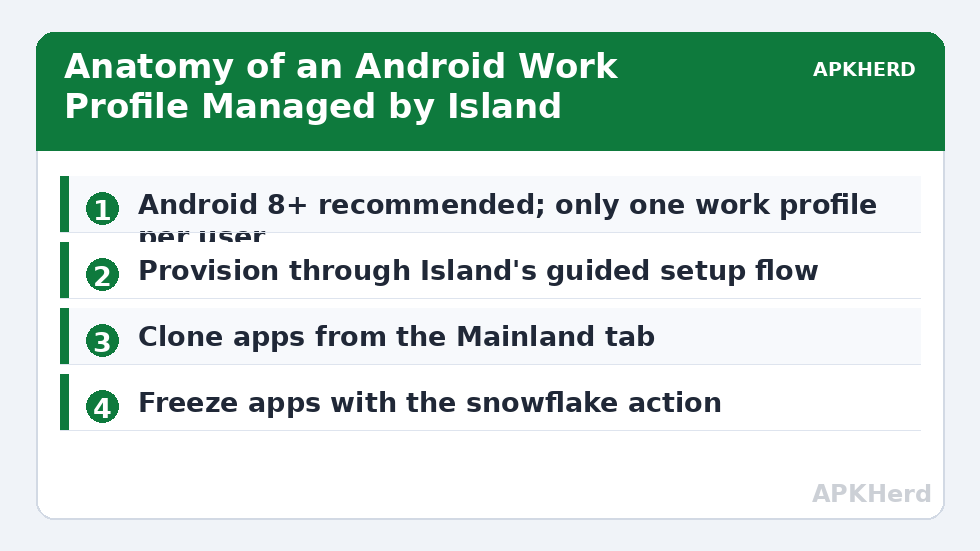
Island works on the large majority of phones running Android 8 or later with Google services or a compatible framework; some heavily customised Chinese-market ROMs block profile creation or break it silently. Your phone must not already have a work profile from your employer — Android allows one work profile per user on most builds, so if your company manages one, Island cannot add a second. Two more caveats worth knowing upfront. First, during setup Android shows alarming system wording about your “organisation” managing the device; that is generic text, and the “organisation” here is Island acting as profile owner on your behalf. Second, Island is not open source, though it requests no internet permission for its core function — if you prefer fully open-source tooling, Shelter covers most of the same ground and is compared elsewhere on this site.
Step-by-Step: Create the Profile and Clone Your First App
- Install Island from the Google Play Store (or the official F-Droid listing where available). Open it and read the setup introduction, then tap to begin creating the work profile.
- Android will hand you to the system “Set up work profile” flow. Accept the terms. The system provisions the profile — this takes under a minute — and you will see briefcase-badged icons appear in your app drawer.
- Back in Island, you land on the Mainland tab (your normal apps). Long-press or tap an app you want inside the profile, then choose the clone/install action (the “+” or clone icon). Island either clones the installed app into the profile or triggers a fresh install there.
- Switch to the Island tab to see profile apps. Launch the cloned app once and sign in with the second account. Android requires you to set up some apps (especially messengers) from scratch inside the profile — that is the separation working as intended.
- Add the Work profile toggle to your Quick Settings panel and, if Island offers it, enable its notification so you can freeze heavy apps from the Island tab with the snowflake icon.
If setup fails at the provisioning step, the usual culprits are an existing employer profile, a phone already running multiple user profiles in a conflicting configuration, or an OEM ROM (some older MIUI and EMUI builds) that restricts profile owners. Removing the employer profile is often not an option, in which case a virtual-space cloner is the fallback — with the trade-offs described in our Parallel Space vs Island vs Shelter comparison.
Freezing, Unfreezing, and Daily Use
Freezing is Island’s most useful daily feature. A frozen app is disabled at the system level: it cannot run, sync, or wake up, and it consumes no battery — but its data stays intact, and unfreezing restores it in seconds. Freeze the apps you only need inside the profile occasionally (a banking app for a second account, a shopping app you do not trust) and leave daily drivers unfrozen. Note that freezing the profile’s launcher or a system component the profile depends on can make cloned apps behave oddly; stick to freezing ordinary third-party apps.
File sharing between profiles is deliberately narrow. Android exposes a cross-profile picker through the Sharesheet and Files app in recent versions, and Island adds a file shuttle feature on some builds. Do not expect a shared downloads folder — moving files across is a manual, deliberate act, which is precisely the point of the boundary. For the deeper isolation workflow, including freezing untrusted apps on sight, see the companion Shelter complete guide, which covers the same Android mechanism from the open-source side.
Removing Island Without Losing Your Main Apps
Deletion is asymmetric: removing the work profile destroys everything inside it — cloned apps and their data — while your mainland apps are untouched. So before you remove anything, export what matters from inside the profile first (chat backups to the account’s own cloud, files via the share picker). The backup discipline is covered in our guide to backing up and restoring work profile apps. To remove, either use Island’s settings (Destroy Island / remove work profile) or go to Android Settings > Passwords & accounts (or Accounts) > Work tab > Remove work profile. Uninstalling the Island app alone does not remove the profile it created.
Is This Within the Rules?
Yes, in the way that matters. A work profile is a first-class Android feature; using it to hold a second account of an app is the same mechanism enterprises use at scale. The boundary to respect is each app’s own terms: a service that prohibits multiple accounts prohibits them inside a profile too, and a ban on your account applies regardless of which profile it was signed into. Use Island for separation, organisation, and privacy from other apps — legitimate goals it serves well — and browse the rest of the series under App Cloners for what to put inside it.
Frequently Asked Questions
Is Island safe to use on my main phone?
Island works through Android’s official work profile APIs and does not require root for its standard mode, which keeps the system’s security model intact. The profile owner role is powerful, though, so install Island only from the Play Store or its official F-Droid listing, and be wary of similarly named clones on third-party APK sites.
Why does Android say my “organisation” will manage the work profile?
That wording is generic system text shown for any profile owner, including employer MDM tools. When you set up Island on a personal phone, Island is the profile owner acting for you. Your employer has no access to an Island-created profile, and the profile cannot see your personal apps’ data.
Can I have an Island profile and my employer’s work profile at the same time?
On most Android builds, no — there can be only one work profile per user. If your employer already manages one, Island’s setup will fail at provisioning. Alternatives are asking your IT department about a personal/second profile policy on newer Android versions, or using a virtual-space cloner for the extra apps instead.
Do frozen apps inside Island still receive notifications?
No. A frozen app is disabled at the system level, so it cannot run or post notifications until you unfreeze it. Messages sent to a frozen messenger are not lost — they arrive the next time you unfreeze and open the app — but nothing will alert you in the meantime.
What happens to cloned apps if I uninstall Island?
Uninstalling the Island app does not delete the work profile; the cloned apps remain but you lose Island’s management conveniences. To remove everything, delete the work profile itself from Island’s settings or from Android Settings > Accounts > Work > Remove work profile — and back up any data inside the profile first, because profile removal erases it permanently.