
A proper samsung smart switch backup pc guide has to start with a distinction Samsung’s own marketing blurs: Smart Switch backup to a PC is a migration tool, not an archival backup system. It is very good at moving a Galaxy phone’s contents to another phone through your computer, and noticeably weaker as a long-term, restorable-anywhere archive. This walkthrough covers the full PC backup and restore process, states precisely what the backup contains and excludes, and explains how to verify the result before you wipe or trade in the phone.
The samsung smart switch backup pc guide essentials: what the backup includes and excludes
| Category | Included | Notes |
|---|---|---|
| Contacts, calendar, messages, call logs | Yes | Restores cleanly to Samsung devices; partial to other brands via the mobile app |
| Photos, videos, music, documents | Yes | Copied from internal storage and SD card if selected |
| Apps | App list + APKs for many apps | App data only for apps that allow it; many return as fresh installs |
| Settings, alarms, Wi-Fi, home screen layout | Yes | Home layout restores fully only to Samsung launchers |
| Secure Folder contents | No | Excluded by design; back up Secure Folder separately from inside it |
| WhatsApp chats | Not reliably | Use WhatsApp’s own backup; see our local WhatsApp guide |
Two exclusions routinely burn people. First, anything inside Secure Folder never enters a Smart Switch backup — it is a separate encrypted container with its own backup flow. Second, app data: Smart Switch inherits the same allowBackup limits as every other tool, so banking apps, authenticators, and many games return empty. Plan separate exports for those, exactly as described in our no-root app data guide.
Installing Smart Switch and preparing the PC
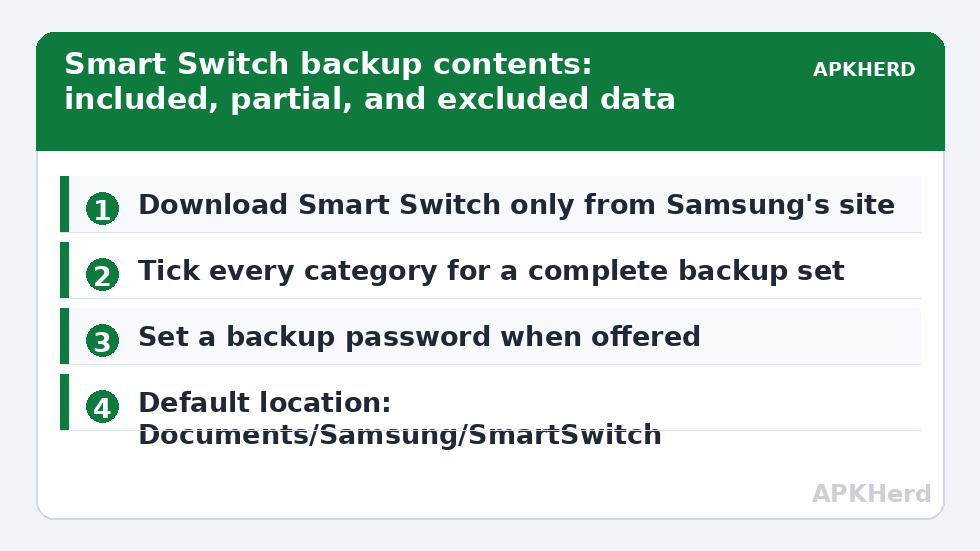
Download Smart Switch for PC or Mac only from Samsung’s official site — third-party download portals bundle outdated and occasionally adulterated copies. Install it, and note the default backup location (on Windows, under Documents/Samsung/SmartSwitch) because you will want to move or duplicate that folder later for your second copy. Free disk space should exceed the phone’s used storage; a 200 GB phone can produce a backup well over 100 GB.
On the phone: charge above 50 percent, unlock it, and use a quality USB cable directly into the PC (hubs cause a disproportionate share of stalled backups). When prompted, set the USB mode to file transfer and allow the connection.
Running the backup, step by step
- Connect the phone and open Smart Switch on the PC. Wait until the device card shows the model and storage summary.
- Click Backup. On the item selection screen, leave everything ticked except categories you have deliberately covered elsewhere — partial backups are the leading cause of “where did my X go” posts.
- If offered a backup password/encryption option, set one and record it somewhere durable. An encrypted backup you cannot decrypt later is equivalent to no backup.
- Start the backup and leave the phone untouched. Large photo libraries can take 30–90 minutes over USB 2.0-speed connections; USB-C to a fast port is substantially quicker.
- When it completes, note the backup’s date-stamped folder name inside the Smart Switch backup directory. That folder is the unit you copy for redundancy.
Verification: the restore spot-check
Smart Switch reports success too cheerfully to trust at face value. Verify in three ways. First, file count: compare the backup folder’s size against the phone’s used storage adjusted for the exclusions above; a 3 GB backup of a 90 GB phone is a red flag. Second, open a few backed-up photos directly from the backup folder on the PC — media files are stored accessibly and should open. Third, the decisive test: restore to a spare Samsung device if you have one, or restore a single category (for example, messages) back to the same phone after temporarily moving that data. If neither test is possible, at minimum use Smart Switch’s own “backup history” view to confirm the backup is listed as restorable, and keep a second, independent backup method for irreplaceable data.
This is the 3-2-1 rule in practice: the Smart Switch folder on your PC is copy one; duplicate it to an external drive for copy two, ideally stored away from the PC; and your photos should additionally exist in a photo service or your own server — our Immich and PhotoPrism guide covers the self-hosted route.
Restoring, and moving to a non-Samsung phone
Restore is the reverse flow: connect the target device, choose Restore, pick the backup set, and select categories. To a Samsung phone this is smooth. To a Pixel or other brand, use the Smart Switch mobile app on the new phone instead of the PC program; expect contacts, messages, media, and apps-by-name to come across, with settings and app data largely left behind. Our dedicated Samsung-to-Pixel migration guide maps exactly what survives that jump and the order to do things in.
One more trap: Smart Switch backups are effectively Samsung-ecosystem property. There is no supported way to restore one onto a non-Samsung device via PC, and no way to browse most of it as plain files except the media. That is acceptable for a trade-in weekend; it is a poor ten-year archive. Treat Smart Switch as the fast lane for migration, and keep format-neutral copies (photos as files, contacts as vCard, messages exported) for the long term. More comparisons live on our backup tools hub.
Keeping Smart Switch backups over time
If you back up the same phone repeatedly, Smart Switch keeps dated backup sets that quietly consume serious disk space — a year of monthly backups of a media-heavy phone can reach several hundred gigabytes on the PC. Prune deliberately: keep the most recent set, one set from before any major update or repair, and delete the middle. Before deleting anything, confirm the newest set passes the spot checks above. Also note the backup folder is only as safe as the PC: if that machine is not itself backed up, your “PC backup” is a single copy on a single drive. Add the folder to whatever backs up the computer, or copy the latest set to an external drive monthly — that one habit converts Smart Switch from a migration convenience into a genuine layer of a 3-2-1 plan.
One behavioural note: Smart Switch backups complement, but do not replace, account sync. If the PC dies the same week as the phone, account-synced data (contacts, calendar, photos in a cloud library) is what remains. Running both is not redundancy theatre; they fail in different ways, which is the entire point.
Cable and connection troubleshooting
Most failed Smart Switch sessions are connection failures wearing software costumes. If the PC does not see the phone, change the cable before changing anything else — charge-only cables are everywhere and indistinguishable by eye. If the backup stalls at a fixed percentage, note which category it is processing (media categories stall on a single corrupted file more often than users expect) and exclude-and-retry that category to isolate it. Antivirus interference on the PC is the third common cause; a temporary exception for the Smart Switch program during a long backup is reasonable, added back afterwards. Solve connections first, software second — the reverse order wastes afternoons.
Frequently Asked Questions
Where does Smart Switch store backups on Windows?
By default in Documents under Samsung/SmartSwitch/Backup, in a folder named for the device. You can change the location in Smart Switch preferences — do it before the first big backup if your system drive is small.
Does Smart Switch back up WhatsApp?
Not in a form you can depend on. WhatsApp maintains its own local and Google Drive backups; use those, ideally both. Our local WhatsApp walkthrough explains restoring without Google Drive.
Can I restore a Smart Switch backup to an older Samsung phone?
Usually yes for data categories, provided the target’s Android version is not dramatically older. App data and some settings may be skipped when versions diverge widely.
Why is my app data missing after restoring?
Because most apps either opt out of backup or store data Smart Switch cannot copy without root. The restore worked as designed; the design has holes. Per-app exports are the fix for the apps that matter.
Is the Smart Switch backup encrypted?
Only if you set a backup password when offered. Without it, the folder is readable on the PC — another reason to control who accesses that machine and to encrypt any cloud copy.