
A 200-hour RPG save is the least replaceable file on your phone, and the most casually handled. Ask three players how their progress is protected and you will hear “the cloud, probably.” Sometimes that is true. Often the save sits in a folder nothing is syncing. This guide to backup game saves android manually sorts games by how they actually store progress, shows the manual folder-copy method for the ones with no cloud at all, and sets up a routine where a dead phone costs you an afternoon instead of a playthrough.
The four kinds of game save (know which you own)
| Type | How it works | Your job |
|---|---|---|
| Server-side account saves | Progress lives on the publisher’s server, tied to your login (most online and gacha games) | Protect the account: password, 2FA, linked email. Nothing on the device matters |
| Google Play Games cloud saves | “Saved Games” API syncs through your Play account | Confirm the game actually uses it — check Play Games profile and test on a second device |
| Local saves in app data | Progress in the app’s private directory | Needs backup tools; many such games allow backup, some opt out |
| Local saves in visible folders | Emulators and many indie/port titles write to shared storage folders | Copy the folder. Easiest case, most often forgotten |
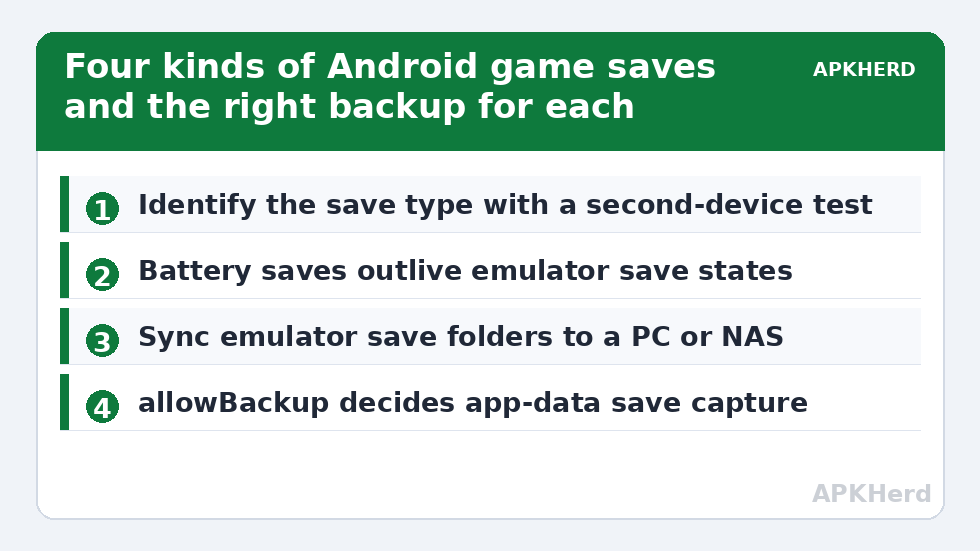
Test which type a game is before your phone is at risk, not after. The definitive test: install the game on a second device (or an emulator on PC), sign in the same way, and see if your progress appears. Five minutes of certainty beats a forum thread of guesses.
Backup game saves Android manually: the folder method for emulator and port players
Emulators write saves where you tell them to, typically in a folder tree on shared storage containing battery saves (.sav), save states, and memory card files. The routine: locate the emulator’s save directory in its settings, then copy that entire directory to your PC or NAS on a schedule. Save states are version-sensitive — a state made in one emulator build may refuse to load in another — so the battery save / memory card files are your durable assets; treat states as convenience only. This pairs naturally with a Syncthing setup like the one in our automatic backup guide: point a synced folder at the emulator’s directory and every save propagates to your PC within minutes of putting the phone down.
For non-emulator games with visible folders (many PC ports and indie titles create a folder named after the game or publisher in internal storage or Android/data), the same copy applies. Android/data access is restricted on newer Android versions from phone-side file managers; a USB connection to a PC or an ADB pull reaches further.
App-data saves: the allowBackup lottery
Offline games storing progress in private app data depend on the developer’s choices. If the game permits backup, Google One and ADB methods can capture it (see our ADB no-root guide for exactly how, and its limits). If the developer opted out — and a surprising number of premium offline games did — then on an unrooted phone there is no legitimate way to extract the save. Root changes everything: Swift Backup or Neo Backup in root mode copies the data directory wholesale. That single fact is the most common reason long-time players root an old device before migrating. Decide whether the playthrough justifies it.
The verification ritual (fifteen minutes, quarterly)
- Pick your three most valuable saves.
- For cloud-type games, confirm progress appears on a second device or fresh install after sign-in.
- For folder saves, confirm the folder copy on your PC is newer than your last session and open one file’s timestamp.
- For app-data saves, confirm your last backup ran after your last session and includes the game.
- Note the results in the same place you keep the backups. Future-you, mid-crisis, will not remember which game was the exception.
Fold this into the broader restore-testing habit from our backup verification guide — a save you have never seen restored is a rumour.
Device migration day: the order of operations
Old phone still working? Then migration is easy if sequenced: confirm cloud saves synced (open the game, play one minute, let it save), take fresh folder copies, run your app-data backup, and only then set up the new phone. If the old phone is already dead, your options are exactly the copies you made earlier — which is the whole sermon of this category in one sentence. Keep the sermon short by automating: saves folders synced to NAS or PC, Google One on, and a quarterly check. Everything connects through the backup tools hub, including the 3-2-1 plan that gives these copies a structure.
Anti-cheat, DRM, and the saves that refuse to travel
Some games actively resist save copying: progress files tied to a device ID, integrity checks that invalidate restored data, or online games that treat a restored save as tampering. Competitive and gacha titles are the strictest — but those almost always keep progress server-side anyway, which is why the type test at the top of this guide matters more than any tool. For offline premium games that bind saves to the device, there is often no legitimate migration path at all; the developer’s support channel is the only appeal, and screenshot evidence of purchases (keep Play Store receipts — Google emails them, and they live in your Gmail archive) occasionally persuades a manual credit.
A forward-looking habit that avoids most of this: when you start any long game, spend two minutes learning its save architecture then, at hour one, when the stakes feel low — check for an account link, a transfer code, or a Play Games integration, and note it in your backup log. Players who do this once per game never write the desperate forum posts. Combined with the folder syncs and quarterly checks elsewhere in this guide, it converts game saves from the riskiest data you own into some of the safest.
Cloud-save conflicts: the overwrite trap
One hazard deserves its own paragraph because it has destroyed real progress: cloud-save sync conflicts handled badly. Scenario — you play offline on a plane, the local save advances past the cloud copy, and at next launch the game (or Play Games) silently decides the cloud version is authoritative and overwrites your newer local progress. Well-designed games prompt with timestamps; many do not. Defences: after any long offline session, go online with the game in the foreground and let it sync before playing on a second device; and keep your own folder copies of local saves where they exist, so a bad sync decision is reversible from your archive rather than from your tears. The manual copy habit this whole guide teaches turns out to be insurance against the cloud, not just against phone loss.
Frequently Asked Questions
How do I know if a game uses Google Play Games cloud saves?
Open the Play Games app and check the game’s presence, and look in the game’s own settings for a cloud/save or account option. The conclusive test is signing in on a second device and seeing whether progress appears.
Can I move a save between Android and iOS or PC versions?
Server-account games: usually yes, it follows the login. Play Games saves: Android only. Manual folder saves: sometimes, for emulator saves, since formats are platform-neutral; for commercial ports, rarely. Assume no unless the publisher documents a transfer feature.
My game has no cloud save and blocks backup. Any options without root?
Realistically, no supported way to extract its private data. Check for an in-game export, transfer code, or account system buried in settings — some developers provide their own. Otherwise root tooling or accepting the risk are the only doors.
Are save states a safe backup?
No. Save states are snapshots tied to emulator version and settings; updates can invalidate them. Battery saves and memory-card files are the durable format. Keep both, rely on the latter.
How often should I back up emulator save folders?
With folder sync, effectively continuously. Manually, after any session with real progress — the copy takes seconds once the habit exists, and a weekly scheduled reminder covers the rest.