
Running two whatsapp accounts one phone official methods only — that qualifier matters more than most guides admit. WhatsApp spent years banning numbers that used modified clients, and plenty of people lost chat histories learning that the hard way. The good news is that you no longer need a modded APK or a shady cloner to keep a work number and a personal number on the same handset. WhatsApp itself, your phone’s manufacturer, and Android’s work profile system all offer supported routes. This guide walks through each one, what stays separate, and where the compliance line actually sits.
One requirement applies to every method below: you need a second phone number that can receive an SMS or voice verification code at setup time. That number can live on a second SIM, an eSIM, or even a SIM sitting in a drawer phone you only power on for the code. After registration, the account stays signed in on your main device.
The Official Ways to Run Two WhatsApp Accounts on One Phone
There are four supported approaches, and they differ in how deep the separation goes. The built-in option keeps two accounts inside one app with fast switching. OEM dual-app features create a second, independent copy of WhatsApp. A work profile goes further: the second copy lives in a separate Android profile with its own storage, which is the strongest isolation short of a second user profile. The right choice depends on whether you want convenience or genuine separation.
| Method | What it creates | Separate backup? | Available on |
|---|---|---|---|
| WhatsApp multi-account | Second account inside the same app | Yes, per account (own Google account/backup settings) | Android, WhatsApp 2.23.17+ |
| Samsung Dual Messenger | Second WhatsApp copy, orange badge | Yes | Galaxy phones, One UI |
| Xiaomi Dual Apps | Second WhatsApp copy | Yes | MIUI / HyperOS devices |
| Work profile (Island) | WhatsApp inside a managed profile | Yes, fully separate storage | Most Android 8+ phones |
Method 1: WhatsApp’s Built-In Second Account
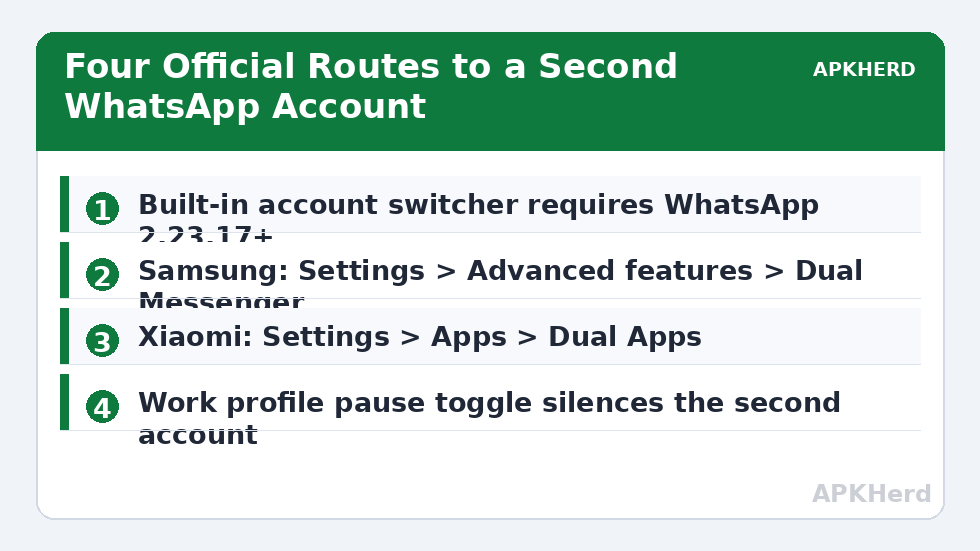
In October 2023 WhatsApp rolled out native multi-account support on Android, and it remains the cleanest option because nothing is cloned at all — the app itself manages both logins. To set it up, open WhatsApp, tap your profile photo or the arrow next to your name in the account switcher, choose Add account, accept the terms, and enter the second number. WhatsApp sends a verification code to that number; enter it, set a profile name and photo, and you are done. Switching afterwards takes two taps from the same menu.
Each account keeps its own chats, calls, status privacy, and notification tone, and badge counts reflect whichever account is active plus a dot indicator for pending messages on the other. A couple of honest limits: the feature launched on Android first, and some settings — such as linked devices — are managed per account, so you will pair WhatsApp Web separately for each number. If the Add account option is missing, update WhatsApp from the Play Store; very old builds and some regional rollouts lagged behind.
Method 2: Your Manufacturer’s Dual-App Feature
If your phone has a built-in cloner, it produces a genuinely separate WhatsApp installation with its own data folder. Samsung’s version is covered in depth in our Samsung Dual Messenger guide: enable WhatsApp under Settings > Advanced features > Dual Messenger and a badged copy appears in your app drawer. Xiaomi, Redmi, and Poco owners get the same idea through Dual Apps — see our Xiaomi Dual Apps walkthrough for the MIUI and HyperOS menu paths, which differ slightly between versions.
The OEM route has one advantage over the built-in switcher: because the clone is a separate app entry, you can give it a different notification sound, lock it separately on phones that support per-app locks, and use a different Google Drive backup identity. The disadvantage is duplication — two full WhatsApp data folders means double the media storage over time, and cloned copies occasionally receive feature updates a few days later than the original.
Method 3: A Work Profile for Maximum Separation
Android’s work profile was designed for employers, but nothing stops you using it for your own second identity. Apps like Island create a managed profile on a personal phone; install WhatsApp inside it and it behaves as though it lives on a different device — separate contacts if you want them, separate storage, and a profile you can pause entirely outside work hours. This is the method to pick when the second number is a business line you genuinely want to silence at weekends. Setup takes about five minutes and is reversible without root.
What Stays Separate — and What Does Not
Whichever route you choose, chat databases never merge. Each account or clone backs up independently, and restoring one never overwrites the other. Notifications, however, share your phone’s single notification shade, so on the built-in method you will see messages from both accounts interleaved; only the account name in the notification tells them apart. Media from both accounts lands in your gallery unless you disable Media visibility per account — do this for the work account if clients send you documents you do not want in your camera roll.
If messages from the second account arrive late or the clone starts force-closing, that is almost always a battery-management problem rather than a WhatsApp problem. Our troubleshooting piece on why cloned apps crash and lose notifications explains the fix order to work through before reinstalling anything.
The Compliance Line: Supported Features vs Banned Mods
Be blunt with yourself here, because WhatsApp is blunt about it in its terms. Using two accounts through the features above is legitimate — WhatsApp built the switcher, Samsung and Xiaomi built their cloners, and Android built the work profile. What violates WhatsApp’s terms is using modified clients such as GBWhatsApp, WhatsApp Plus, or FMWhatsApp to run extra accounts or add features. Those apps are not affiliated with Meta, they break the terms of service, and WhatsApp has repeatedly suspended numbers — temporarily at first, permanently for repeat offenders — detected on them. You also hand your entire message database to an unknown developer.
The same principle generalises: dual accounts for separating your own work and personal life are fine; using a second account to evade a ban, spam, or impersonate someone is not, and no setup method makes that acceptable. If an account matters to you — especially a business number customers rely on — keep it on official software only. More dual-app topics, including privacy and backup, are collected under App Cloners.
Frequently Asked Questions
Do I need a dual-SIM phone for two WhatsApp accounts?
No. You need a second number that can receive one verification SMS or call during setup. That number can be on an eSIM, a second SIM, or a SIM temporarily placed in any phone. After registration, WhatsApp works over Wi-Fi or your main data connection regardless of which SIM is active.
Can I use the same Google Drive account to back up both WhatsApp accounts?
With the built-in multi-account feature, each WhatsApp account can be tied to its own backup settings, and using two different Google accounts keeps the backups cleanly separated. With cloned copies (Dual Messenger, Dual Apps), each copy signs in to Drive independently, so you can deliberately choose a different Google account for the clone during its in-app backup setup.
Will WhatsApp ban me for having two accounts on one phone?
Not for using the official methods in this guide — the in-app switcher, OEM dual-app features, and work profiles are all supported mechanisms. Bans are aimed at modified clients (GBWhatsApp and similar) and abusive behaviour such as spam or ban evasion. Stay on official software and use the second account for legitimate work/personal separation.
Which method is best for a work number I want to switch off at weekends?
The work profile method. Android lets you pause the entire work profile with one toggle, which silences every app inside it, including the second WhatsApp, without affecting your personal account. The built-in switcher and OEM clones can mute chats individually, but there is no single off switch for the whole account.
Can I move my existing chats to the second account?
No — chats belong to a phone number, and WhatsApp does not merge or transfer history between two different numbers. A number change (Settings > profile > Change number) migrates history from an old number to a new one, but that replaces the account rather than creating a parallel copy.