
This samsung dual messenger dual apps guide covers the cloner Samsung bakes into One UI — and its most misunderstood limit. Dual Messenger does not clone any app you point it at. It supports a curated list of messaging and social apps (WhatsApp, Telegram, Facebook, Messenger, LINE, WeChat, Viber, Skype, and a few regional apps), and if the app you want is not on Samsung’s list, the feature simply will not offer it. Within that list, though, it is the most stable duplication method available on a Galaxy phone: no third-party host process, no ads, and updates handled by Samsung itself.
Enabling Dual Messenger, Step by Step
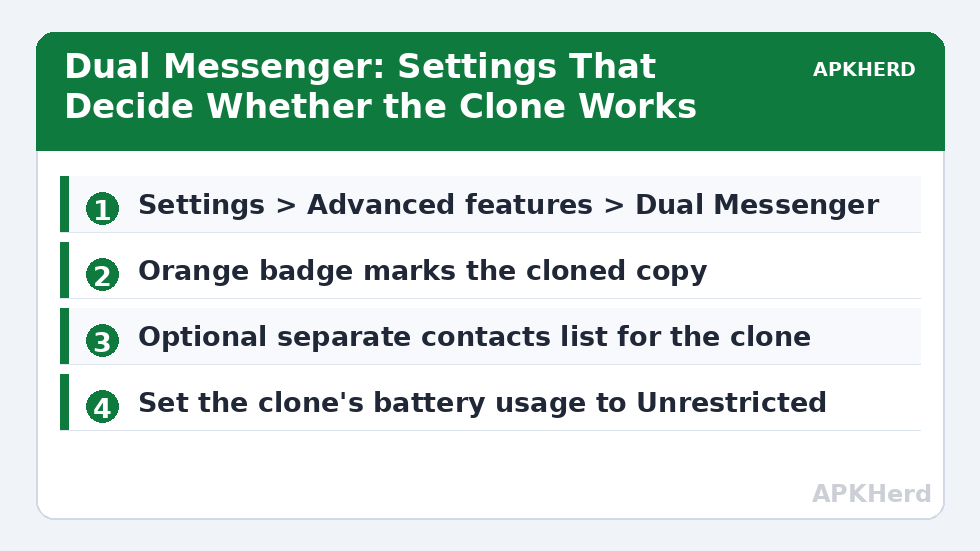
Menu paths shift slightly between One UI generations, but on current One UI 5/6 builds the route is: open Settings, tap Advanced features, then Dual Messenger. You will see the list of installed apps that support duplication. Toggle the switch next to WhatsApp (or whichever app you need), confirm the disclaimer about the second copy, and wait a few seconds while the system creates it. The cloned app appears in your app drawer with a small orange dual-app badge at the corner of its icon — learn to recognise that badge, because it is the only visual difference between the two copies.
Two optional settings on the same screen are worth deciding immediately. Use separate contacts list lets the clone see only a selected subset of your contacts, which keeps work contacts out of a personal account’s “who’s on WhatsApp” suggestions and vice versa. And if your Galaxy supports it, you can secure the clone independently with a fingerprint-protected app lock through Secure Folder alternatives — note, though, that Dual Messenger and Samsung’s Secure Folder are different features; Secure Folder is a Knox-backed encrypted space and is the stronger tool when privacy, not just a second account, is the goal.
What the Second Copy Actually Is
Under the hood, Dual Messenger installs the app a second time for a secondary user ID that One UI manages invisibly (in the same family as Android’s profile mechanism). The practical consequences: the clone has its own data folder, its own login, its own notifications, and its own backup configuration. It updates through the Play Store alongside the original. It also consumes a full second helping of storage — a WhatsApp instance with two years of media is not small, and the clone starts accumulating its own copy from day one. On a 128 GB phone this is trivial; on a nearly-full 64 GB device it is worth checking storage before enabling clones of media-heavy apps.
Setting Up the Second Account Properly
Open the badged copy, register the second number or account, then fix three settings before you start using it. First, set a distinct notification sound for the clone — your sanity will thank you within a day. Second, decide the backup identity: the clone can sign in to a different Google account for Drive backups, which is the cleanest arrangement for a work line. Third, enable or disable media visibility so the clone’s photos do or do not appear in your main gallery. If you are duplicating WhatsApp specifically, our guide to two WhatsApp accounts via official methods compares this route against WhatsApp’s built-in account switcher, which some people find simpler.
When Dual Messenger Misbehaves
The recurring complaints are delayed notifications, the toggle for an app being greyed out, and the clone vanishing after an update. Greyed-out toggles usually mean the app version installed is not yet whitelisted or the app was installed inside Secure Folder only — install it normally first. Vanishing clones after a One UI update are rare but real; the underlying user data usually survives and re-enabling the toggle restores the icon. Delayed notifications are the classic Galaxy battery-optimisation problem: One UI aggressively sleeps apps, and the clone gets slept like any other. Set the clone to Unrestricted under Settings > Apps > (clone) > Battery, and work through the fuller checklist in fixing cloned app crashes and notifications if messages still arrive in bursts.
Dual Messenger vs Dual Apps on Other Brands
Samsung’s implementation is the most conservative of the big OEM cloners: the tightest app whitelist, but the fewest surprises. Xiaomi’s Dual Apps will clone almost anything installed — including apps that then malfunction because they never anticipated a second instance — while Samsung simply declines. If you also carry a Xiaomi or Poco phone, our Xiaomi Dual Apps guide covers that broader approach and its quirks. Neither feature requires root, neither voids a warranty, and both are fully legitimate platform features: you are using a second account the platform explicitly supports, not circumventing anything.
Removing a Dual Messenger Clone
Turn the app’s toggle off in the Dual Messenger settings screen, or uninstall the badged copy directly — both routes ask for confirmation because removal permanently deletes the clone’s data. There is no merge function and no undo: export chats or files from the clone first if you need them. Your original app and its data are never touched by removing the clone. More Galaxy-friendly duplication topics live in the App Cloners category.
Battery, Data, and the Clone’s First Week
Two per-copy settings decide whether a Dual Messenger clone feels reliable in its first week. Under Settings > Apps, select the clone and open Mobile data: if Allow background data usage is off, or if you run Data Saver and the clone is not on its unrestricted list, messages will stall on mobile data while working fine on Wi-Fi — a signature symptom people misdiagnose for days. Under Battery, set the clone to Unrestricted from day one rather than waiting for problems; One UI’s adaptive battery also takes several days to “learn” a new app, and cloned copies seem to start their learning period with extra suspicion from the system. Finally, expect the clone to feel slightly heavier during its first days of media sync — a WhatsApp clone restoring a Drive backup and generating thumbnails is doing real work, and performance settles once that finishes. Set these three things at creation time and most “Dual Messenger is buggy” stories never happen.
Frequently Asked Questions
Why is the app I want to clone not listed in Dual Messenger?
Because Samsung restricts Dual Messenger to a supported list of messaging and social apps. If an app is not listed, Samsung’s feature cannot clone it — your options are the app’s own multi-account feature if it has one, a work-profile tool like Island or Shelter, or Samsung’s Secure Folder, which can hold a separate installation of most apps.
How can I tell the original app apart from the Dual Messenger copy?
The cloned copy carries a small orange badge — two overlapping circles — at the bottom-right of its icon in the app drawer and on the home screen. In Settings > Apps the two entries may look similar, so check for the badge or open each copy and look at which account is signed in.
Does Dual Messenger work with two different Google accounts for backups?
Yes. The clone is an independent installation, so apps like WhatsApp inside it can be configured with a different Google account for Drive backups than the original. This is the recommended setup for a work/personal split because restores stay unambiguous.
My Dual Messenger clone gets notifications late. How do I fix it?
One UI’s battery management is the usual cause. Set the cloned app to Unrestricted under Settings > Apps > Battery, remove it from the sleeping-apps list under Battery and device care, and make sure its notifications are allowed for both copies. If problems persist across several cloned apps, the broader troubleshooting checklist in this category covers OEM battery policies step by step.
Is using Dual Messenger against WhatsApp’s or Samsung’s rules?
No. Dual Messenger is an official Samsung feature and WhatsApp supports running an account in it; each number still needs its own registration. What remains against WhatsApp’s terms is using modified clients or using any second account for spam or ban evasion — the feature itself is a legitimate, supported way to separate two accounts.