
Most “cleaner” apps on the Play Store are advertising vehicles with a progress bar. An sd maid se deep clean android no root setup is the opposite end of the market: a serious housekeeping tool from a long-running developer (darken) that finds the specific leftovers Android accumulates — orphaned folders, database bloat, corpse files from uninstalled apps — and shows you exactly what it intends to remove before it touches anything. This guide explains what SD Maid SE actually does, what it cannot do without root, and how to run its tools without deleting something you needed.
Safety first, because SD Maid is powerful for a non-root app: back up important data before your first deep clean, especially anything stored inside app folders (game saves kept in Android/data, downloaded offline maps, chat media). SD Maid SE shows previews and asks for confirmation, but a careless tap on the AppCleaner or CorpseFinder results can remove files an app expected to find. Backed up? Good. Now the tour.
What SD Maid SE is — and what it replaced
The original SD Maid was built for an older Android where apps could roam the whole storage. Android’s scoped storage (enforced from Android 11 onward) fenced apps into their own areas, which is good for privacy but broke many of the old cleaner’s tricks. SD Maid SE is the ground-up rewrite for that world: it uses the Storage Access Framework and, optionally, Shizuku to reach further without root. Expect honest limits — SE will tell you plainly when a folder is beyond its reach, rather than pretending to clean it.
The five tools that matter
| Tool | What it actually does | Risk level |
|---|---|---|
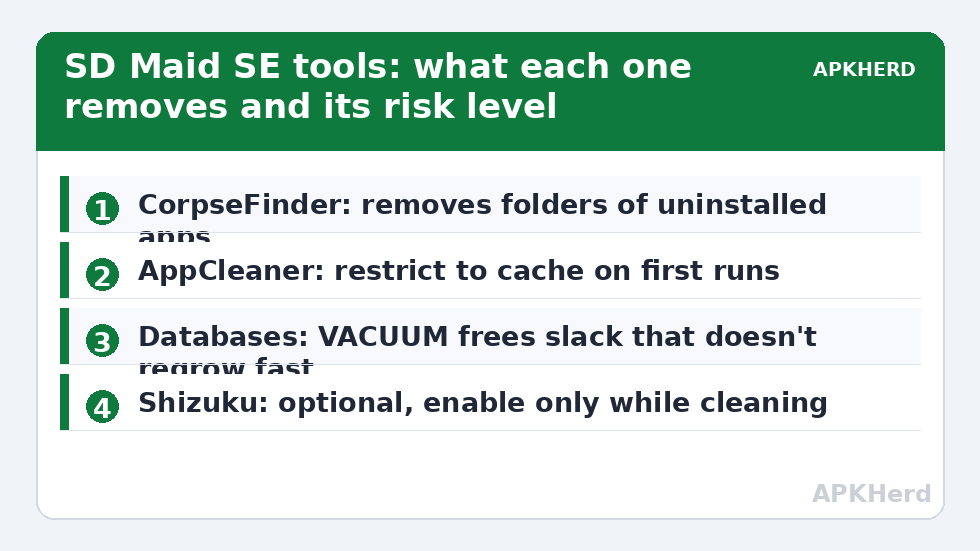
| CorpseFinder | Finds leftover files/folders whose owning app is no longer installed | Low — review list first |
| SystemCleaner | Known junk locations: empty dirs, thumbnails, logs, temp files | Low |
| AppCleaner | Clears per-app cache; can hunt expendable files inside app data | Medium — cache only is safest |
| Databases | VACUUM/optimize SQLite databases apps leave bloated | Low — frees modest space |
| Duplicates | Hash-verified exact duplicate finder | Medium — review pairs |
Notice what is absent: no “RAM booster,” no battery “optimizer,” no antivirus. That absence is the point. Cache clearing and corpse removal reclaim storage; modern Android manages RAM itself and killing apps just makes them restart, costing battery. Any app claiming otherwise is selling you theatre.
Setting up sd maid se deep clean android no root access properly
- Install SD Maid SE from the Play Store and grant the storage permissions it requests — it explains each one, which is rarer than it should be.
- Run a first scan with the overview “Quick access” flow and read the results before confirming. Expand categories; uncheck anything you don’t recognise.
- Open AppCleaner settings and restrict it to cache categories on your first runs. The accessibility-service option that automates per-app cache clearing on Android 14/15 is legitimate (it taps the system’s own Clear Cache button for you) but watch it work the first time.
- Optional: install Shizuku and pair it if you want deeper access without root. This elevates what SE can see in Android/data. Treat it as an advanced step — Shizuku grants powerful APIs, so only enable it while cleaning.
Realistic savings, honestly labelled
Developer and reviewer reports, plus the app’s own conservative estimates, suggest typical first-run results ranging from a few hundred megabytes on a well-kept phone to 2–3 GB on a neglected one, mostly from corpse folders, thumbnail caches, and bloated databases. It varies by device and usage; if a video on the internet promises “12 GB freed,” close the video. Sustained wins come from CorpseFinder after big uninstall sessions and from taming a few cache-heavy apps, the same villains named in our guide to clearing cache on Android 14 and 15.
What SD Maid SE cannot do
- It cannot clear another app’s private internal data without root or the accessibility workaround — and you wouldn’t want it to; “clear data” logs you out and wipes settings.
- It cannot stop apps from re-creating cache. Cache is working space, not garbage; see why thumbnail caches regrow.
- It cannot fix a genuinely full phone caused by your photo library. That needs backup-and-offload, covered in freeing space without deleting photos.
A sane schedule for SD Maid
Run CorpseFinder after any batch of uninstalls, SystemCleaner monthly, and the Duplicates tool quarterly. SD Maid SE supports schedules in its pro tier; whether the unlock is worth it depends on how often you churn apps. Fold these runs into the wider storage cleaners checklist and the tool stays a precision instrument instead of a weekly ritual of anxiety.
Two underrated tools: Databases and the Explorer
Most SD Maid coverage stops at the cleaners, but two quieter features justify the install on their own. The Databases tool runs SQLite optimisation (VACUUM and reindexing) on app databases. Apps append and delete records for years, leaving files that are half empty space; vacuuming shrinks them and can marginally speed up the apps themselves. Gains per database are small — often a few megabytes — but across fifty apps they add up, and unlike cache clearing this space does not grow back on a schedule; it returns only as the databases genuinely accumulate new slack.
The Explorer is a full file manager with a crucial advantage: it shows ownership. Browse to a mysterious folder and SD Maid can tell you which app it belongs to (or that the owner is gone), search content across storage, and filter by size and age. That ownership lookup is the difference between the guessing game described in our leftover-folders guide and a factual answer. It also exposes the honest frontier of non-root cleaning: folders Explorer can display but not modify are exactly the ones scoped storage reserves for the owning app, which is useful information rather than a failure.
Automation, brand quirks, and the pro unlock
SD Maid SE’s paid tier adds scheduling and a few power features. Scheduling suits CorpseFinder and SystemCleaner, the two tools whose targets regrow predictably; automating AppCleaner is riskier, because an unattended run inherits whatever you last configured — if that configuration included aggressive categories, it will apply them while you are not watching. Our advice: automate the conservative tools, keep AppCleaner manual.
Brand quirks matter for the accessibility-based cache clearing. Aggressive battery managers on some Xiaomi, Samsung, and Oppo builds can kill SD Maid’s accessibility service between runs, making automated clearing silently stop until you re-enable it. Exempt SD Maid from battery optimisation if you rely on that feature, and treat “it stopped working” reports on forums as usually this, not an app bug. Also note the obvious: SD Maid SE cannot clear the cache of an app Android itself protects as a system component — the button simply won’t be automated there, and manual clearing in Settings remains the route.
Frequently Asked Questions
Is SD Maid SE safe to use without root?
Yes, when you review results before confirming deletions and back up important app data first. Its tools show exactly what will be removed. The risk comes from blanket-confirming categories you don’t recognise, not from the app hiding its actions.
Does SD Maid SE boost RAM or speed?
No — and it doesn’t claim to. It reclaims storage space by removing leftovers and cache. Modern Android manages RAM itself; “freeing RAM” by killing apps typically makes performance and battery worse.
What is the difference between SD Maid and SD Maid SE?
SE is the rewrite designed for scoped storage on Android 11 and later. The original was built for older Android versions with broader file access. On a current phone, SE is the correct choice.
How much space will SD Maid SE free?
Expect a few hundred megabytes on a maintained phone and potentially 2–3 GB on a neglected one, mostly from leftover folders, thumbnails, and databases. Results vary widely by device and usage history.
Do I need Shizuku for SD Maid SE?
No. Shizuku is optional and extends visibility into protected folders like Android/data. The core tools work without it; enable Shizuku only if you understand what it grants and only while cleaning.