
“Storage full” does not have to mean “delete your memories.” Most of what fills a phone is not photos — it is app data, messaging media, offline downloads, and caches wearing a trench coat. The strategies in this guide to free space without deleting photos android users actually keep are about moving, archiving, and shrinking everything around the photo library: offload the originals to cloud while keeping them visible, archive apps instead of uninstalling them, and evict the tenants (games, downloads, chat media) that were never photos to begin with.
One honest boundary up front: “without deleting photos” still involves trust decisions. If you offload originals to a cloud service, the cloud becomes the only full-resolution copy. That is safe when the service is reputable and your account is secured with two-step verification — and reckless if your account password is “password123” and shared with four other services. Before offloading anything, verify the backup is complete: open the cloud library on a computer, spot-check recent and old photos at full size, and only then let the phone remove local originals.
Strategy 1: Free space without deleting photos android libraries hold, via cloud offload
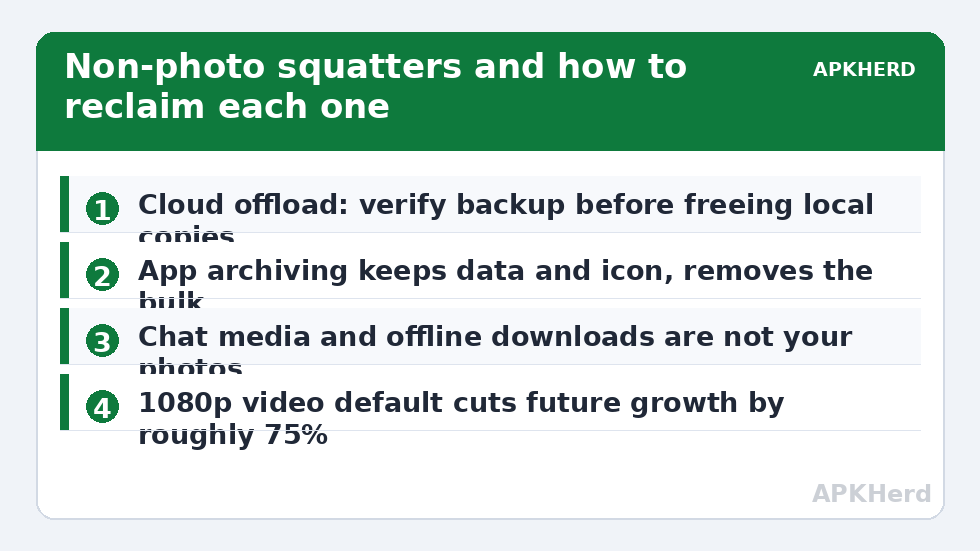
Google Photos’ Free up space feature exists precisely for this (detailed in our Google Photos free up space guide): it deletes local copies of photos already backed up, while the Photos app still shows your whole library, streaming full versions on demand. Local savings typically range from a few gigabytes to tens of gigabytes depending on library size and how much video you shoot — video dominates absolutely. Your photos are not “deleted” from your life; they are demoted from local storage to the cloud, which is the entire point.
Alternatives with the same shape: OneDrive camera upload, Amazon Photos (full-resolution for Prime members), or a home NAS/self-hosted option for the privacy-minded. The mechanics differ; the rule doesn’t — verify first, offload second.
Strategy 2: Archive apps instead of uninstalling them
Android’s app archiving (Play Store > Settings > General > Automatically archive apps, or Settings > Apps on many devices) removes an unused app’s bulky files while keeping its data and icon in place. Restoring is one tap and your settings survive. For the classic pattern — a 2 GB game you play twice a year, travel apps between trips — archiving reclaims the majority of each app’s size with none of the re-setup pain of uninstalling. It pairs well with the unused-apps card in Files by Google, covered in our Files by Google deep clean guide.
Strategy 3: Evict the non-photo squatters
| Squatter | Typical size | How to reclaim |
|---|---|---|
| Messaging media (WhatsApp/Telegram) | 2–20 GB | In-app storage managers; pruning chat media is not deleting your camera photos |
| Offline streaming downloads | 1–10 GB | Expire old downloads inside Spotify/Netflix/YouTube |
| Game asset packs | 2–15 GB per title | Archive or uninstall games in rotation |
| Downloads folder | 500 MB – 4 GB | Delete installers, old PDFs, duplicates of documents |
| App caches (top offenders) | 500 MB – 3 GB total | Clear cache for the top 3–4 apps only |
Notice that photo-adjacent junk sneaks in too: screenshots folder, screen recordings, and meme downloads live alongside your real photos in the gallery. Deleting a screenshot of a boarding pass from 2023 is not deleting a photo in any sense that matters, and the large hidden files hunt finds them by the megabyte.
Strategy 4: Shrink what the camera produces next
- Video resolution: 4K60 is glorious and roughly 350–400 MB per minute on many phones. For everyday clips, 1080p30 at roughly a quarter of that is indistinguishable on a phone screen. Keep 4K for occasions.
- HEIF/HEVC formats: Most modern cameras offer high-efficiency formats that cut photo/video sizes by 30–50% with no visible quality loss. Enable in camera settings; compatibility is now broadly fine.
- Motion photos and bursts: Motion photos quietly attach a small video to each shot. If you never use the feature, turn it off and halve your per-photo footprint.
What doesn’t work (so you don’t waste an afternoon)
“RAM booster” and “storage optimizer” apps cannot compress your photos or magically expand storage; at best they clear cache you could clear yourself, at worst they harvest data — the full story is in our cleaner app audit. Likewise, moving apps to SD card is a partial, device-dependent trick, examined honestly in what actually works with SD cards. The through-line of every working strategy above — and of the wider storage cleaners series — is that gigabytes live in data you can move or expire, not in squeezing the file system.
Strategy 5: Give media a second home (SD card or pocket drive)
If your phone has a microSD slot, pointing the camera at the card and relocating the existing video archive is the closest thing to a free storage upgrade — the details and card-speed caveats live in our SD card reality check, linked earlier. Slotless phones have a modern equivalent: a USB-C flash drive or pocket SSD. Move the bulky, rarely-viewed archives (last year’s raw videos, the camera backup folder) to the drive in one Files-by-Google session. The rule that keeps this strategy honest: portable drives are for second copies and archives, not sole copies of irreplaceable media — a pocket drive is even easier to lose than a phone. Keep the cloud backup as the primary safety net and treat the drive as working overflow.
Strategy 6: Audit the “Other” apps quietly eating your library’s lunch
Finish with a pass most “photo storage” advice never mentions: Settings > Apps sorted by size, reading the top ten with fresh eyes. Editors keep project files beside your photos; AI-art and meme apps cache every generation; a podcast app can hold 4 GB of played episodes. None of these are photos, all of them are evictable, and several hold content you assumed was “in the gallery.” Pair this with the hidden-files method — sort, interrogate the top entries, evict inside the owning app — and a typical phone finds another 2–6 GB that no photo ever had to die for. The precise size of that prize varies, as always, with your app habits; the direction never does.
A note on screenshots, recordings, and “not really photos”
One grey zone deserves explicit permission: screenshots, screen recordings, downloaded memes, and wallpaper packs live in your gallery folders but are working files, not memories. Deleting 400 screenshots of forgotten conversations and expired QR codes is not “deleting photos” in any sense your future self will mourn — and on screenshot-heavy phones this folder alone can exceed 2 GB. Files by Google’s screenshot suggestion card exists for exactly this harvest. Apply the same logic to burst-mode near-duplicates after you’ve kept the best frame.
Frequently Asked Questions
Does Google Photos “Free up space” delete my photos?
It deletes local copies from your phone only after confirming each photo is backed up to your Google account. The photos remain fully visible in Google Photos and downloadable at any time. Verify your backup on a computer first if you want extra assurance.
What is app archiving and is it safe?
Archiving removes an unused app’s main files while keeping your data and its icon. Tap the icon later and the app restores with settings intact. It is safe and reversible, and typically reclaims most of a large app’s size.
How much space can I free without touching photos?
Commonly 5–15 GB on a typical phone: chat media and offline downloads are usually the biggest wins, followed by archived games. Exact results vary widely with your apps and habits.
Will changing video to 1080p hurt quality?
On a phone screen, most viewers cannot tell 1080p30 from 4K in everyday clips. For footage you plan to edit or show on a big TV, keep 4K. Many people use 1080p as default and switch up for special occasions.
Is cloud offloading risky?
Only if your account is weakly secured or you offload before the backup completes. Use a strong unique password plus two-step verification, verify the library on another device, and cloud backup is safer than a single phone that can be lost or dropped in a lake.