
Every Android phone carries a sedimentary layer of APK files: the installer for an app you sideloaded in March, an older version you kept “just in case,” update packages a browser downloaded twice. Individually they are 20–200 MB of nothing; collectively they commonly reach a gigabyte or two, and unlike cache they never clear themselves. This guide on how to delete downloaded apk files android safely is short on theory and long on one skill: telling the installers that are genuinely dead weight from the two or three you might legitimately want to keep — and why keeping the rest is not just clutter but a small security risk.
A quick reality check, because fear sells cleaner apps: an APK sitting in your Download folder is not installed, not running, and not a virus by itself. Android will not execute it without your explicit install action. The risk is subtler — an outdated installer kept for months may be a version with known vulnerabilities if you ever do install it, and a folder full of lookalike APK names is exactly where a malicious file hides in plain sight. Deleting promptly is hygiene, not panic. That said, back up the rare keepers first (move them to a labelled folder on a PC or cloud) before sweeping the rest.
Before you delete downloaded apk files android safely: find every APK
- Files by Google: Browse > Downloads shows the obvious ones. Better: use the search at the top of the Files app and search
.apk— it surfaces APKs in every folder Files can reach, including app-specific download folders. - Messaging folders: APKs received through Telegram or WhatsApp live in those apps’ folders (
Telegram/Telegram Documents, WhatsApp Documents). The Telegram cleanup guide covers its folder layout. - Browser downloads: Chrome and other browsers keep their own download lists; the files themselves land in Download, but clearing from the browser list alone does not delete files — delete in the file manager.
Sort by date. Anything older than a month that you have not installed is, empirically, never going to be installed — and if the app is on the Play Store, the store’s version is newer and safer anyway.
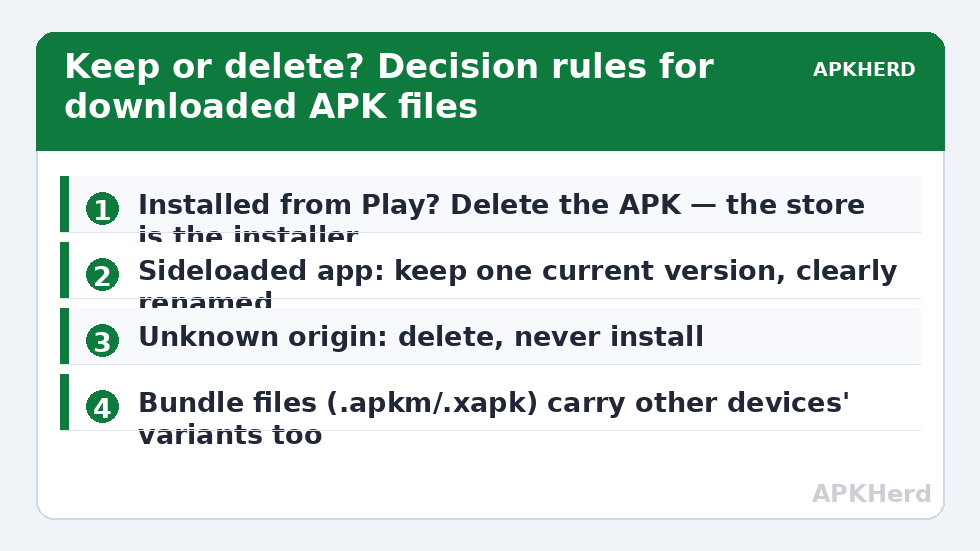
The keep/delete decision table
| Situation | Verdict |
|---|---|
| App is on the Play Store and installed | Delete the APK — the store is your installer and update channel |
| App installed from this APK (sideloaded, not on Play) | Keep ONE copy of the current version in a labelled archive folder, or delete if the source site is reliable and bookmarked |
| Older version kept for rollback | Keep only if you have a concrete reason (a known-bad update); note the version in the filename, and delete after the next good update |
| APK of unknown origin (“where did this come from?”) | Delete. An installer you cannot source is an installer you must never run |
Duplicates (app.apk, app(1).apk, app(2).apk…) |
Keep at most one, per the rules above; same-size copies are exact dupes — see duplicate cleanup |
Why “keep every version” fails
Version-hoarding feels prudent and is not. Old APKs do not update themselves, so a kept installer ages into a security liability; signatures mean an old file cannot silently overwrite a newer install, but a downgrade install (where allowed) reopens patched holes. Developers also revoke old versions’ server access, so the archived copy often doesn’t even work. The genuinely prudent archive is one version deep, stored deliberately, renamed clearly (appname-4.2.1-backup.apk), and revisited quarterly — a policy that fits naturally into the monthly maintenance routine.
Stop the accumulation at the source
- Browsers: Some browsers ask “keep the file?” after installing an APK — habitually say no. The install already extracted what it needed.
- Disable unknown-source sprawl: Settings > Apps > Special access > Install unknown apps — revoke the permission from browsers and messengers you no longer sideload through. Fewer doors, fewer stray files.
- Sideload deliberately: Download, install, delete — treat the APK like packaging, not a keepsake. This mindset is the whole game, and it recurs across the storage cleaners series: most storage problems are unexamined defaults, not bad luck.
Split APKs and bundles: the modern installer zoo
Modern Android distribution complicates the picture, and your Download folder may contain the evidence. Many apps now ship as split APKs — a base package plus configuration splits for language, screen density, and CPU architecture — distributed inside bundle containers like .apkm, .xapk, or .apks. A bundle file is a zip of several APKs meant for a dedicated installer app. Storage-wise, two consequences follow. First, bundles are bigger than the single APK your phone actually needed, because they carry variants for other devices. Second, the installer apps that handle them often keep their own copies, so one sideload can leave the bundle in Downloads, extracted splits in the installer’s folder, and the installed app itself — three layers deep. When sweeping, treat bundle files with the same keep/delete table above, and add the installer’s working folder to your search.
Verify before you delete: read an APK without installing it
Sometimes the filename tells you nothing (base.apk, app-release.apk) and you genuinely cannot tell whether a file is a keeper. Two safe identification routes exist. A file manager’s properties or an “APK info/analyzer” utility can display the package name, app name, and version of an APK without installing it — reading the manifest is a passive operation and carries no execution risk. Alternatively, attempt nothing at all: move the mystery file into a dated “quarantine” folder, and if a month passes without anything breaking or being missed, delete it. Quarantine beats both rash deletion and indefinite hoarding, and it converts an unanswerable question (“will I need this?”) into an empirical one (“did I?”). Apply the quarantine folder to the whole sweep if in doubt — then let the monthly routine empty last month’s quarantine as a standing rule.
The OBB footnote
While hunting installers you may meet .obb files, usually beside sideloaded games. These are expansion data the game needs — not installers. Deleting an obb for an installed game forces a re-download of gigabytes; deleting one for an uninstalled game is legitimate corpse removal. The pairing rule: obb lives and dies with its app, APKs are disposable after install. Confusing the two is the one genuinely expensive mistake in this topic, which is why it gets its own paragraph.
A naming convention for the keepers
For the one or two installers that survive the sweep, make them self-explanatory: rename to appname_version_date.apk (for example, signal_7.20_2026-01.apk) and park them in a single folder called APK Archive. A named archive is auditable at a glance — you can see what you kept, why, and how stale it is — while a dozen cryptically named files invite exactly the “unknown origin, must delete” outcome anyway. Revisit the archive quarterly and evict anything superseded; archives, like caches, are healthiest when they are curated rather than merely old.
Frequently Asked Questions
Is it safe to delete APK files after installing the app?
Yes. The APK is just the installer package; once an app is installed, Android runs its extracted copy in protected storage. Deleting the APK from Downloads does not affect the installed app or its updates through the Play Store.
Can a stored APK file harm my phone without being installed?
No — it is inert until you choose to install it. The risks are behavioural: installing an outdated version later, or a malicious file hiding among lookalikes. Deleting promptly removes both temptations and keeps the folder auditable.
Where do APK files hide besides the Download folder?
Messaging app folders (Telegram Documents, WhatsApp Documents), browser-specific folders, and file-manager transfer folders (Bluetooth, nearby-share receiving folders). Searching “.apk” in Files by Google finds most of them at once.
Should I keep an APK as a backup of a sideloaded app?
Keeping one current-version copy in a clearly labelled archive folder is reasonable for apps not on the Play Store. More than one version deep is hoarding, not backup — old versions age into vulnerabilities and often stop working entirely.
Why do I have files like app(1).apk and app(2).apk?
Your browser renamed repeat downloads of the same file. They are usually identical copies; keep at most one if it passes the keep rules, otherwise delete the whole set.