
Streaming apps store your offline music inside their own protected data, which means it appears in Settings as an alarming lump — “Spotify: 14 GB” — with no folder you can open and no obvious explanation. This guide exists to show you how to manage spotify youtube music offline downloads space deliberately: where the numbers come from, which quality settings multiply them, and how to reclaim gigabytes from inside each app without losing your library, playlists, or liked songs. The core fact to internalise first: downloads are data, not cache. Clearing the app’s cache will not remove them, and clearing the app’s data will remove them along with your login — a sledgehammer where the apps provide perfectly good scalpels.
Decode the numbers: a minute of music costs how much?
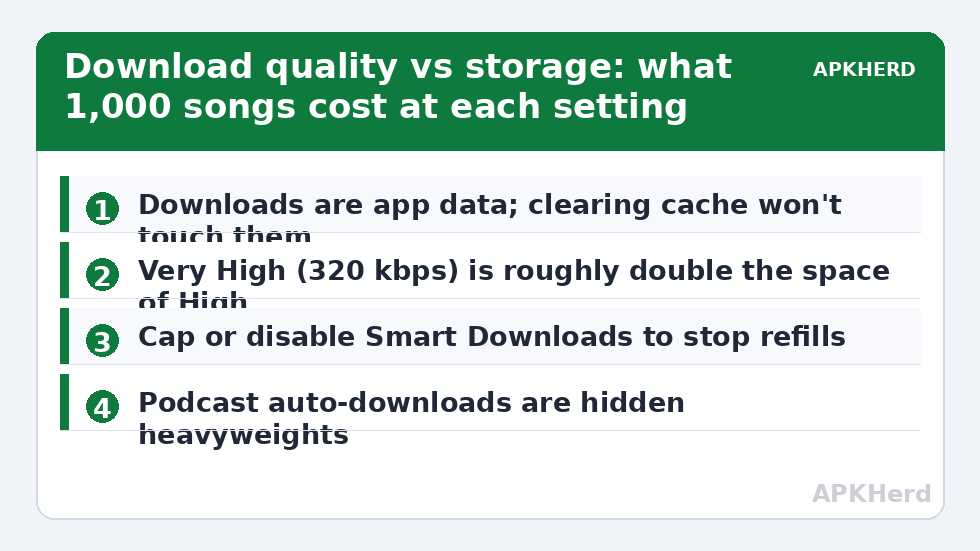
| Quality setting | Approx. per hour | 1,000 songs (~3.5 min each) ≈ |
|---|---|---|
| Low (24 kbps) | ~11 MB | ~0.6 GB |
| Normal (96 kbps) | ~43 MB | ~2.5 GB |
| High (160 kbps) | ~72 MB | ~4.2 GB |
| Very High (320 kbps) | ~144 MB | ~8.4 GB |
These are engineering estimates from bitrate math, not lab theatre — your real figures will hover near them. The lesson is arithmetic: the same beloved library costs 3 GB or 12 GB depending on one settings toggle. YouTube Music’s audio quality and YouTube’s video downloads scale even harder: a single hour of 720p video can outweigh a thousand songs, which is why the video side deserves its own audit below. Apply the same thinking as our cache guide: identify what the megabytes actually are before deleting anything.
Spotify: the surgical controls
- See the truth: Spotify > Settings > Storage shows a breakdown — Downloads vs Cache vs Other. Quote these numbers, not the Settings-app total, when deciding.
- Remove all downloads: Same screen, “Remove all downloads” — deletes offline files only; playlists and library untouched, everything re-streamable. This is the big red button that is actually safe.
- Per-playlist control: Toggle the Downloaded switch off on individual playlists/albums instead, keeping your flight-mode essentials.
- Set download quality before re-downloading: Settings > Audio Quality > Download — “High” is the sweet spot for most ears on most earbuds; “Very High” doubles the footprint for a difference Bluetooth codecs largely discard anyway.
- Cache, separately: “Clear cache” on the same Storage screen trims artwork and stream buffers. Modest, safe, unrelated to downloads.
YouTube Music and YouTube: two apps, two traps
YouTube Music mirrors Spotify’s logic: Settings > Downloads & storage shows download quality (the “Smart downloads” feature also quietly downloads recommended songs overnight — cap its song count or disable it if your storage mysteriously refills; it is the single most common cause of “I deleted them and they came back”). The main YouTube app is the heavier trap: Settings > Background & downloads lists your offline videos, and its own smart-downloads equivalent does the same with video. Delete per-video from Library > Downloads, and lower download quality to 480p for phone viewing — at phone sizes the space saving versus 720p/1080p is large and the visual difference is small.
Before mass-deleting downloads, note what you genuinely need offline — the flight playlist, the commute album. “Remove all” is safe (everything re-streams), but re-downloading ten gigabytes over hotel Wi-Fi is its own punishment. Back up your intent, if not the files: screenshot your downloaded list so rebuilding the essentials takes two minutes.
Manage spotify youtube music offline downloads space long-term: the regrowth problem
Downloads regrow because listening is continuous: new playlists get downloaded, smart features top up, quality settings persist. The countermeasure is boring and effective — a monthly two-minute pass: check Spotify/YT Music storage screens, prune finished series and stale playlists, confirm smart-download caps. It slots into the monthly maintenance routine alongside the chat apps. When the lump in Settings still looks wrong afterwards, the visual scan from our DiskUsage guide separates download data from everything else. Browse the rest of the storage cleaners series for the equivalent controls in messaging and gallery apps.
Podcasts: the hidden heavyweights inside Spotify
Music gets the blame, but Spotify’s podcast side can out-eat it. A two-hour video podcast episode at streaming video quality can weigh several hundred megabytes; audio episodes run 30–80 MB each, and Spotify’s follow-and-auto-download behaviour for shows you subscribe to quietly builds a backlog of episodes you will never hear. Audit it directly: Your Library > Podcasts > Downloads. Delete the stale backlog, then visit each followed show and disable auto-download for anything you sample rather than follow religiously. Video podcasts deserve one extra decision — if you only ever listen, you are storing video you never watch; there is no audio-only download toggle in every version, so the practical fix is un-downloading video shows and streaming them, or accepting their cost knowingly rather than accidentally.
Netflix, Prime Video, and the TV apps’ version of the same story
The pattern generalises across video streaming: downloads live in app data, quality settings multiply them, and expiry is inconsistent. A single hour at “High” download quality in mainstream video apps runs roughly 1–3 GB depending on codec and content, so a season hoarded for a trip can quietly be 20 GB. These apps do offer the tools: download-quality selectors (choose Standard/Medium for phone screens), per-title delete in the Downloads tab, and in Netflix’s case a “smart downloads” that auto-deletes watched episodes. The monthly move is identical everywhere: open the app’s own Downloads screen — never Android’s data button — and evict what the trip, commute, or hyperfixation no longer needs. Finished series are the classic find: fully downloaded, fully watched, fully forgotten.
Wi-Fi-only and other guardrails
Three settings stop the regrowth at the source across these apps: Download on Wi-Fi only (stops accidental mobile-data bulk and the downloads that start when you tap the wrong icon on a train), download quality pinned deliberately rather than inherited from a streaming-quality choice made for your home speakers, and smart-download caps set to a number you chose. None of this reduces what you can listen to — everything removed or never-downloaded still streams on demand. That is the strategic point of this entire guide: offline libraries should be a curated shelf, not a hoard, because the cloud side of these services is already the archive.
Shared devices and family plans: whose downloads are these?
On shared tablets and family-plan phones, one more variable enters: downloads belong to the signed-in account, and several people’s shelves accumulate under one storage total. If a family tablet’s Spotify shows 18 GB, check whose account is active and whose playlists got downloaded for whose trip before pruning — deleting a partner’s offline library the night before their flight is a domestic incident, not a cleanup. The polite protocol: remove only your own downloads by default, agree a per-person shelf size on shared devices, and revisit it in the monthly pass. Storage hygiene, like fridge hygiene, is mostly communication wearing a technical hat.
Frequently Asked Questions
Will removing Spotify downloads delete my playlists?
No. Removing downloads deletes only the offline audio files. Your playlists, liked songs, and library live in your account and remain; tracks simply stream (or re-download) when played.
Why is Spotify’s storage still huge after I clear cache?
Because downloads are app data, not cache, and cache clearing never touches them. Use Spotify’s own Settings > Storage screen, which separates Downloads from Cache, and remove downloads there.
What is Smart Downloads and should I turn it off?
Smart Downloads automatically saves recommended music (and in YouTube, videos) for offline use, up to a limit you set. Keep it if you value the feature, but cap the song/video count; uncapped smart downloads are the usual reason deleted downloads “come back.”
Does download quality really change storage that much?
Yes — it is pure arithmetic. Very High (~320 kbps) uses roughly double the space of High (~160 kbps) and about thirteen times Low. A 1,000-song library can be ~2.5 GB or ~8+ GB purely by this toggle.
Should I clear the app’s data in Android Settings to reclaim space?
Avoid it. Clear data wipes downloads too, but also your login, settings, and in-app preferences. The in-app storage controls reclaim the same gigabytes surgically and keep your account configured.