
It is the most confusing error Android produces: “Insufficient storage available” while Settings cheerfully reports 3 GB free. You are not imagining it and your phone is not broken — the error is a bucket problem, not a total problem. Android needs contiguous working room for installs (downloading, staging, extracting, optimising), Play Store maintains its own safety margin, and on older or partitioned devices specific areas can be full while the headline number looks fine. To fix insufficient storage available android error occurrences properly, you work through the causes in order of likelihood, not in order of drama found on forums.
Cause 1: “Free” is not free enough
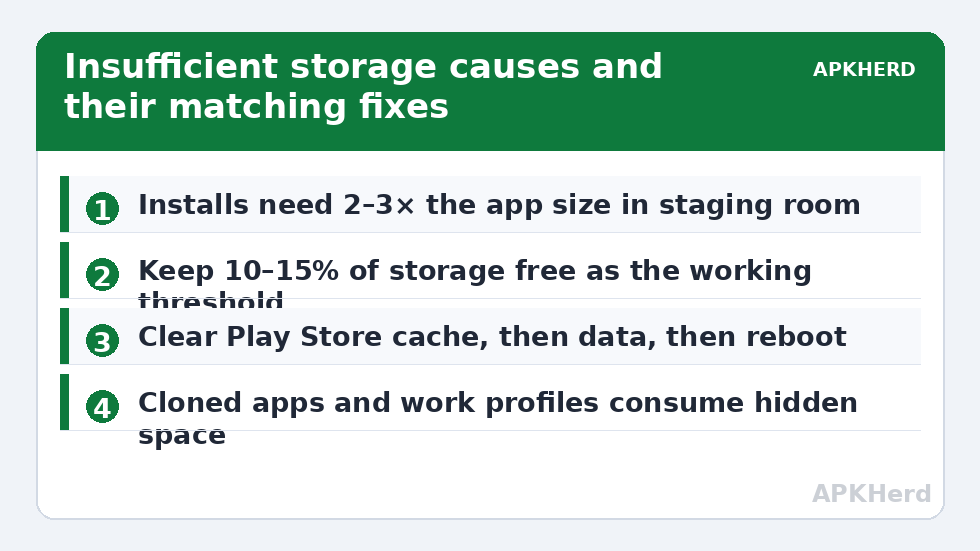
Play Store installs are staged: the APK downloads, extracts (often 2–3× its size), and the system keeps a reserve it will not spend — historically keeping roughly 500 MB–1 GB untouchable, plus apps with huge update packages need their full size again in working space. A 2 GB game update failing with 2.5 GB free is arithmetic, not mystery. Practical threshold: keep at least 10–15% of total storage free (about 6–10 GB on a 64 GB phone) and these errors largely vanish. The single fastest way to cross that threshold is the chat-media pruning in our WhatsApp storage guide and the 64GB recovery guide; the long-term discipline is the monthly routine.
Cause 2: Play Store and Play Services cache corruption
When the error is plainly lying — plenty free, small app, still refused — the Play Store’s own state is the suspect. This is the one place where cache/data clearing is the targeted prescription, not folklore:
- Settings > Apps > Google Play Store > Storage & cache > Clear cache. Retry the install.
- Still failing? Clear the Play Store’s storage/data too — you will need to accept the terms prompt again and your Play settings (like auto-update preferences) reset, but no apps or purchases are lost. Note what this does before doing it: it resets the store’s local state only.
- Repeat cache clearing for Google Play Services (cache only — its data underpins accounts and push; don’t clear data here casually).
- Restart the phone. Stuck staging files from the failed installs often release only at reboot.
Cause 3: The ghost of installs past
Failed or interrupted installs can leave staging debris: partial packages in download caches and orphaned directories. The symptoms mimic low space exactly. Beyond the reboot: clear the Download Manager’s cache (Settings > Apps > show system apps > Download Manager > Clear cache), delete anything stale in the Download folder, and sweep the corpses with the method in removing leftover folders — a half-removed 6 GB game is a classic hidden cause. SD Maid’s CorpseFinder, from our SD Maid SE guide, automates that check.
Cause 4: Your free space is in the wrong place
| Situation | Why the error appears | Fix |
|---|---|---|
| SD card has 40 GB free, internal is full | Installs stage on internal storage regardless | Free internal space or move media to SD — see SD card realities |
| Second user profile / work profile | Profiles share the disk; the other profile’s data counts against you | Audit the work/secondary profile’s apps and media |
| System partition pressure on old devices | Legacy partitioning separates system and data | Uninstall updates of unused system apps (App info > Disable/Uninstall updates) |
| One app’s data is monstrous | Play sees the total, but the real issue is a single 15 GB tenant | Settings > Storage > Apps sorted by size; evict properly |
What not to do
Do not install a “RAM/storage booster” in a panic — it cannot create space, and panic-installs from search ads are a malware vector; vet any tool using our cleaner-audit checklist. Do not factory reset as a first resort: it works the way amputation cures a splinter, and you’ll rebuild the same habits on the same storage. And do not trust any guide telling you to dial secret codes or delete system folders — the causes above cover the overwhelming majority of cases seen on modern Android in our storage cleaners series.
The second-space trap: dual apps and extra profiles
One cause hides from every standard checklist because Settings shows it in an unexpected place. If you use your manufacturer’s dual-apps/clone feature (Dual Messenger, Dual Apps, Clone Phone modes), each cloned app maintains a complete second data set — a cloned WhatsApp can quietly hold as much media as the original. Work profiles and second user profiles behave similarly: the storage is real, but it is attributed to a profile you may not think to audit. When the headline numbers refuse to add up, audit these parallel worlds: open the cloned apps’ own storage screens, and check Settings for user/profile storage breakdowns. Deleting an unused clone and its media has rescued more than one “impossible” case — and explains why our WhatsApp guide flags dual-account phones as the classic source of misleading totals.
How to fix insufficient storage available android error cases: a triage flowchart in words
Run the diagnosis in this order and stop when it resolves. One: note actual free space in Settings > Storage. Under ~5% free? It is genuinely space — go free some (the chat and streaming steps are fastest). Two: plenty free, one app failing? Suspect that app’s debris: uninstall it fully, reboot, reinstall. Three: plenty free, everything failing? Suspect Play Store state: clear Play Store cache, then data, then reboot. Four: still failing after all three? Check the profile/clone situation above and Download Manager cache, then suspect a failing storage chip only if other symptoms (corrupted files, random reboots) corroborate it — hardware is the last hypothesis, not the first. This ordering by likelihood is what separates a fifteen-minute fix from a weekend of forum remedies applied at random, and it generalises: it is the same cause-ordered discipline used in the recovery sequence for 64 GB phones.
Prevention is one number
Everything in this article collapses into a single maintenance target: never let the phone cross below roughly 10% free. Android gets measurably stranger under that line — updates stage poorly, caches misbehave, the camera refuses saves — and nearly every “insufficient storage” mystery is a sub-10% phone wearing a disguise. The monthly routine exists to hold that line with fifteen minutes of attention; treat the line itself as the fix and this error becomes a story you tell about other people’s phones.
Error codes you might see alongside it
The Play Store sometimes dresses the same problem in numbers: errors in the 9xx family (such as 910, 924, or 927 during update storms) and “Can’t install app” dialogs frequently trace back to the same staging-space and store-state causes covered above rather than to the specific app named in the dialog. The triage order does not change with the label — space, then the app’s own debris, then Play’s state, then profiles — because the store’s error text describes where the failure surfaced, not why. Resist downloading “error fixer” tools for these codes; there is nothing for them to fix that your own sequence hasn’t covered more safely.
Frequently Asked Questions
Why does Play Store say insufficient storage when I have space free?
Installs need staging room several times the app size plus a system reserve. A few gigabytes “free” can be functionally full for a large install. Keeping 10–15% of storage free prevents nearly all of these errors.
Is it safe to clear Google Play Store data?
Yes, with minor inconvenience: your purchases, apps, and account are server-side and unaffected. You will re-accept Play’s terms and your store preferences (auto-update, notifications) reset to defaults. Play Services data is the one to leave alone.
Does an SD card fix insufficient storage errors?
Only indirectly. Installs stage on internal storage no matter how empty the card is. Moving media to the card frees internal room, which helps; the card itself is not install space unless adopted as internal storage.
What if the error appears for one specific app only?
Suspect that app’s previous install debris or an update larger than your free staging room. Uninstall the app fully (if its data is backed up or cloud-based), reboot, then reinstall fresh rather than updating.
How much storage should I always keep free?
Aim for 10–15% of total capacity — roughly 6–10 GB on a 64 GB phone, 13–19 GB on 128 GB. Below that, installs, camera saves, and app caches all start failing in confusing ways.