
Uninstalling an Android app removes the app. It does not reliably remove everything the app ever wrote. Download folders stay behind, media directories linger in shared storage, and folders inside Android/data sometimes survive with databases, caches, and downloaded content still inside them. Learning how to remove leftover folders after uninstall android apps leave behind is a quiet, deeply satisfying cleanup: no single corpse is huge, but a phone that has churned through two hundred apps can carry several gigabytes of the dead. This guide shows how to identify true leftovers safely — because the one rule here is absolute: a folder is only a leftover if its app is actually gone.
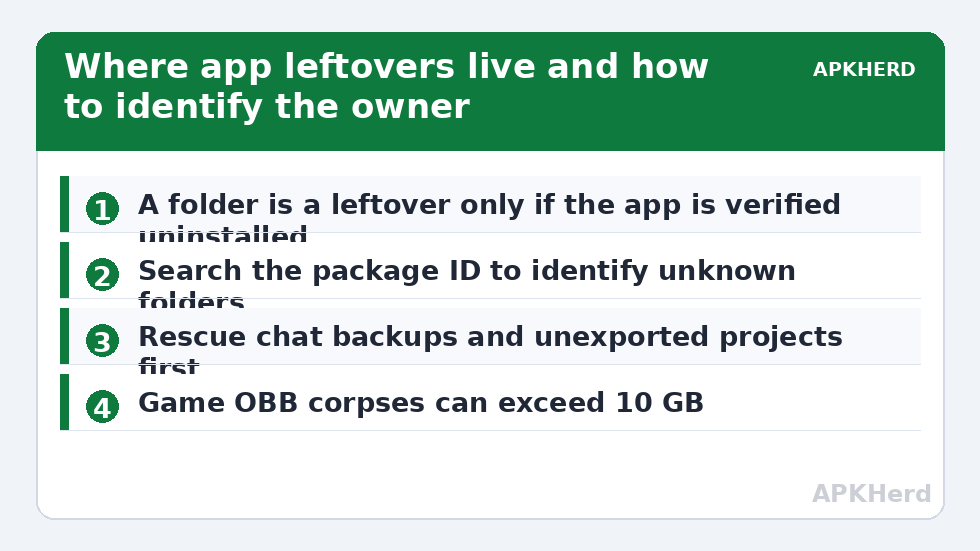
Before deleting any folder, back up anything you cannot afford to lose and verify the app is uninstalled (check Settings > Apps and the Play Store’s “Not installed” filter). Deleting the data folder of an app you still use can wipe its settings, offline content, and local saves. A folder named after an app is a clue, not proof — some apps share folders, and some folder names (a game’s engine, a developer’s brand) don’t match the app name you remember. Five careful minutes beat one destructive guess.
Where leftovers live
| Location | What survives uninstall | How to identify the owner |
|---|---|---|
| Android/data/<package> | Caches, downloaded assets, sometimes databases | Package name — search it in a browser or Play Store |
| Android/media/<package> | Media the app saved (WhatsApp-style stores) | Package name, as above |
| Root of internal storage | App-branded folders: downloads, exports, backups | Folder name usually matches the app or developer |
| DCIM, Pictures, Movies | Albums created by camera/editor/social apps | Album name matches app; contents are usually media you may want |
| Download | Updates and files the app fetched | File names often include the app name |
Scoped storage has quietly improved this problem: on Android 11 and later, uninstalling an app should remove its Android/data directory automatically. In practice, folders in shared storage (the app-branded ones at root level, media albums) remain entirely the app developer’s responsibility, and plenty of developers never clean up. The corpses you find today are mostly in shared storage — which is convenient, because shared storage is exactly where you are allowed to delete things.
How to remove leftover folders after uninstall android: the safe pass
- Inventory first. Open a visual scan (our DiskUsage guide shows how) or browse Internal storage in Files by Google sorted by size. Jot down folders whose names you don’t recognise.
- Resolve package names. For
com.example.appstyle folders, paste the package ID into a web search — the first result is almost always the app’s old Play Store page. Confirm it is not installed. - Peek inside before deleting. A folder containing only
cachesubfolders and logs is a corpse. A folder containing photos, documents, or exports might be the only copy of something — back it up or move it out first. - Delete via Files by Google so items pass through its 30-day Trash, or via your file manager of choice. Android/data folders may refuse deletion from some file managers on newer Android; a tool built for this, covered in the next section, handles them better.
- Re-check sizes. Settings > Storage before/after screenshots make the win concrete — typically a few hundred megabytes to a couple of gigabytes on an app-churned phone, varying widely by history.
SD Maid’s CorpseFinder: the specialist tool
This exact job is what SD Maid SE’s CorpseFinder automates: it cross-references folders against the list of installed packages and flags directories whose owners are gone, with the reasoning shown. It is the difference between an afternoon of manual package-name detective work and a ten-minute reviewed list. Our full SD Maid SE guide covers its setup and safety model; the corpse workflow inherits the same rule — read every flagged item before confirming, because heuristics occasionally flag a folder shared by a suite of apps from one developer.
Folders that look like leftovers but are not
- Folders of preinstalled/system apps you disabled rather than uninstalled — the app still exists, so does its claim on the folder.
- Shared SDK folders (analytics, ad mediation, game engines) used by several installed apps at once.
- WhatsApp/Telegram media for accounts you still use — enormous, tempting, and absolutely not leftovers; prune those with the WhatsApp storage manager instead.
- .thumbnails and DCIM system folders — regenerated by the gallery; deleting the folder itself accomplishes nothing beyond what clearing its contents does.
Fold corpse-hunting into the monthly maintenance routine and it stays a ten-minute chore rather than an annual excavation — just one more topic in the storage cleaners catalogue where the method is boring, safe, and repeatable.
The Android/obb special case: game corpses are the heavyweight corpses
Games deserve a paragraph of their own because they break the “leftovers are small” pattern. Large games store asset packs in Android/obb and expansion data in Android/data, and while uninstall should remove both, interrupted uninstalls, store-region switches, and games installed from split sources sometimes leave multi-gigabyte orphans. A single abandoned shooter can leave 6–12 GB behind. The identification method still applies — the obb folder is named by package ID — but with one extra caution: some games share engine-level folders, and a few launchers keep a common data directory for several installed titles. Confirm zero installed games from that publisher/engine before evicting, or evict per-package only.
Folders worth rescuing before you delete them
Corpse folders are trash by statistics, not by definition, and a few categories deserve a rescue pass before deletion. Chat-app backup folders for an app you uninstalled last week might contain the only local chat history if you plan to reinstall and restore (WhatsApp’s local backup folder is the famous case — reinstalling within days and restoring from it is a legitimate move; deleting it closes that door). Recorder and editor folders can hold unexported projects and voice recordings you never copied out. Document-scanner folders sometimes hold the only scans of paper you’ve since shredded. The rescue rule is cheap: open the folder, glance at file names and dates, and move anything with a human meaning to Downloads or a cloud folder before the folder itself goes into the Trash. Two minutes of looking converts a probabilistic cleanup into a certain one — the same verify-then-delete discipline this category applies to thumbnails, duplicates, and chat media alike.
Prevention: uninstall like you mean it
You can shrink tomorrow’s corpse problem with two habits. First, uninstall from Settings or the Play Store rather than third-party “app managers,” some of which rush the job. Second, when you know an app hoarded local content (offline maps, downloaded courses, recorded media), clear its storage from inside the app or App info before uninstalling — a slightly paranoid step that guarantees its shared folders go with it, because Android treats a wiped app’s directories as unambiguously dead. Do this for the big tenants (games, editors, downloaders) and skip it for the small ones.
Frequently Asked Questions
Why doesn’t Android delete an app’s folders when I uninstall it?
It removes the app’s private directories in modern versions, but folders an app created in shared storage are treated as user files — Android deliberately errs on the side of not deleting your data, so exports, downloads, and media folders survive.
How do I know which app a leftover folder belonged to?
For package-style names (com.company.app), search the package ID online; the old Play Store listing identifies the app. For plain-named folders, the name usually matches the app or its developer. Always confirm the app is not installed before deleting.
What tool finds leftover folders automatically?
SD Maid SE’s CorpseFinder cross-references folders against installed packages and lists probable corpses for review. It is the most reliable automated approach, provided you read the list rather than blanket-confirming.
How much space do leftovers usually take?
Typically a few hundred megabytes on an average phone, up to several gigabytes on phones that have installed and removed many games and media apps. The biggest corpses are games’ asset folders that survived uninstall.
Is it safe to delete everything in Android/data?
No. Android/data holds live data for installed apps — settings, saves, downloads. Only delete subfolders whose owning app you have verified is uninstalled, and back up first if the folder contains documents or media.