
Every storage guide from 2014 says “just move apps to the SD card.” Every phone from 2024 quietly disagrees. The honest guide to move apps to sd card android what works in the current era has to explain three things the old advice skips: most modern flagships have no SD slot at all; many manufacturers disable app-moving entirely; and even where it works, a slow card can make apps feel broken. What follows is the realistic map — where SD expansion still helps enormously (media, not apps), what “adoptable storage” does and why Google cooled on it, and how to check your specific phone in two minutes.
Step zero: does your phone even support this?
- Is there a microSD slot? Many Samsung Galaxy A-series, Motorola, and budget devices: yes. Pixels and most flagships: no slot, end of discussion — your tools are offloading and pruning, as in freeing space without deleting photos.
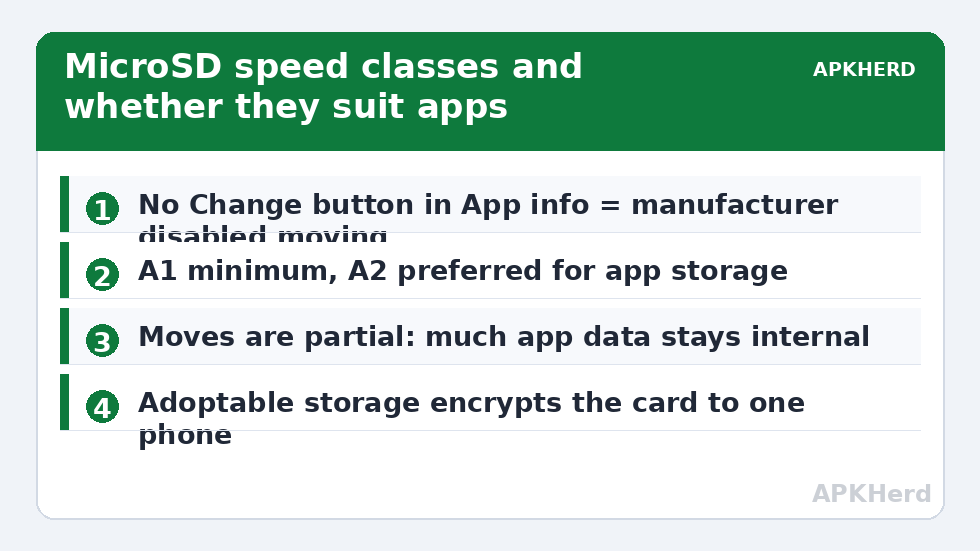
- Does the maker allow app moves? Go to Settings > Apps > pick a large game > Storage. A “Change” button (Internal ↔ SD card) means yes. No button means the manufacturer disabled it — no app can restore it without root, whatever the Play Store promises.
- Does the app allow it? Developers can forbid moving (widgets, live wallpapers, and many banking apps do, for good reasons).
Move apps to sd card android what works: the actual moving steps
- Insert a decent card first (next section — card speed decides whether this whole idea is wise).
- Settings > Apps > (app) > Storage > Change > SD card > Move.
- Expect a partial victory: Android moves the app’s main package, but much of its data (the part that grows) often stays internal. Check both totals afterwards so you know what you actually gained — commonly 40–70% of the app’s footprint, varying by app.
Back up before experimenting: moving apps and especially formatting a card as internal storage can strand data if the card fails or is removed. Copy irreplaceable media off the card first, and never yank a card that holds moved apps without moving them back or powering down.
Card speed: the part everyone skips and regrets
| Card class | What it means | App verdict |
|---|---|---|
| Class 10 / UHS-I U1 | ≥10 MB/s writes | Media fine; apps sluggish |
| UHS-I U3 / V30 | ≥30 MB/s writes | Acceptable for casual apps/games |
| A1 rated | App-optimised random I/O (1500/500 IOPS) | Minimum sensible choice for apps |
| A2 rated | 4000/2000 IOPS class | Best available for adopted/app use |
Sequential speeds printed in the biggest type are for video recording; apps live and die by random small-file performance, which is what the A-rating measures. Even an A2 card is far slower than internal UFS storage — so the hierarchy of what belongs on a card is: photos/videos/documents first (sequential, tolerant), then casual apps, and never heavy games or your daily-driver apps if you value load times. The interplay with “insufficient storage” errors is covered in fixing insufficient storage errors.
Adoptable storage: the nuclear option
Formatting a card as internal (adoptable) storage merges it into the phone’s pool, letting Android place app data there automatically. It sounds ideal and sometimes is — on a 32 GB phone it can be transformative. The costs are real: the card becomes encrypted to that phone (unreadable elsewhere), card failure takes the merged data with it, removal confuses every app that touched it, and overall speed is capped by the card. Google’s own enthusiasm has waned and several makers hide the option. Our stance: adoptable is a considered choice for a cheap phone with a quality A2 card and good backups — not a casual fix. For most people the manual division (media on card, apps internal) plus the routines in our storage cleaners hub achieves 90% of the benefit at 10% of the risk.
The media move that definitely works
Regardless of app-moving politics, every SD phone supports the actually-valuable move: set the camera to save to SD, relocate your existing photo/video archive, point downloads at the card. A 4K video habit can consume 20 GB a year; on a card it consumes none of your internal space. Combine with the offload options in Google Photos cleanup on phones without slots and the “move to SD” instinct is fully satisfied — just aimed at the files that tolerate cards best.
Beware the counterfeit card
A storage guide would be negligent not to warn about fake-capacity cards, because SD expansion attracts them. The bargain 512 GB card from an unknown seller is frequently a 32 GB card with firmware that lies about its size: it accepts writes past its real capacity by silently discarding or overwriting data, and the loss surfaces weeks later as corrupted photos. Buy cards from authorised sellers, treat prices far below the market rate as a diagnosis rather than a deal, and test any new card before trusting it — fill-test utilities on a PC (or simply copying a large known set of files and verifying a sample) expose fakes in minutes. A card that fails the test would have taken your app data and media with it eventually; this is also why everything important on any card still needs a backup elsewhere.
Portable vs internal formatting, side by side
| Portable (default) | Internal / adoptable | |
|---|---|---|
| Card readable in other devices | Yes | No — encrypted to this phone |
| What it can hold | Media, files, camera output; some apps’ data on supported builds | Apps and app data placed automatically by Android |
| Removing the card | Safe anytime (after unmount) | Breaks apps that live on it |
| Card failure impact | You lose what’s on the card | You lose what’s on the card — which may include parts of many apps |
| Best for | Almost everyone | Very small phones with quality cards and good backups |
If you do format as internal, migrate deliberately: set it up with a new A2 card, let Android move what it chooses, and never treat the card as removable again. If you later upgrade phones, budget for re-downloading whatever lived on the old card — it cannot travel.
The camera setting that makes SD actually pay
Whichever format you choose, the highest-value single action is in your camera app: storage location → SD card. From that moment, your fastest-growing data type stops consuming internal space entirely, and existing internal media can follow via one move in Files by Google (select DCIM/Camera contents > Move to > SD card). Verify the moved files open from the card before deleting any internal copies during a manual move — file managers’ move is copy-then-delete, but verification is a habit this category never skips. The payoff compounds: on a video-heavy phone this one decision routinely keeps internal storage 10–20 GB healthier across a year.
Frequently Asked Questions
Why is there no “Move to SD card” button on my phone?
Either the phone lacks a slot, the manufacturer disabled app-moving in their Android build, or that specific app forbids it. Check Settings > Apps > Storage for a large game; if no Change button exists anywhere, app-moving is disabled at the system level.
Do moved apps run slower from an SD card?
Yes, measurably. MicroSD random I/O is far slower than internal UFS storage, so moved apps load slower and can stutter. A-rated (A1/A2) cards minimise the penalty; heavy games and daily apps are still better kept internal.
What is adoptable storage and is it a good idea?
It formats the card as encrypted internal storage merged with the phone’s pool. It can rescue very small phones, but the card becomes unusable elsewhere, its failure loses merged data, and speed is capped. Only consider it with a quality A2 card and solid backups.
Can I move WhatsApp or my photos to the SD card?
Photos and videos: yes, easily, and they are the best things to move. WhatsApp officially does not support relocating its data folder to SD on most builds; its media can be archived manually, but the live database stays internal.
My phone has no SD slot. What are my options?
Cloud offload for photos, pruning chat media and downloads, archiving apps, and managing streaming downloads — the full non-SD playbook is in our guide to freeing space without deleting photos.