

On a remarkable number of phones, the answer to “what is using all my storage?” is one word long: WhatsApp. The whatsapp storage manager delete bulky media workflow inside the app is the single highest-yield cleanup available to most Android users, because WhatsApp stores a local copy of every photo, video, voice note, and document that flows through your chats — and years of group chats add up to 5, 10, sometimes 20 GB. The tool to fix it has been built into WhatsApp all along; most people have simply never opened it.
The mandatory warning, stated before any steps: deleting media from WhatsApp storage is permanent for that copy. If the chat is your only copy of a family video — and for many families it is — back it up first (Google Drive chat backup, or copy the WhatsApp media folders to a PC). Once you delete an item in Storage Manager and it wasn’t backed up or saved elsewhere, WhatsApp cannot recover it and neither can we. Back up, then prune.
Open the whatsapp storage manager delete bulky media screen
- WhatsApp > Settings > Storage and data > Manage storage.
- The screen ranks your chats by size, biggest first, and offers two special review queues: Larger than 5 MB and Forwarded many times.
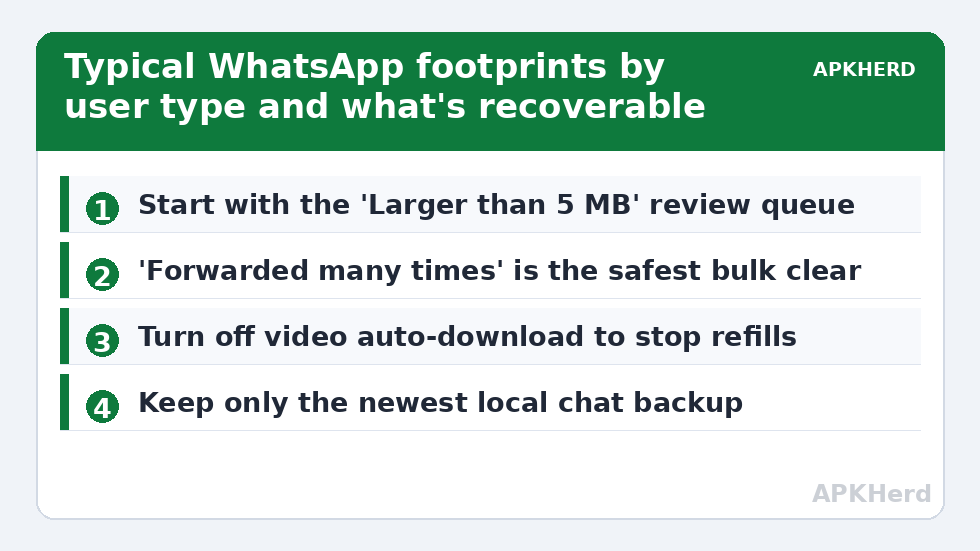
- Start with “Larger than 5 MB.” This is a greatest-hits album of storage damage: long videos, screen recordings, that 400 MB wedding film in three edits.
- Long-press to select items, check the running total at the top (WhatsApp shows exactly how much the selected set will free), then delete.
- Then open the top three chats individually. Inside each chat’s storage page you can bulk-select its media, or scroll and cherry-pick.
“Forwarded many times” deserves special attention. WhatsApp labels it because forwarded media is statistically the least personal content on your phone — memes, viral clips, greetings videos — and the most duplicated. Clearing this queue alone commonly frees a few hundred megabytes to over a gigabyte, varying by how many large groups you inhabit. The overlap with exact duplicates is handled separately in our duplicate photos and videos guide.
A realistic picture of the savings
| User profile | Typical WhatsApp footprint | Usually recoverable via Storage Manager |
|---|---|---|
| Light (few chats, no big groups) | 300 MB – 1 GB | 100 – 400 MB |
| Average (family + work groups) | 2 – 6 GB | 1 – 3 GB |
| Heavy (many groups, video forwards) | 8 – 20 GB+ | 4 – 10 GB |
These are ranges, not promises — your mileage is determined by your groups, not by this article. The pattern underneath them is stable though: a tiny fraction of chats (usually the largest group) holds the majority of the bytes, and a tiny fraction of items (large videos) holds the majority within that chat.
Stop the refilling: the three settings that matter
- Media auto-download: Settings > Storage and data — set photos to Wi-Fi only if you like, but set videos to “No media” on mobile data and consider the same on Wi-Fi if groups are your problem. You can always tap to download the ones you actually want.
- Media visibility: For noisy groups, open the group > Group info > Media visibility > No. Media stays in WhatsApp but stops photocopying into your gallery — see also finding large hidden files for how those copies confuse storage totals.
- Disappearing messages: For announcement and community groups, default message timer (24 hours / 7 days) stops accumulation entirely. Use thoughtfully — it applies to everyone in the chat.
Disappearing local backups: the silent second copy
WhatsApp also keeps local chat backups on your storage — look in Internal storage/Android/media/com.whatsapp/WhatsApp/Databases. These msgstore-*.db.crypt files can be several hundred megabytes each, and WhatsApp keeps a rolling set of them. Deleting all but the newest is a common trick; deleting all of them removes your only local fallback if cloud backup fails. Our advice: keep the newest local backup, ensure Google Drive backup is on and recent, then remove the older local files. If the whole app’s footprint still surprises you afterwards, the visual scan in the DiskUsage guide shows where the rest lives. You will find more chat-app tactics across the storage cleaners collection.
The other accumulators: voice notes, documents, and Status
Videos get the headlines, but three quieter categories deserve a look while Manage storage is open. Voice notes are individually small — a minute of audio is well under a megabyte — yet in voice-note-heavy families and workplaces they accumulate into thousands of files, and the per-chat storage pages reveal chats that are 80% audio. There is no bulk “delete all voice notes” review queue as clean as the video one, so work chat by chat, and remember voice notes are the least likely media to exist anywhere else: if a message matters (a late relative’s voice, a verbal agreement), export the chat or forward the note to Saved-style safekeeping before pruning.
Documents — PDFs, spreadsheets, contracts — pile up in work chats with the same forwarded-many-times pattern. Sort the big chat’s media view to documents and sweep the duplicates and superseded versions; the final signed copy is the only one earning its bytes. Status downloads are the stealth category: media you viewed as Status can leave cached copies, and third-party “status saver” apps (a dubious category in themselves) deliberately duplicate them into a separate folder. If you use one, its folder is yours to police — or better, drop the saver app entirely, given the permission profile such apps typically demand.
WhatsApp Business and dual-account phones
If you run WhatsApp Business alongside the consumer app, or a cloned second WhatsApp via your phone’s dual-apps feature, each instance maintains its own complete media store and backup rotation. Business catalogues, product photos, and customer chats double everything in this article. Run Manage storage in each instance separately, and check both Databases folders for stacked local backups. Dual-messenger phones are the single most common reason a “WhatsApp is only 3 GB” reading in one app coexists with a 9 GB total in Settings — the phone is summing two tenants while you are auditing one.
Communities and Channels: the new accumulation frontier
WhatsApp’s newer surfaces add two more accumulation patterns worth folding into your pruning habit. Communities bundle many groups under one umbrella, and members often belong to a dozen sub-groups whose combined media flow rivals the old mega-groups — audit the community’s constituent groups by their individual storage pages, because Manage storage ranks chats, not umbrellas. Channels you follow push photo and video updates into the Updates tab; their media caches like chat media and grows with every channel added. If your per-chat list shows entries you barely recognise, they are usually channels and announcement groups you joined once and never revisited — leaving them entirely is the permanent version of clearing them monthly.
Frequently Asked Questions
If I delete media in Storage Manager, does it vanish for everyone?
No. Storage Manager deletes only your local copies on your phone. Other participants keep theirs. This is different from “Delete for everyone,” which removes a message from the chat itself within a time window.
Will deleting WhatsApp media remove it from my gallery too?
Usually yes for the WhatsApp copies, since the gallery displays the same files. If the same photo also exists separately in DCIM/Camera (you took it), that camera original is a different file and remains.
What does “Forwarded many times” mean and is it safe to clear?
WhatsApp flags media forwarded through many chats — typically viral clips and memes rather than personal photos. It is the safest queue to bulk-clear, but glance through it first; families do forward genuinely precious videos too.
How do I stop WhatsApp filling my phone again?
Turn off video auto-download, disable media visibility for loud groups, use disappearing messages in announcement groups, and revisit Manage storage every month or two. Prevention beats repeated rescue missions.
Can I recover media deleted from Storage Manager?
Only if it exists elsewhere: a chat backup made before deletion, the sender’s copy (ask them to resend), or a copy you saved to another folder or cloud service. Otherwise deletion is permanent — hence the backup-first warning.