
Search “how to backup android app data no root adb” and you will find dozens of guides pretending the job is simple. It is not. Android’s sandbox deliberately blocks apps from reading each other’s data, and the no-root backup methods that exist work inside narrow, app-by-app limits set by each developer. This guide explains exactly what ADB backup captures, what it silently skips, how the older Helium method fits in, and — most importantly — how to test your backup before you actually depend on it.
What “backup android app data no root adb” can and cannot deliver
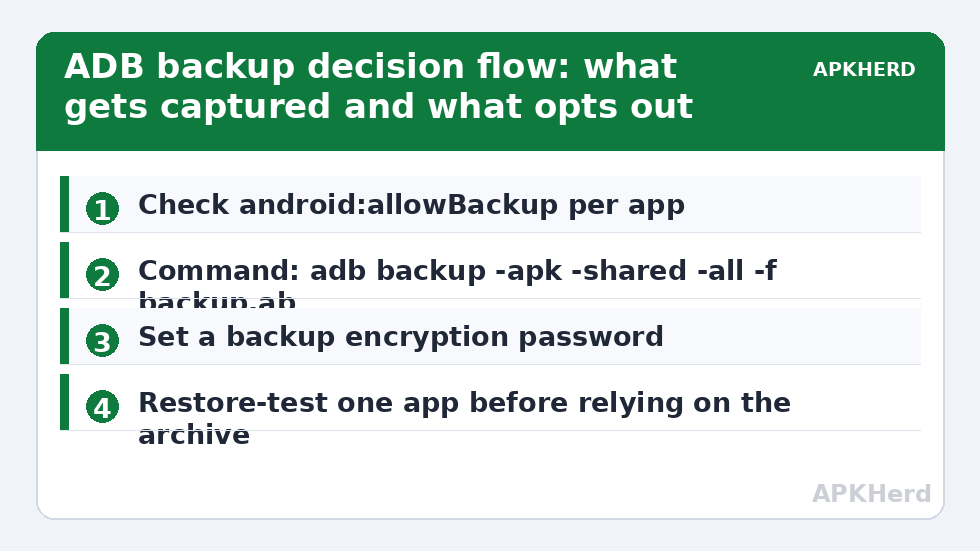
ADB backup relies on an Android framework service that asks each app: “will you export your private data?” The app answers through a flag in its manifest called android:allowBackup. If the developer set it to false, the backup service skips that app completely — no error, no warning, just missing data. Banking apps, payment apps, most password managers, and many games opt out. If the flag is true (or not set, which defaults to true on older target API levels), the service archives the app’s private directory into a single .ab file on your computer.
Three practical consequences follow from that design. First, coverage is inconsistent by nature: a backup of 80 apps may genuinely contain data for only 50 of them. Second, newer Android versions restrict the mechanism further — apps targeting Android 12 and above changed the defaults for device-to-device transfer versus cloud backup, and Google has publicly deprecated the ADB backup pathway, meaning OEMs may remove or break it at any time. Third, the .ab format stores everything for one backup run in one archive, so a corrupted archive usually means losing the whole run rather than a single app.
Before you run a single command
Preparation decides whether this works at all. You need a computer with the Android platform-tools installed (the official Google download, not a random “ADB installer” from a forum), a USB cable that carries data, and USB debugging enabled on the phone under Developer options. While the cable is connected, watch for the RSA fingerprint prompt on the phone and accept it — the backup command hangs silently if that prompt is unanswered.
- Charge the phone above 50 percent; large backups over USB can take 20 minutes or more.
- Note your lock-screen PIN or password. If the phone has one set, the backup will ask for an encryption password, and restores require it.
- Free space on the computer: a full shared-storage backup of a 128 GB phone can produce an archive of 40 GB or more.
- Decide in advance whether you want APKs included. The -apk flag embeds the app installers; without it you get data only, and restores fail for apps no longer on the Play Store unless you reinstall them first.
The core commands, explained flag by flag
Open a terminal in the platform-tools folder and confirm the connection with adb devices. Then run the full backup:
adb backup -apk -shared -all -f backup.ab
| Flag | Meaning | When to use it |
|---|---|---|
| -apk | Includes the APK installer files with the data | Almost always; protects you if an app is delisted |
| -shared | Includes shared/external storage (the “internal storage” you browse) | Only if you have not already copied photos and downloads separately |
| -all | Backs up every package that permits backup | Full-device runs |
| -f filename.ab | Sets the output archive path | Always; otherwise the file lands in the current directory with a default name |
For a single app, replace -all with the package name, for example adb backup -apk -f notes.ab com.example.notes. Single-app backups are far easier to test and restore, and for your two or three most critical apps they are the smarter default strategy. A middle path many people miss: run one full backup for breadth, then single-app backups for anything you truly cannot lose.
Where Helium fits — and where it no longer does
Helium (formerly Carbon) wrapped the same backup service in a friendlier interface and used a desktop activator to grant itself permission over USB. For years it was the recommendation for people who feared the command line. The honest position today: Helium has not been meaningfully maintained for years, its activation tool misbehaves on modern Windows and macOS builds, and on recent Android releases more apps refuse backup to it for the same allowBackup reasons. If it works on your older device, the archives it makes are the same format and subject to the same limits. Treat it as a legacy convenience, not a more powerful method.
The verification step nobody does (and everyone should)
A backup you have never restored is a hope, not a backup. After the .ab file lands on your computer, check its size — a suspiciously small file (a few hundred kilobytes for a “full” backup) means most apps opted out. Then do a real restore test: pick one non-critical app that matters a little, uninstall it, and restore just it with adb restore backup.ab, entering the password you set. Open the app and confirm your data is present and recent. This ten-minute test tells you more about your backup’s worth than the backup itself did.
Also record, in a plain text file stored next to the archive, which apps you know were skipped. You can spot-check the biggest ones manually: open each app and look for its own export function. Many note apps, authenticators, and finance tools have in-app export precisely because their developers disabled the system path.
Finally, apply the 3-2-1 thinking even here: keep the .ab on your PC, copy it to an external drive or a second machine, and if the data is sensitive, encrypt the archive before any cloud copy — see our guide on how to encrypt Android backups before cloud upload. A plain .ab can be unpacked by anyone who gets the file if you skipped the password step.
When ADB backup is the wrong tool entirely
If your real goal is moving to a new phone with the least friction, Google One or an OEM switch tool will usually beat ADB on convenience — we break down exactly what those cover in our cross-brand migration guide. If your goal is scheduled, automatic protection, look at our walkthrough for automatic backups to a NAS or PC folder instead of a manual cable ritual you will forget by March. ADB backup earns its place in one specific scenario: you have no root, no intention of rooting, and a specific app whose data lives nowhere else. For that scenario it is genuinely the best free option that exists. Browse the rest of our backup tools coverage to compare every method in this series side by side.
Frequently Asked Questions
Why did some of my apps restore with no data?
Those apps almost certainly have android:allowBackup set to false, or they store their important data in credential-protected storage that the backup service excludes. The backup ran correctly; the developer opted the app out. Use the app’s own export feature or sign-in sync instead.
Does ADB backup require an unlocked bootloader?
No. USB debugging works on a fully locked, stock device. Unlocking the bootloader is only relevant for root-based tools such as Titanium Backup or Neo Backup’s root mode.
Can I open or extract an .ab file to check its contents?
Yes. Tools based on the open-source Android Backup Extractor can convert an .ab into a tar archive you can inspect, provided you know the password if you set one. Inspecting the file list is a good way to confirm which packages made it in.
Is ADB backup going away in future Android versions?
Google has deprecated the underlying mechanism and progressively narrowed it, so treat it as a method that works today on many devices but should not be your only long-term plan. Pair it with per-app exports for anything critical.
Does the backup include photos and files in internal storage?
Only if you include the -shared flag, and even then some folders are excluded. Copying the DCIM, Pictures, Download, and Documents folders over USB in the normal way is more transparent and easier to verify.