
Everyone who clones an app eventually asks how to move data original cloned app whatsapp history, files, or logins between the two copies — and the honest answer makes people unhappy: Android’s isolation exists specifically to prevent that, so there is no universal “sync” or “merge” button, and any tool promising one should be treated as a scam until proven otherwise. What you can do is migrate data through the app’s own channels: its cloud backup, its built-in transfer feature, or plain file export. This guide explains why direct copying fails, then works app-type by app-type through the methods that actually succeed.
Why You Cannot Just Copy the Data Folder
On an unrooted phone, each app installation’s data lives in a protected directory owned by that installation’s user ID. The original WhatsApp’s data sits under the primary user’s Android/data and internal app storage; the clone’s sits under the profile’s user ID or the cloner’s own sandbox. Neither copy can read the other’s directory — file managers included — and Android’s scoped storage rules have tightened this further with every release. Copying databases between copies worked in the rooted, pre-Android-10 era; guides still circulating that instruct you to paste a msgstore.db.crypt file into a clone’s folder are describing a phone you no longer own. Rooting a modern daily-driver to attempt it trades away banking apps, OTA updates, and device security for a transfer the app itself can usually do properly.
The Reliable Method: The App’s Own Cloud Backup
WhatsApp is the most common case, so take it as the template. Your chats are tied to a phone number and backed up to Google Drive under a Google account. To get an existing history into a clone that will run the same number — for example, moving from a virtual cloner to a work profile — the sequence is: open the original, go to Settings > Chats > Chat backup, and run a fresh backup to the intended Google account. Then install/open the clone, register the same number (this signs the number out of the original — an account lives on one phone at a time per number), and accept the restore prompt when the clone finds the backup during setup. Media and chats arrive as of that backup. Finish by re-enabling two-step verification on the new installation.
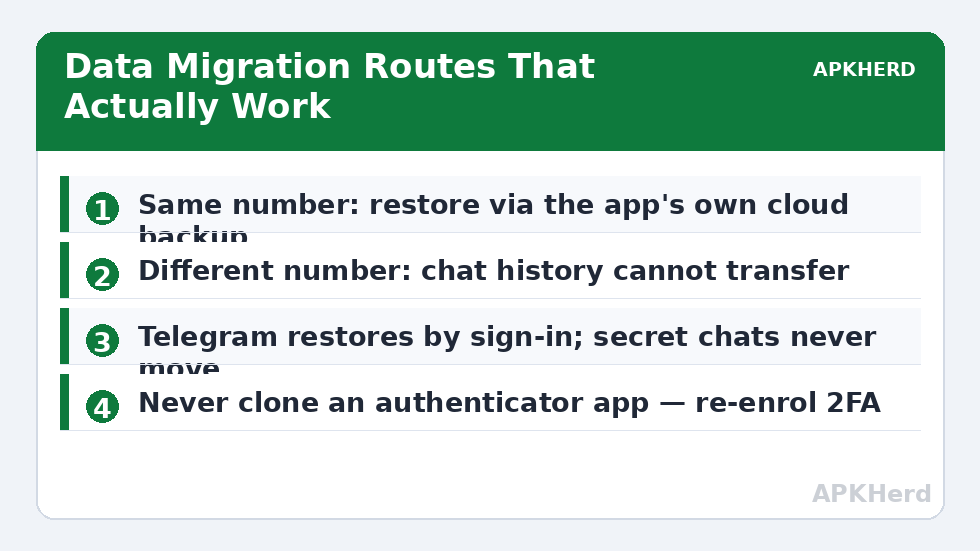
If the clone will run a different number, history cannot follow it. WhatsApp does not merge or transfer chats between numbers; the clone starts empty and that is a hard platform limit, not a settings problem.
The Other Built-In: Local Transfer Features
WhatsApp also offers a same-ecosystem transfer (Settings > Chats > Transfer chats) designed for moving to a new phone over a local connection. It is not built for original-to-clone moves on one device and generally will not offer a same-device profile target — do not plan around it. Telegram needs no migration at all: its chats live server-side, so signing into the clone with the same number restores everything except secret chats, which are device-bound by design and never transfer anywhere. Signal, like WhatsApp, is backup-and-restore based, with an encrypted local backup file you can move through the file picker — one of the few cases where a file legitimately crosses the boundary, because the app itself exports and imports it under your passphrase.
Files, Media, and Documents: Use the Share Sheet
For loose files rather than app state, Android’s cross-profile sharing is the sanctioned bridge. From the original app or Files, share the document and pick the cloned app (work-profile targets appear with a briefcase badge in the share sheet), or save to a shared location both can reach — a cloud drive folder is the pragmatic choice, since both copies can sign into Drive. Island’s file shuttle and similar profile-manager features formalise the same trick. What you cannot do is give the clone bulk access to the original’s private folder, and any app requesting “all files access” to accomplish a clone migration is asking for far more than the job needs; see the permission warnings in our privacy risks of third-party app cloners article.
A Worked Example: Moving WhatsApp From a Virtual Cloner to a Work Profile
This is the migration readers most often want, because virtual cloners break and profiles do not. Step one: inside the cloner-hosted WhatsApp, run a full Google Drive backup (Settings > Chats > Chat backup > Back up) and note which Google account it used. Step two: set up the work profile and install WhatsApp inside it, per the Island work profile setup guide. Step three: during the profile WhatsApp’s registration with the same number, ensure the phone’s Google account matching the backup is available to the profile, and accept the restore. Step four: once history is confirmed in the new home, delete the copy inside the virtual cloner and consider uninstalling the cloner entirely. From then on, protect the new setup with the routine in backing up and restoring work profile apps. If instead the second account is new and empty by definition, none of this applies — new numbers start fresh, and the setup guidance in App Cloners covers the rest.
The Authenticator Warning Nobody Gives You
One category of data deserves a siren: two-factor authentication seeds. If you clone or migrate the app that generates your codes (Google Authenticator, Microsoft Authenticator, Authy) without using its official transfer feature, the clone either fails to produce valid codes or — worse — appears to work while the original silently becomes the only valid copy, or vice versa. People have locked themselves out of bank accounts this way during cheerful phone migrations. The rule is absolute: never move an authenticator by cloning; use the app’s built-in account transfer/export, or disable 2FA and re-enrol it fresh in the new home, confirming a login with the new codes before deleting the old app. The same caution applies to banking apps’ device bindings and to passkeys, which sync through your platform account — sign the account into the new installation and let passkeys follow it, rather than trying to transplant app data.
Frequently Asked Questions
Can I copy WhatsApp’s database file directly into a clone?
Not on a modern unrooted phone. Each installation’s data folder is owned by its own user ID and sealed off by Android’s sandbox and scoped storage, so neither a file manager nor the other copy can read or write it. The supported route is WhatsApp’s own Google Drive backup and restore during registration.
Will my chats move to the clone if it uses a different phone number?
No. Chat history belongs to a phone number, and WhatsApp offers no merge or cross-number transfer. A clone registered to a different number starts with an empty history. Only a same-number move — typically switching duplication methods — can restore a backup.
Can I keep the same number active in the original and the clone at once?
No. A WhatsApp number can be registered on one phone installation at a time; registering it in the clone signs it out of the original. (WhatsApp’s companion-mode linked devices are a separate feature and are not the same as a second full account.) Decide which copy is the number’s permanent home before migrating.
How do I move regular files between the original and a work-profile clone?
Use Android’s share sheet — profile apps appear as badged targets — or a cloud folder both copies can access, or your profile manager’s file-shuttle feature if it has one. Bulk direct access to another installation’s private folder is blocked by design.
Telegram in my clone shows all my chats but WhatsApp shows none. Why?
Because they store data differently. Telegram keeps regular chats on its servers, so any signed-in client sees them immediately. WhatsApp stores history on the device and in your personal Drive backup, so a new installation only receives history through an explicit backup restore during setup.