
Setting up multiple user profiles android family sharing style is the oldest duplication feature Android has — it predates every cloner on this site — and for households it is still the most complete one. A user profile is not a cloned app; it is a whole separate phone environment: its own home screen, apps, accounts, files, and settings, switched from the lock screen or quick settings. A child gets a profile with only their games and a kids’ account signed in. A partner gets theirs. Nothing leaks between profiles because the separation is the same user isolation Android uses for work profiles, just bigger. This guide covers enabling users, what the device owner can control, the honest hardware and OEM caveats, and how profiles differ from the cloning approaches covered elsewhere here.
Enabling Multiple Users
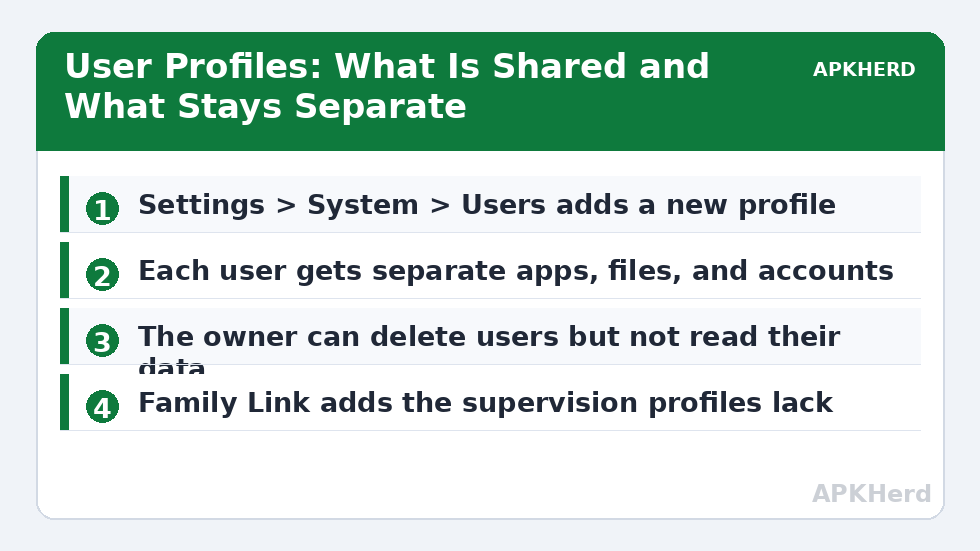
On stock Android (Pixels and near-stock builds), open Settings > System > Users (on some builds: Settings > Users & accounts > Users), enable Allow multiple users if present, then tap Add user. Give the profile a name, hand the phone over, and the new user runs through a mini setup: their own Google account, their own apps from the Play Store, their own wallpaper and PIN if you enable a separate lock for that profile. Switching afterwards is a two-tap affair from Quick Settings (the user avatar icon) or the lock screen. Samsung buries the feature deeper — on many One UI builds it lives in Settings > Users, and some US carrier Galaxy models omit it entirely; Xiaomi replaces the concept with Second Space, which achieves a similar result through its own two-environment model.
Two profile types matter for families. A full user gets persistent storage, their own apps, and can usually install and update apps themselves. A restricted profile (mainly on tablets) lets the owner curate exactly which apps and content the profile can touch — the closest thing Android has to a built-in kids’ mode, though Google Family Link does the supervisory job better on phones. Guests are a third, temporary option: a session that can be wiped on exit, ideal for handing your phone to someone briefly.
What Is Shared, What Is Not
| Element | Shared across users? |
|---|---|
| Apps installed | No — each user installs their own copies (app code is shared on disk, data is not) |
| App data, logins, photos, files | No — fully separate per user |
| Phone calls & SMS | Owner controls whether other users can access telephony/SMS history |
| Wi-Fi networks, Bluetooth pairings | Mostly yes — system-level settings are shared |
| Storage space | One pool — each user’s data counts against the same total |
| Notifications | Each user sees only their own, and only while active |
| System updates | Installed once by the owner; apply to all users |
The storage line deserves emphasis for families: two teenagers’ profiles with games and camera rolls will consume a 128 GB phone faster than any cloner setup. Conversely, the privacy line deserves equal emphasis: a secondary user cannot see the owner’s files, messages, or app data at all — this is a stronger boundary than hiding apps in a drawer, and it is enforced by the OS rather than by a launcher setting.
Owner Controls and Family Link
The device owner (the first user) can remove other users, and on many builds can toggle whether a user may make calls and send SMS. What the owner cannot do natively is fine-grained supervision: time limits, content filters, and activity reports live in Google Family Link, which manages a child’s Google account across whichever profile or device they use. The sane family configuration is: one user profile per person, each signed into their own Google account, children’s accounts supervised through Family Link, and the owner’s profile protected by a strong PIN since the owner profile can delete the others. Screen-time and bedtime rules then follow the child, not the hardware — so they survive a future phone upgrade too.
Performance and Practicality, Honestly Assessed
Only the active user’s processes run at full tilt, but background users’ apps can still hold processes and receive some sync activity unless the system trims them, so a phone with 4 GB of RAM juggling three profiles will feel it. Storage duplication is real: the same app installed for three users stores its data three times. Switching users takes several seconds and closes nothing, but it is still a context switch — which is why, for the narrow job of “two accounts of one app on my own phone,” profiles are overkill compared with a work profile setup or an OEM dual-apps feature. Profiles earn their keep when the sharing unit is a person, not an account: a shared family tablet, a phone a child borrows daily, a household spare device. For visual privacy within your own profile — keeping cloned apps out of a casual glance at the drawer — the lighter techniques in hiding cloned apps from the launcher are the right scale of tool. And for parents weighing a dedicated environment for a child against per-account management of many apps, the account-level patterns in managing multiple social accounts on one device complement this setup. The full cloning series lives under App Cloners.
Removing a User Profile
The owner can delete a user from Settings > System > Users; the user can also delete their own profile from the same screen. Deletion is total and unrecoverable — that profile’s apps, photos, and files vanish. Have each family member’s important photos backed up to their own Google Photos before you ever need this button.
Guest Sessions: The Ten-Second Version of All This
For the visitor who needs your phone for five minutes — a delivery driver checking an address, a friend whose battery died — do not hand over your unlocked profile at all. Pull down Quick Settings, tap your user avatar, and start a Guest session: a blank, disposable environment with no access to your apps or data. When the guest session ends, Android offers to remove everything done in it. Enable Add users from lock screen in the Users settings if you want family members to reach their own profiles without your PIN. Guest mode is the most underused privacy feature on Android, and unlike the full profiles above it requires no setup whatsoever — which is exactly why it is the right default for lending the phone.
Frequently Asked Questions
How many user profiles can an Android phone have?
It depends on the manufacturer and storage, but typically between three and five user profiles plus a guest. Many OEM builds reduce or hide the feature — Samsung carrier models sometimes omit it, and Xiaomi substitutes Second Space instead. If the Users menu is missing from Settings, your build likely does not support standard multi-user.
Can another user on my phone see my photos or messages?
No. Each user profile has fully separate app data, files, and accounts, enforced by Android’s user isolation. Another user cannot open your gallery, read your messages, or see your notifications. The owner profile can delete other profiles, which is power over their existence — but not a window into their contents.
Do apps need to be downloaded again for each user?
Each user installs apps under their own account, so yes, the app is set up per user — though Android shares the underlying app package on disk, so the download cost is mostly paid once while data storage is per user. Each user signs into apps separately with their own accounts.
What is the difference between a user profile and a work profile for family use?
A user profile is a complete separate environment you switch to from the lock screen — best when a different person uses the phone. A work profile lives inside your own environment, giving you a second copy of apps side by side in one drawer — best when you personally need two accounts. Families sharing hardware want user profiles; individuals splitting work and personal want a work profile.
Can I set time limits on my child’s profile?
Not with user profiles alone — they provide separation, not supervision. Use Google Family Link on the child’s Google account for screen-time limits, app approvals, content filters, and activity reports. Family Link works across profiles and devices, so the rules follow the child rather than the phone.