
This shelter app freeze isolate apps guide is about the most honest tool in the cloning space. Shelter is a free, open-source front-end for Android’s work profile, developed by Peter Cai and distributed primarily through F-Droid. It does not virtualise anything, it has no ads, no accounts, and no analytics in the F-Droid build — the code is public for anyone to audit. What it gives you is the ability to install apps into an isolated profile, clone existing apps into it, and freeze profile apps so completely that, while frozen, they might as well not be on the phone. For the common use case — “there is an app I need twice a month that I do not trust the other 29 days” — nothing else is as clean.
What Shelter Is, in System Terms
Like Island, Shelter becomes the profile owner of an Android work profile. The isolation you get is therefore the operating system’s own: profile apps get a separate data directory, a separate instance of each app, and no window into your personal apps’ storage. Shelter’s contribution is a minimal, transparent manager: a two-tab interface (Main / Shelter), install and clone actions, per-app freezing, and an auto-freeze option. It intentionally lacks the extra power features Island offers — no “God mode,” no elaborate shortcut system — and for many users that restraint is the feature.
| Shelter action | What Android actually does |
|---|---|
| Clone app to Shelter | Installs the app again for the work profile user |
| Freeze app | Disables the package in the profile; it cannot run at all |
| Unfreeze app | Re-enables the package with data intact |
| Auto-freeze | Freezes the app after a delay once you leave/screen locks |
| Uninstall from Shelter | Removes the profile copy only; personal copy untouched |
Installation and Profile Setup
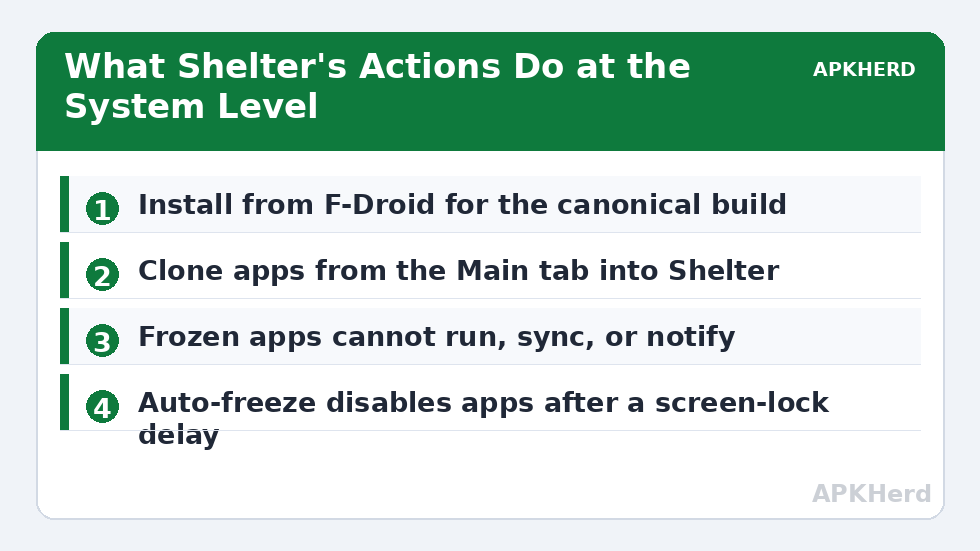
Install Shelter from F-Droid (the Play Store historically carried restricted or outdated variants because of policy friction around device-admin style apps, so F-Droid is the canonical source). On first launch Shelter explains the work profile and asks to set it up; Android then runs its standard provisioning screen — the wording about your “organisation” managing the profile is generic system text, and here the profile owner is Shelter acting for you. Provisioning takes a minute. Afterwards your app drawer gains badged duplicates of any apps you clone, and Shelter’s own interface shows two tabs.
Two prerequisites to check before you begin. Your phone must not already host an employer-managed work profile — Android’s one-profile-per-user limit applies, and Shelter will fail at provisioning. And some OEM ROMs, particularly older MIUI/EMUI builds, interfere with profile creation; if provisioning stalls, the usual fixes are removing a second user account, disabling any existing “dual space” environment temporarily, or accepting that your ROM is one of the incompatible ones and falling back to the approach described in our Island setup guide (which faces the same underlying limit) or a virtual cloner.
Cloning and Installing Apps Into Shelter
From Shelter’s Main tab, tap an installed app and choose Clone to Shelter. Android installs a second copy into the profile; first launch inside the profile is a true first launch — fresh data, fresh login. Alternatively, from the Shelter tab you can install new apps directly into the profile (via the profile’s own Play Store or an APK), which is the right move for an app you never want in your personal space at all: a sketchy utility, a delivery app with a notorious SDK trail, a work-mandated app on a personal phone.
Contact and file boundaries deserve one honest note. Profile apps do not see your personal files except through Android’s cross-profile share sheet and file picker, and they see contacts only as Android’s profile contact sharing permits. That friction is the security model working; if an app inside Shelter cannot find a document, share it across deliberately rather than granting broad storage access to work around the design.
Freezing: The Workflow That Makes Shelter Worth It
Select any app in the Shelter tab and choose Freeze. The app is disabled instantly: no background runs, no trackers phoning home, no battery use, no notifications — and its data remains exactly as you left it. Unfreeze when needed; the app resumes in seconds. Then configure Auto Freeze in Shelter’s settings: a global delay (for example, freeze apps 10 minutes after the screen locks) applied to apps you mark, which turns isolation into a habit you do not have to remember. A practical pattern: keep your banking-adjacent and shopping apps in Shelter with auto-freeze on, your second-account messengers unfrozen but profile-paused at night via the system Work profile toggle, and anything you are evaluating frozen immediately after each trial session.
Freezing has one behavioural consequence people misread as a bug: frozen messengers do not receive messages until unfrozen — nothing is lost, delivery simply happens on next launch. If a frozen app seems to have forgotten its login afterwards, that is the app’s own token expiry during long freezes, not Shelter damaging data. For the full care-and-feeding of profile data, see backing up and restoring work profile apps before you ever consider removing the profile.
Shelter vs Island, Briefly
Both managers drive the same Android mechanism, so isolation strength is identical. Shelter wins on transparency (open source, F-Droid, no ads) and on auto-freeze; Island wins on onboarding polish and advanced options. Our head-to-head Parallel Space vs Island vs Shelter comparison adds the virtualisation alternative to the picture, and the App Cloners index collects the related guides on data migration and account safety.
Moving Files Across: Shelter’s File Shuttle
The profile boundary makes deliberate file movement awkward by design, and Shelter’s answer in recent versions is a File Shuttle: a built-in mechanism for passing files between the main profile and Shelter through a controlled picker rather than by granting apps broad storage rights. Use it from within Shelter’s interface to stage a document into or out of the profile, then delete the staged copy when you are done — the shuttle is a bridge you cross, not a shared folder you leave open. Where the shuttle is unavailable in your build, the standard Android share sheet accomplishes the same transfer one file at a time: share from the source app and choose the profile copy (marked with a briefcase badge) as the target. Either way, resist the workaround of installing a permissive file manager inside the profile and granting it all-files access; that reopens exactly the exposure the profile exists to close.
Frequently Asked Questions
Is Shelter really free and open source?
Yes. Shelter is free and open-source software (source is published by its developer, Peter Cai), distributed through F-Droid without ads or in-app purchases. The F-Droid build contains no analytics SDKs, which is a large part of why privacy-focused users choose it over commercial cloners.
What does freezing an app in Shelter actually do?
Freezing disables the app inside the work profile at the system level. A frozen app cannot run in the foreground or background, cannot sync or send notifications, and uses no battery — but its data is preserved, and unfreezing restores it within seconds exactly as you left it.
Can Shelter and my employer’s work profile coexist?
Almost never. Most Android builds allow only one work profile per user, so if your employer already manages a profile, Shelter cannot create its own. Your options are a separate user profile (if your phone supports multiple users) or a virtual-space cloner, each with different trade-offs.
Why should I install Shelter from F-Droid instead of the Play Store?
F-Droid is the developer’s canonical distribution channel; Play Store policy restrictions on apps that manage profiles have historically limited or outdated the Play listing. The F-Droid build is the current, complete, ad-free version, and its build is verifiable against the published source.
If I remove the Shelter profile, what happens to apps inside it?
Everything in the profile — cloned apps and all their data — is permanently deleted, while your personal apps are untouched. Export or back up anything you need from inside the profile before removing it, because there is no recovery afterwards.