

Few Android rituals carry more inherited mythology than “wiping the cache partition.” Forum posts from 2015 prescribe it for everything from battery drain to bad luck. The modern truth is narrower and more useful: most current phones use seamless (A/B) updates and many no longer expose a cache partition to wipe at all, so the option may simply not exist on your device — and that is fine, because the problems it once solved are now mostly solved elsewhere. This guide explains how to clean system cache partition recovery android menus present (or don’t), what the action actually does, and when it is genuinely the right tool versus a harmless-but-useless ceremony.
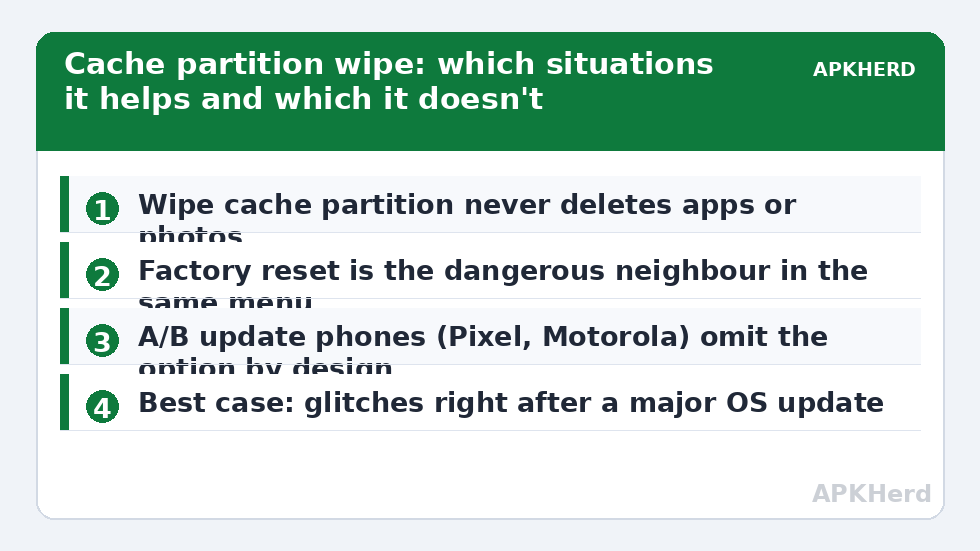
Definitions first, because confusion here causes real damage. The cache partition (or its modern equivalent) holds temporary system files: OTA update staging, system app optimisation artefacts, logs. Wiping it does not delete your apps, photos, accounts, or settings — that is the neighbouring menu item, Factory reset / Wipe data, which very much does. Every year, people factory-reset their phones aiming for the cache option one line away. Read each recovery screen twice before confirming anything, and back up regardless — not because cache wiping needs it, but because working in recovery menus is no place to be one mis-tap from regret.
What changed: why your phone may not have this option
- A/B (seamless) update devices — most Pixels, many OnePlus and Motorola models — apply updates to a second slot and largely retired the dedicated cache partition. Their recovery menus simply omit “Wipe cache partition.”
- Samsung devices (Galaxy series) still ship a classic recovery with the option present, which is why most current tutorials are written on Galaxies.
- App caches ≠ system cache. Your apps’ caches live in the data partition and are managed per-app — the domain of our cache-clearing guide. Recovery wiping never touched them in the way people imagine.
How to clean system cache partition recovery android: Samsung walkthrough
- Power off completely.
- On most recent Galaxy models, connect the phone to a PC via USB (required to trigger recovery on many of them), then hold Volume Up + Power until the Samsung logo appears; release.
- In recovery, navigate with volume keys to Wipe cache partition, confirm with Power, highlight Yes, confirm again.
- Choose Reboot system now. First boot may take slightly longer while the system rebuilds what it needs.
Other brands vary: Pixels with the option absent need no substitute (there is nothing to wipe); Xiaomi and others hide recovery behind similar button combos but increasingly without a cache entry. If your recovery menu has no cache option, that is a design fact, not a fault — close the menu with Reboot and use the in-Android methods in the next section. For the visual-storage side of post-update bloat, the DiskUsage guide shows what actually grew.
When wiping the cache partition actually helps
| Situation | Worth it? | Why |
|---|---|---|
| Glitches immediately after a major OS update | Yes — the classic case | Stale system artefacts from the old version can conflict with the new |
| Random “storage full” weirdness post-update | Sometimes | Update staging debris; also check insufficient storage causes |
| General slowness, battery drain | Rarely | Almost never cache-partition related on modern Android |
| Freeing user storage space | No | The partition is small and separate; your gigabytes are elsewhere — see hidden files hunt |
The modern substitutes that do the real work
What people actually want from this ritual — a phone that feels fresh after an update — is delivered today by: a simple reboot (clears more stale state than folklore admits); per-app cache clearing for the one misbehaving app; uninstalling and reinstalling a single corrupted app; and, in genuinely stubborn post-update cases, the cache wipe above on devices that offer it. Fold the reboot habit into the monthly routine, keep expectations calibrated, and browse the rest of our storage cleaners material for the fixes matched to real causes rather than inherited ceremonies.
Brand-by-brand availability, as of recent models
| Brand | Wipe cache partition present? | Notes |
|---|---|---|
| Samsung Galaxy | Yes, in recovery | Recent models need a USB cable connected to a PC to enter recovery |
| Google Pixel | No | A/B updates; recovery offers factory reset and safe-mode style options instead |
| OnePlus | Generally no on recent models | Older OxygenOS recoveries had a cache option; newer builds dropped it |
| Xiaomi / Redmi / POCO | Varies by MIUI/HyperOS version | Mi Recovery on some models lists “Wipe cache”; many newer ones omit it |
| Motorola | Generally no on recent models | A/B design like Pixel |
This table is a snapshot of a moving target — manufacturers change recovery layouts with major updates — so treat the menu in front of you as authoritative. If the option is absent, nothing is broken and no workaround exists or is needed; the maintenance value people sought from it lives in reboots and app-level cache management now.
Safe mode: the diagnostic that replaced half of this ritual’s job
Half the problems people once threw a cache wipe at — “my phone went weird after an update” — are better diagnosed with Safe mode, which boots Android with third-party apps disabled. If the glitch vanishes in Safe mode, a third-party app (often one that hasn’t updated for the new OS) is the culprit, and the fix is updating or removing it, not wiping anything. Enter it by long-pressing the Power-off option on most phones; exit by restarting. Safe mode deletes nothing, risks nothing, and answers the question the cache wipe never could: whose fault is it? It deserves to be step one of post-update troubleshooting, ahead of recovery menus entirely.
What OEM support will actually tell you
It is instructive that manufacturer support scripts have quietly demoted this procedure. Samsung still documents wipe-cache for post-update issues; Google’s Pixel help routes update problems through Safe mode, app updates, and storage checks, with factory reset as the documented last resort. The industry’s centre of gravity moved because the partition’s role shrank — updates are atomic A/B swaps now, and stale-cache conflicts are rarer than app-version conflicts. Following the modern order (reboot → Safe mode → per-app measures → cache wipe where offered → reset only at the end) aligns you with how the platforms are actually built today, which is the entire editorial standard for this category.
A last distinction: “Repair apps” and other recovery-menu neighbours
Some recoveries (notably Samsung’s) include an additional option, Repair apps, which re-optimises apps after an update and occasionally resolves post-update misbehaviour the cache wipe doesn’t. It is non-destructive — it deletes no user data — but it takes time as apps are re-processed. If your post-update glitch survives cache wipe and Safe mode, Repair apps is a reasonable next rung before the factory-reset cliff edge. As always in recovery: read the exact wording on your device, because menu neighbours have wildly different consequences and the manufacturers rearrange them between generations.
Frequently Asked Questions
Does wiping the cache partition delete my data?
No. It removes temporary system files only — not apps, photos, accounts, or settings. The dangerous neighbour in the same menu is Factory reset/Wipe data. Read carefully before confirming anything in recovery.
Why doesn’t my Pixel have a Wipe cache partition option?
Because A/B seamless-update devices retired the dedicated cache partition. Its absence is by design; there is no equivalent step you are missing, and app-level cache management happens inside Android instead.
Will wiping the cache partition free up storage?
Negligibly. The cache partition is small and separate from user storage. If you need gigabytes, they are in chat media, downloads, and app data — not in system cache. The gains people report usually came from the accompanying reboot.
How often should I wipe the cache partition?
Never on a schedule. It is a targeted response to post-update glitches on devices that still offer it, not maintenance. Monthly reboots and per-app cache management cover routine hygiene.
My phone won’t enter recovery with the button combo. What now?
Combos vary by brand and model, and recent Samsung devices require a USB connection to a PC. Check your manufacturer’s official support page for your exact model rather than forcing random combinations — and if your recovery has no cache option, nothing is wrong.