

File lists lie by omission. A list shows you forty folders with sizes, sorted politely, and your eyes glaze over the one that matters. A block map never lets that happen: with the diskusage app visual storage analyzer guide approach, storage becomes a picture where area equals bytes, and the 11 GB folder is an 11 GB rectangle you physically cannot miss. DiskUsage is a tiny, free, ad-free Android app that has rendered storage this way for over a decade. This guide teaches you to read its maps properly — proportions, drill-downs, and the path names that turn “something is huge” into “this exact thing is huge, and here is what to do about it.”
Your first scan, done right
- Install DiskUsage (developer: Ivan Volosyuk) from the Play Store. It is a few hundred kilobytes — an analyzer that is itself bloatware would be a poor start.
- Open it and choose Storage card — this is your internal shared storage, the space you actually control. (On most modern phones there is no separate SD entry unless you have a card inserted.)
- Wait for the scan. On a full 128 GB phone it takes under a minute; the app reads the directory tree and draws it as nested blocks.
- Resist deleting anything yet. The first pass is for orientation: which three blocks dominate the screen?
Back up before the deleting pass. DiskUsage itself can delete files (long-press > Delete), which is convenient and dangerous in equal measure — it has no trash folder and no undo. Work out your hit-list in DiskUsage, verify precious items are backed up, then delete either inside the owning app or via a file manager with a trash bin, such as Files by Google.
How to read a diskusage app visual storage analyzer guide map
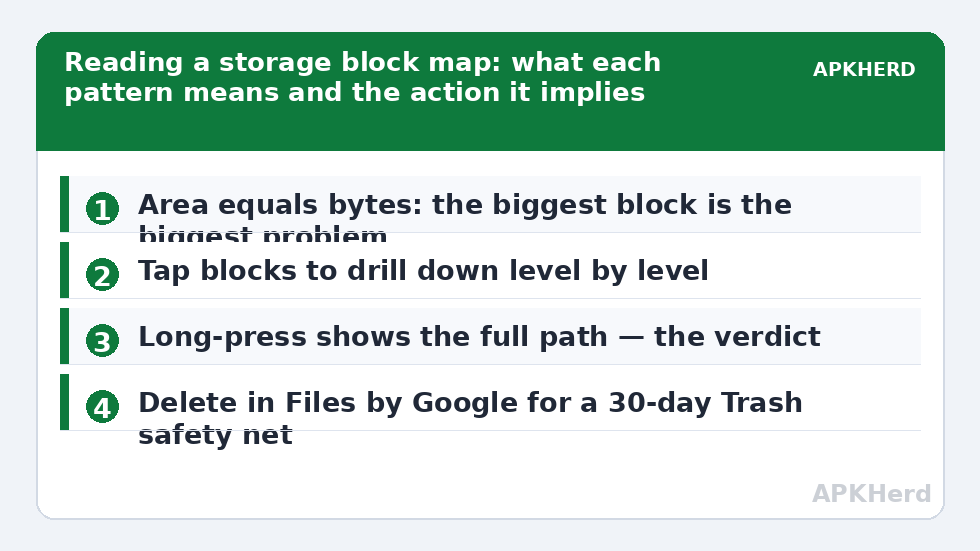
The map is a tree drawn as rectangles. The outermost block is the whole storage. Inside it, sibling folders sit side by side, each sized by its total content including subfolders. Tap any block to zoom into it; the breadcrumb at the top shows your path. Two reading skills matter:
- Proportion beats numbers. A block occupying a third of the width is a third of your storage, full stop. If that block is labelled with a name you barely recognise, you have found your investigation.
- Depth tells the story. Zoom until blocks stop subdividing into meaningfully different sizes. A fat WhatsApp block resolves into Media, then .Video, then individual chats’ folders — each zoom level localises blame. When a single file remains (one video, one backup archive), the map has done its job.
Translating blocks into actions
| What the map shows | What it usually means | Action |
|---|---|---|
| One app’s folder > 25% of storage | Media vault or game assets | Prune inside that app; see WhatsApp storage manager for the classic case |
| .thumbnails block in the GB range | Gallery thumbnail database growth | Delete contents; rebuilds leaner — details in thumbnails guide |
| Many medium blocks in Download | Accumulated installers, PDFs, zips | Sort by date in a file manager and sweep |
| Folder named after an app you uninstalled | Orphaned leftover | Confirm the app is gone, then delete — more in leftover folders guide |
| Big block you cannot open in other apps | Scoped-storage protected data (Android/data, obb) | Manage via Settings > Apps > that app’s total size; don’t force it |
DiskUsage vs the built-in tools, honestly
Settings > Storage gives category totals (Apps 38 GB, Images 12 GB) — accurate but not locational; it cannot tell you which folder inside “Apps” is the problem without tapping through every app. Files by Google sorts individual large files well but thinks in files, not trees. DiskUsage thinks in trees, which is why it remains the diagnostic of choice in our storage cleaners workflow and in the large hidden files hunt. Use all three: categories for totals, DiskUsage for structure, Files for safe deletion with a trash net.
Limits you should know about
Scoped storage constrains DiskUsage like every other app: it can measure protected areas unevenly across Android versions, and some paths will show as unanalysable or missing entirely. If Settings insists an app uses 9 GB while DiskUsage shows its visible folders at 900 MB, believe Settings for the total — the difference is protected data, and the fix lives inside that app. DiskUsage also shows file system allocation, so thousands of tiny files can inflate a block slightly beyond their byte total; for diagnosis, that rounding is irrelevant.
A worked example: reading one map in ninety seconds
To make the method concrete, here is an illustrative scan — invented numbers, typical shape — of a 128 GB phone showing 112 GB used. The top level draws four dominant blocks: DCIM at 31 GB, Android at 44 GB, WhatsApp’s media store inside it, and a long tail of small folders. Zooming DCIM shows Camera 24 GB (expected — that’s the photo library, mostly video) and a surprising 5 GB .thumbnails block, which goes on the eviction list. Zooming Android resolves into media 19 GB (WhatsApp 16 GB of it — the real villain) and data 21 GB, where two games hold 9 GB and 7 GB respectively, one of them unplayed since spring. The tail contributes a 2.8 GB Download block.
Ninety seconds of reading produced a complete action list with expected yields: prune WhatsApp’s large items (several GB), uninstall the dormant game (7 GB), evict thumbnails (~4 GB after rebuild settles smaller), sweep Downloads (2 GB). Total realistic recovery: well into double digits — from a map, without opening a single cleaner app. That is why this tool anchors the diagnostic phase of the monthly routine: every other step in this category works better when it starts from a picture instead of a suspicion.
Comparing scans over time
DiskUsage’s sleeper feature is repeatability. Take a scan after a cleanup, then another a month later, and the growth becomes visible: whichever block expanded fastest is your leak, and leaks — not static totals — are what maintenance exists to plug. A Telegram block growing 1 GB a month despite a cache cap means the cap setting didn’t save or a second account is active; a games block growing means in-game asset downloads, not installs. Screenshots of the two maps side by side settle arguments that memory and vibes cannot. Store the screenshots in the same folder as your monthly Storage-settings screenshots and you own a proper longitudinal record of your phone’s storage health — the kind of evidence-based habit this entire category is trying to teach.
Frequently Asked Questions
Is DiskUsage free and does it contain ads?
Yes, it is free, and the Play Store version is famously minimal — no ads, no account, no upsells. It is also very small, which is appropriate for a storage tool.
Can DiskUsage delete files?
It can, via long-press, but deletion is immediate with no trash or undo. Safer practice: use DiskUsage to identify targets, back up first, then delete in the owning app or in Files by Google where a 30-day Trash exists.
Why doesn’t DiskUsage show everything Settings shows?
Scoped storage. Android restricts app access to other apps’ private data (Android/data, obb), so visual analyzers may under-represent those areas while Settings reports true totals. Treat mismatches as a sign the bulk is protected app data.
How often should I run a visual scan?
Whenever storage crosses about 85% full, and as a monthly two-minute check if you are actively managing a small phone. The map makes drift visible long before the “storage full” warnings start.
What should I do about the huge block labelled with an app I don’t recognise?
Read its full path (long-press). It is usually a component of an app you do know — a game engine folder, a social app’s media store — or a leftover from something uninstalled. Identify before deleting; if it belongs to an uninstalled app, it is a safe corpse removal.